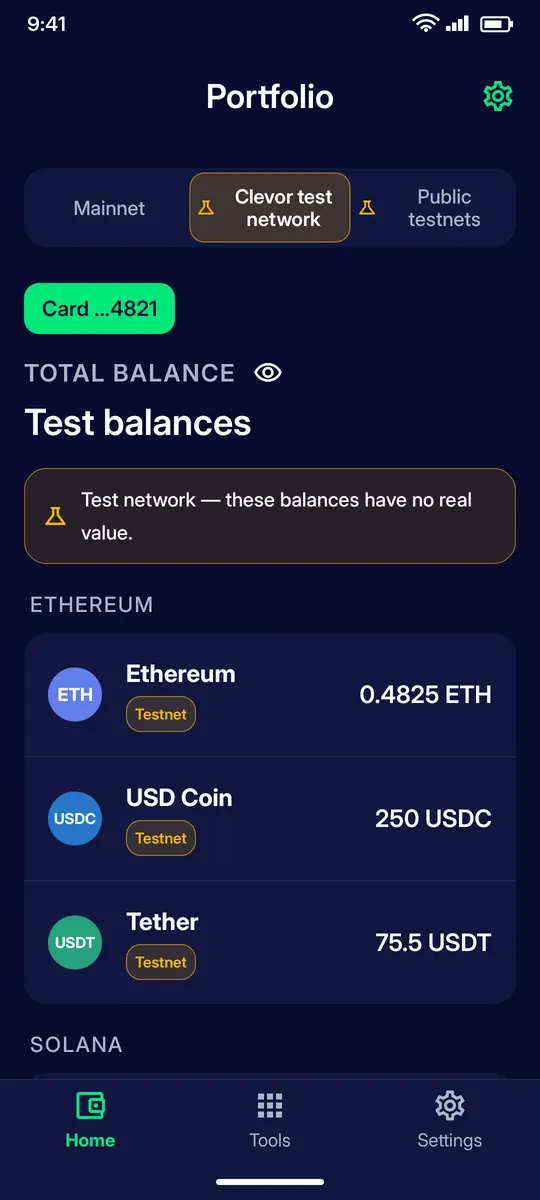
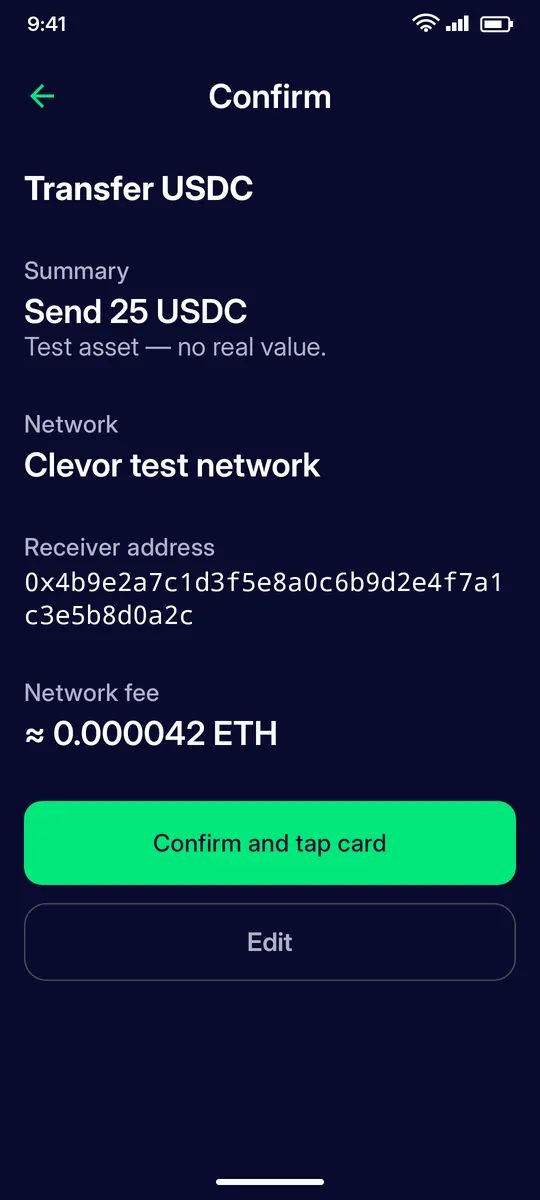
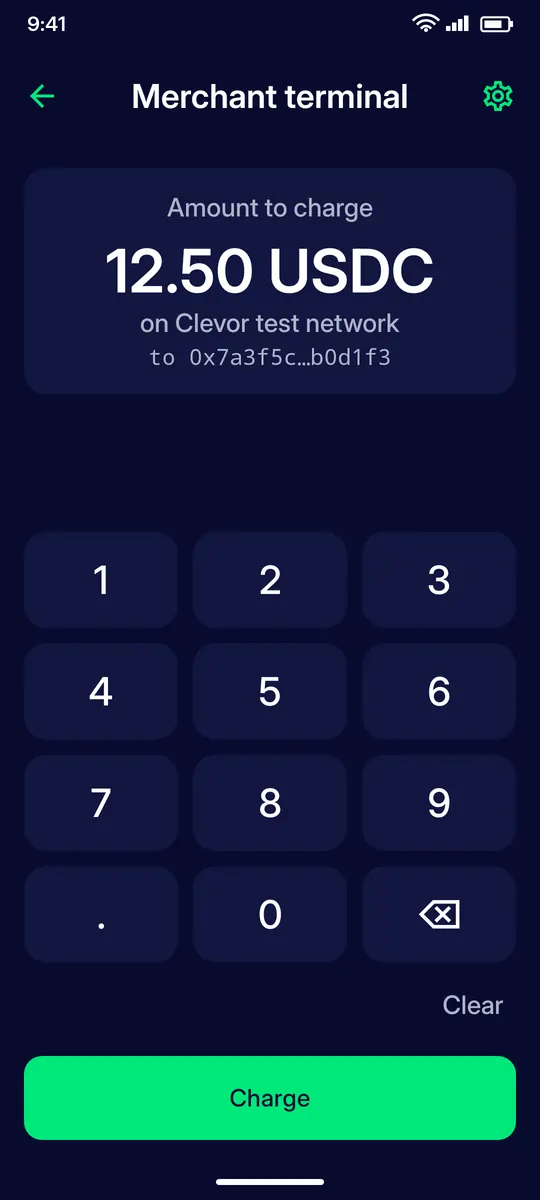
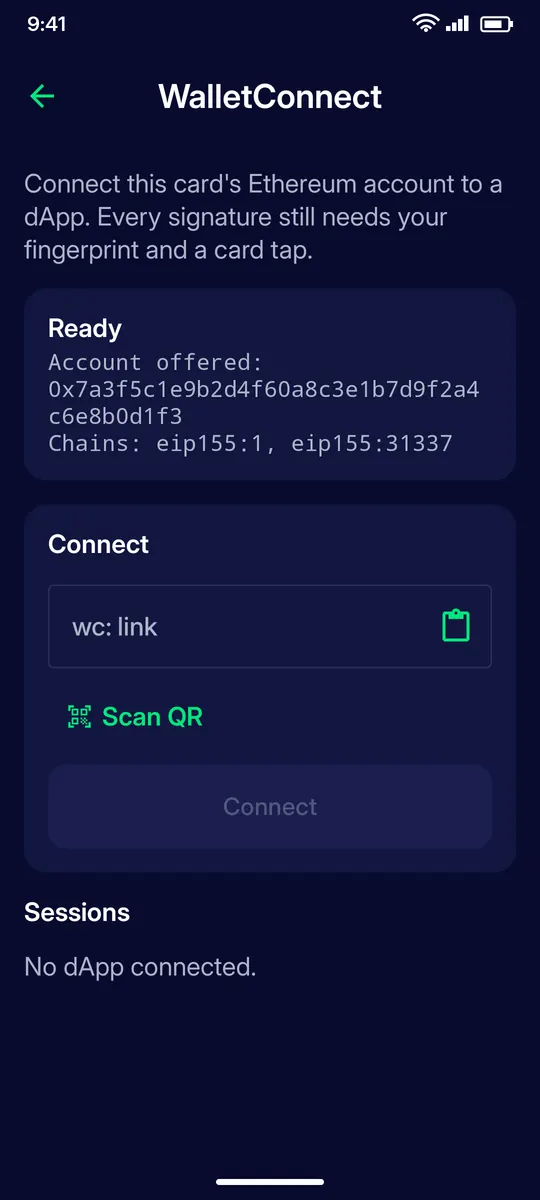
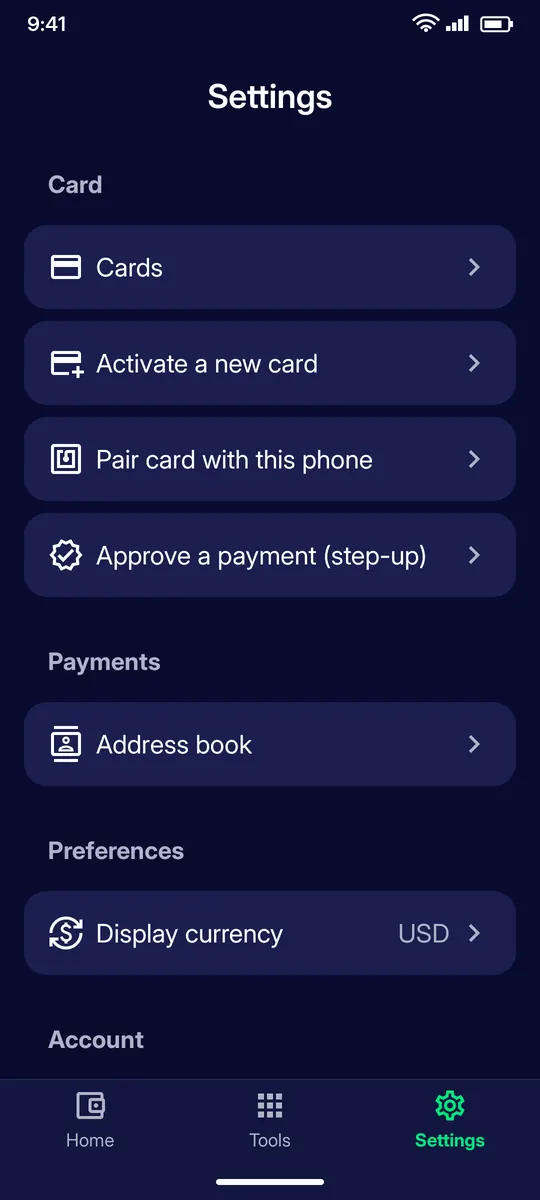
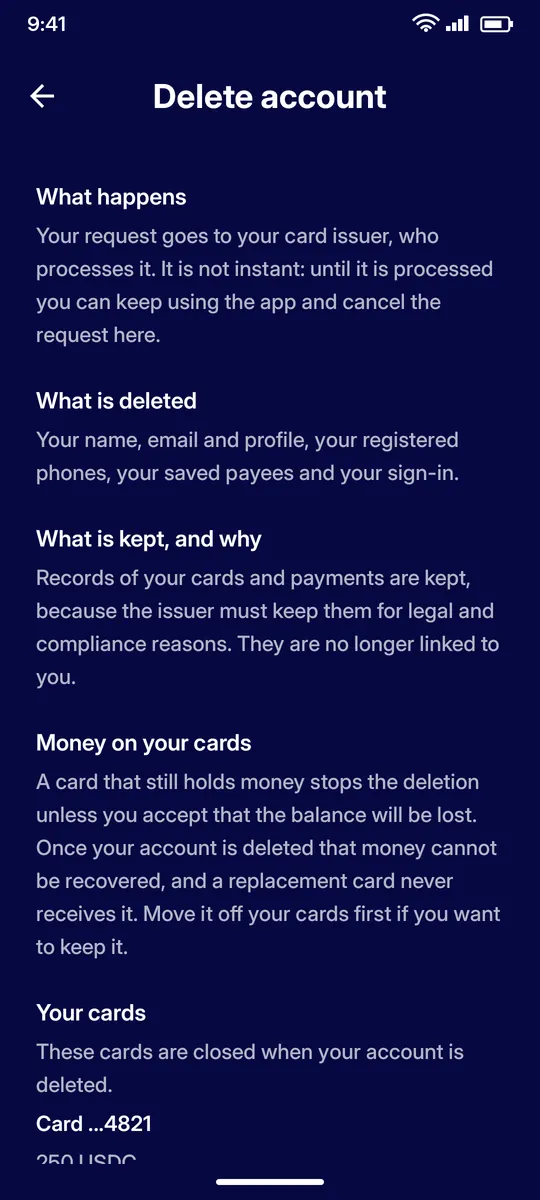
The Clevor app activates your card, shows your balances, prepares payments and approves larger purchases. The card does the signing: every payment is signed by the chip in your card and authorised by the Clevor issuer. The app never holds a private key.

Free on Google Play · Requires a Clevor card and an Android phone with NFC.
13 short tutorials, two to five minutes each, from your first sign-in to accepting payments as a merchant.
The screens were captured on the Clevor test network, which is why balances carry a “Testnet” badge. Test balances have no real value.
Start with your account and card activation, then go wherever you need: paying, sending, managing the card, running a terminal.
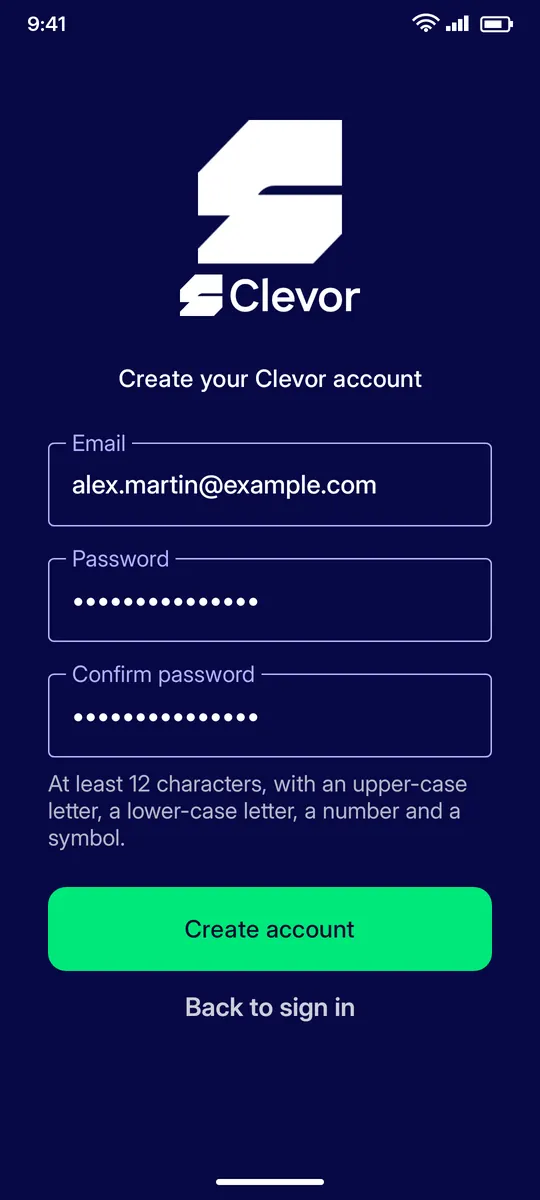
Sign up with your email, confirm the code and set up two-step verification.
Read →
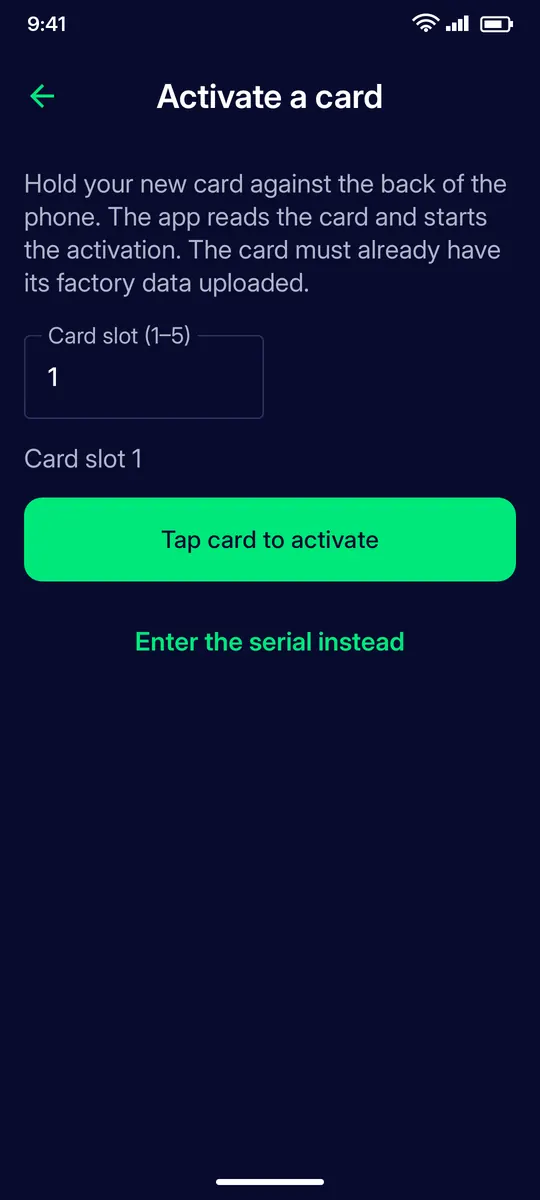
Tap the card or enter its serial, let the issuer prepare it and finish with a tap.
Read →
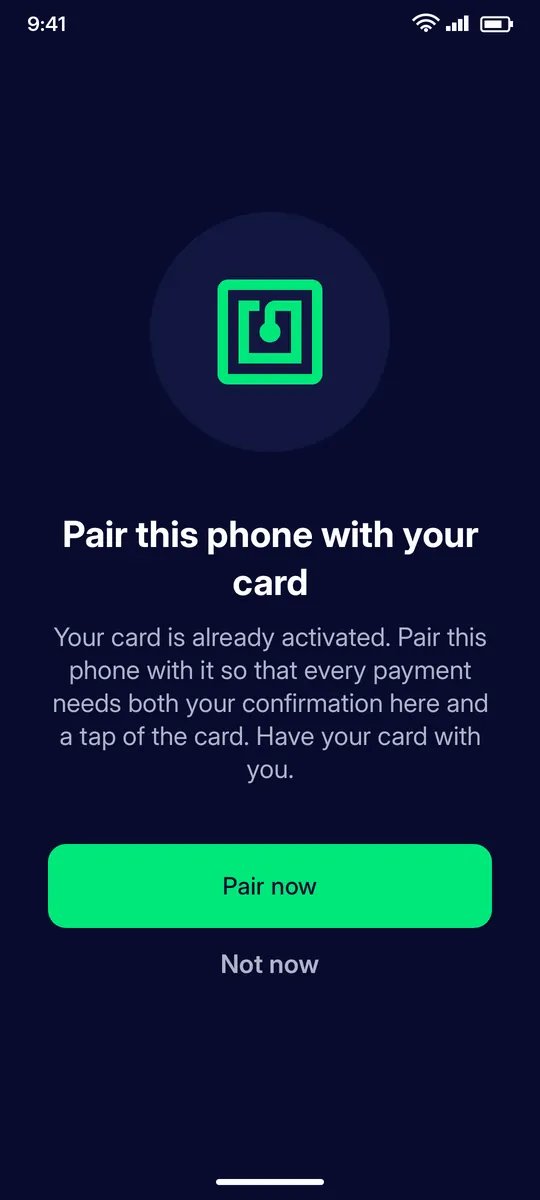
Register a new phone with a card that was already activated.
Read →
Read your balances per network, copy your address and receive with a QR code.
Read →
Enter, confirm, tap: the card signs and the issuer broadcasts.
Read →
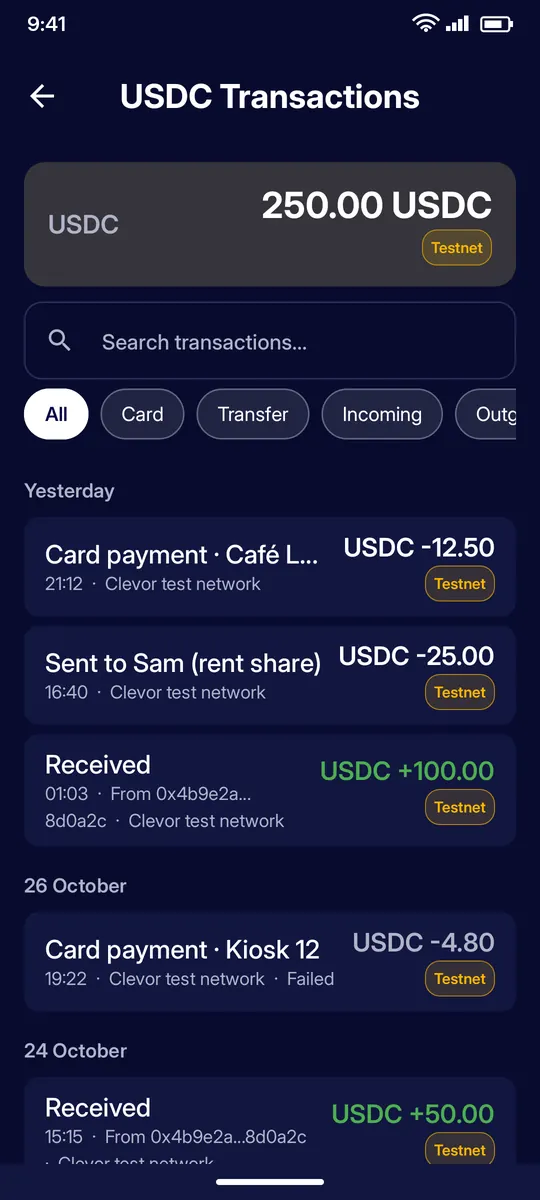
Find, filter and inspect every payment and transfer per asset.
Read →
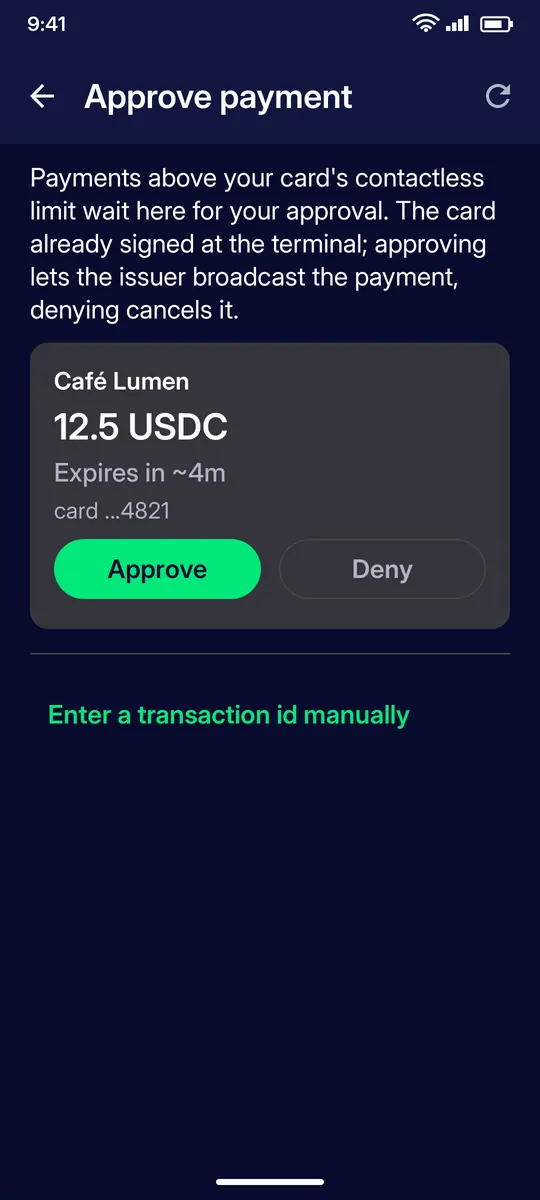
Tap to pay, and approve payments above your limit on your phone or with a POS PIN.
Read →
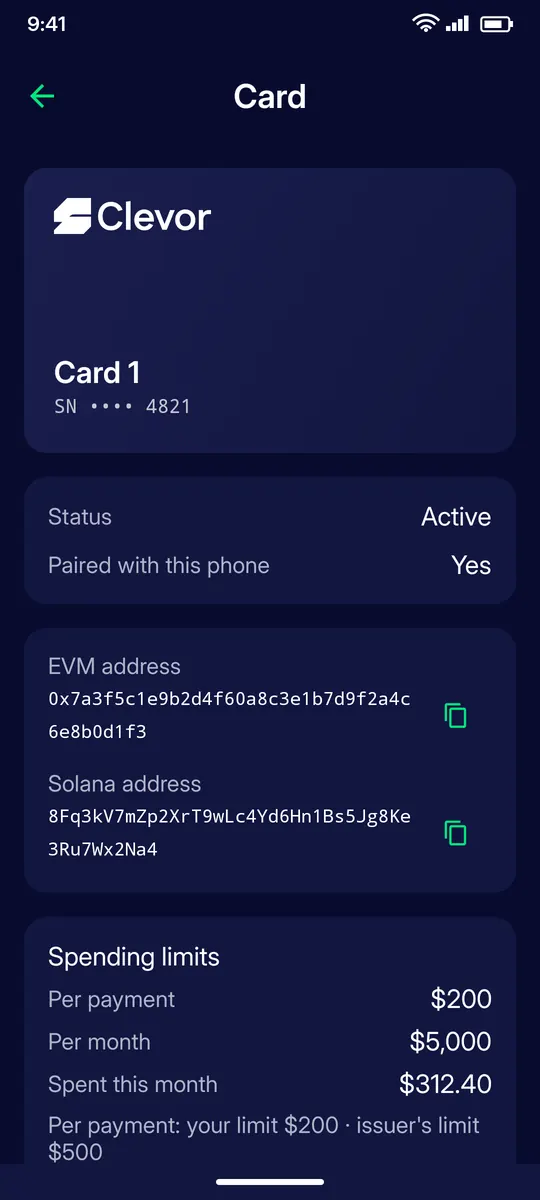
Freeze a card, check limits, change or unblock the PIN, rotate the PUK.
Read →
Register your business and take Clevor card payments on your phone.
Read →
Prove you control your address and use your card with dApps.
Read →
Personal details, currency, address book, passcode, two-step verification and passkeys.
Read →
What deletion removes, what the issuer keeps, and how to cancel.
Read →
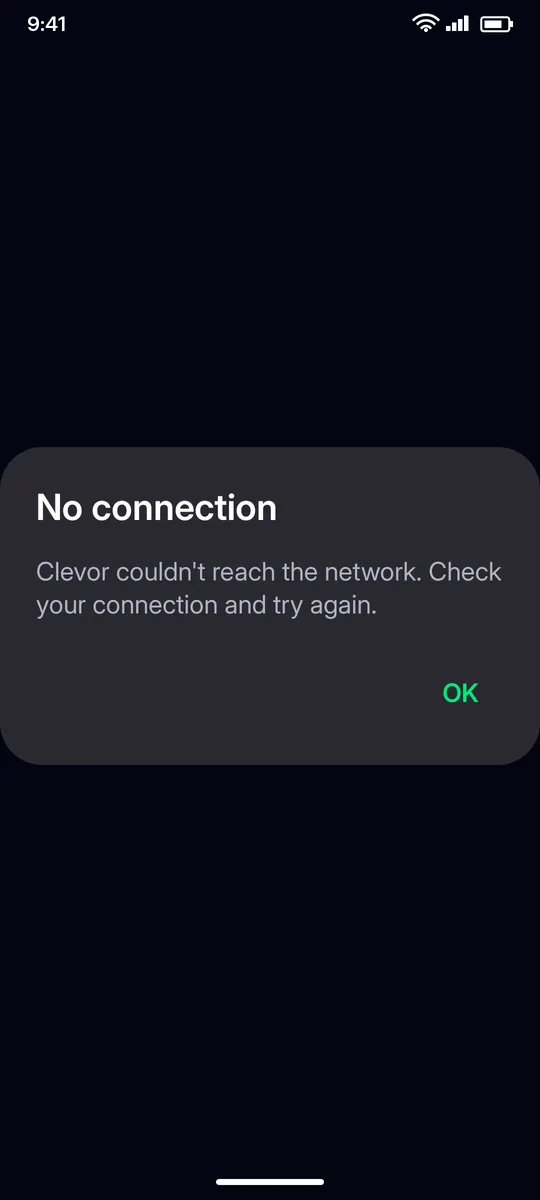
What the most common messages mean and what to do.
Read →
Install the Clevor app on your Android phone, create your account and activate your card in minutes. No card yet? Join the waitlist.