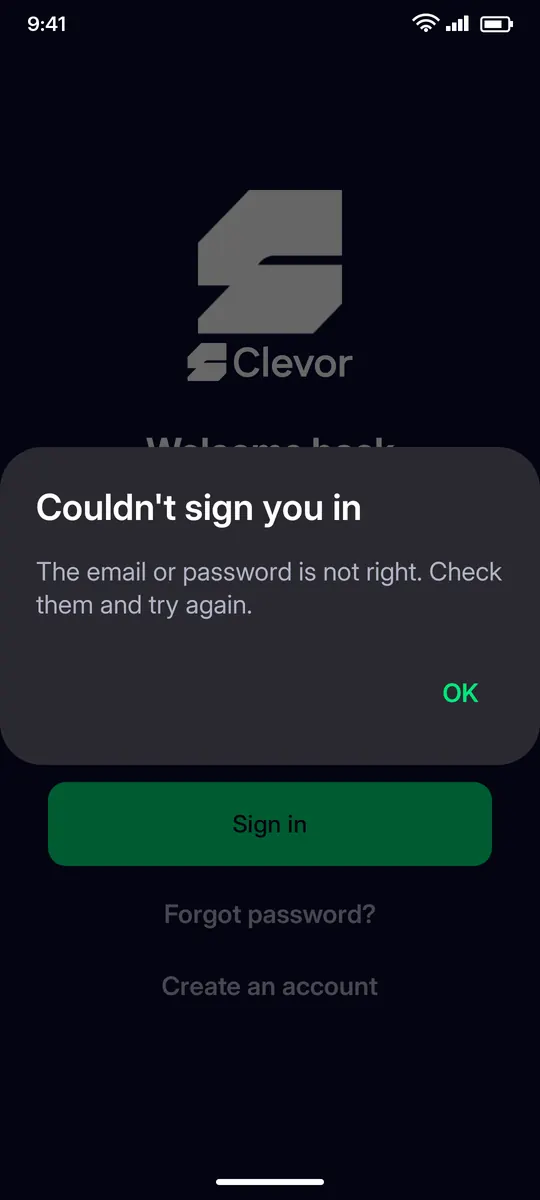
The email or password is not right. Check both and try again, or use Forgot password?.
STEP 2
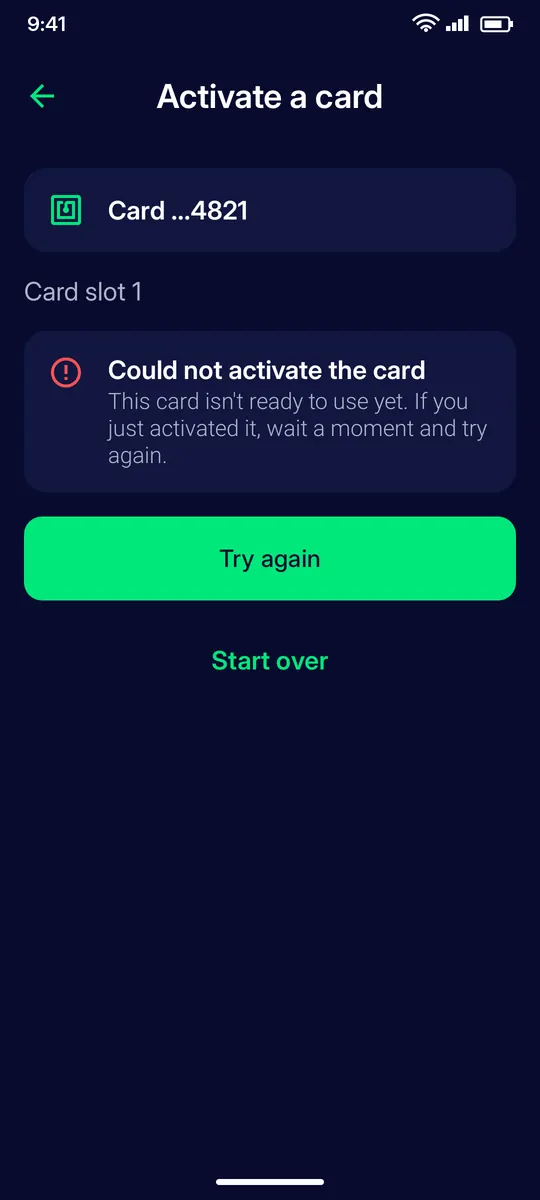
Could not activate the card
The card is not ready to use yet. If you just activated it, wait a moment and tap Try again; Start over restarts the activation.
STEP 3
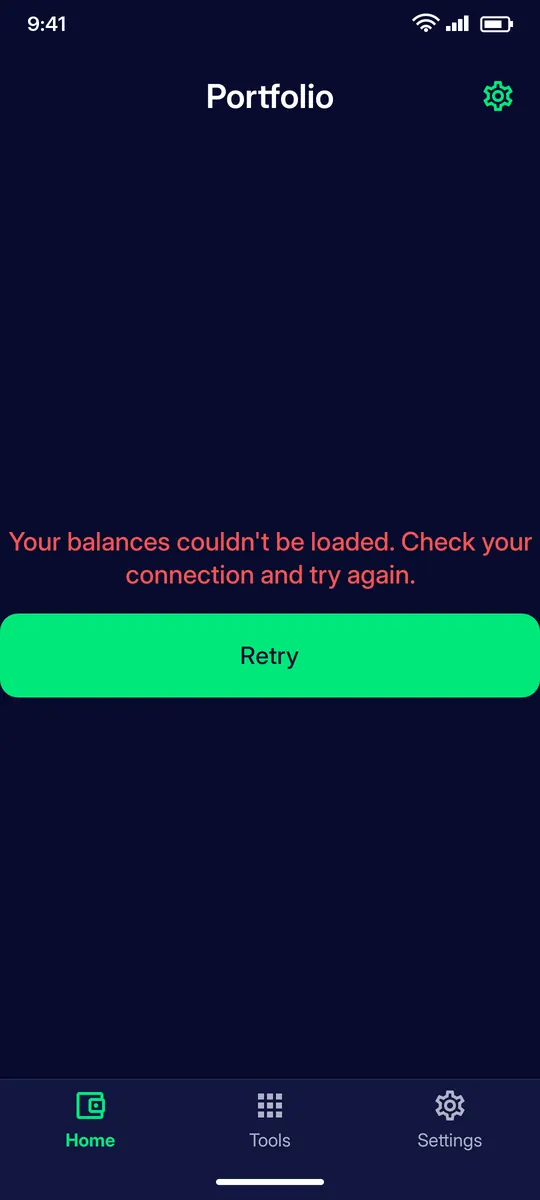
Balances couldn’t be loaded
The app could not reach the network. Check your connection and tap Retry.
STEP 4
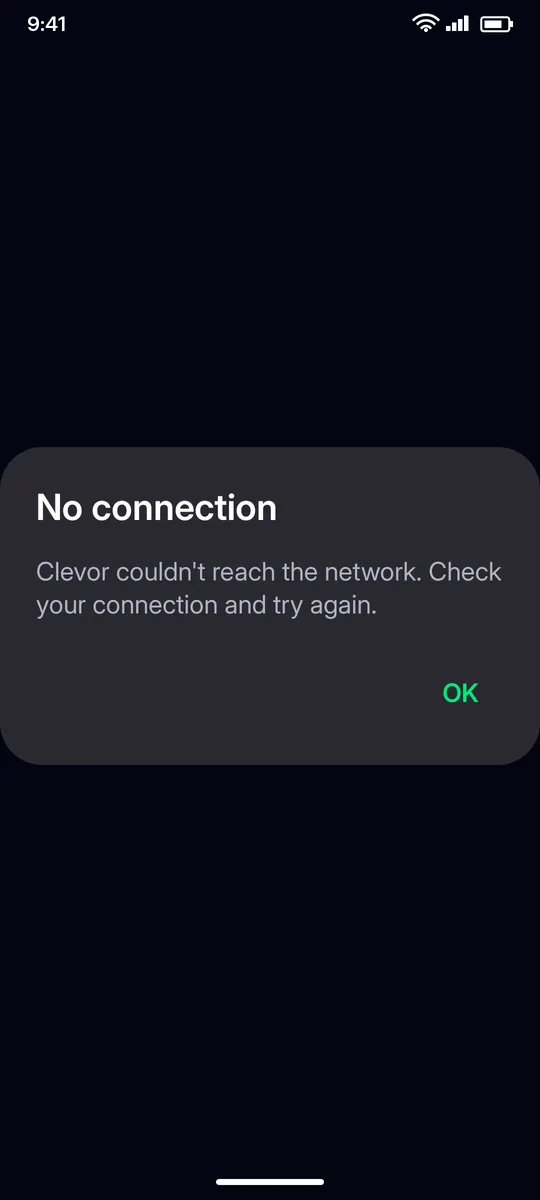
No connection
Clevor couldn’t reach the network. Check Wi-Fi or mobile data and try again.
STEP 5
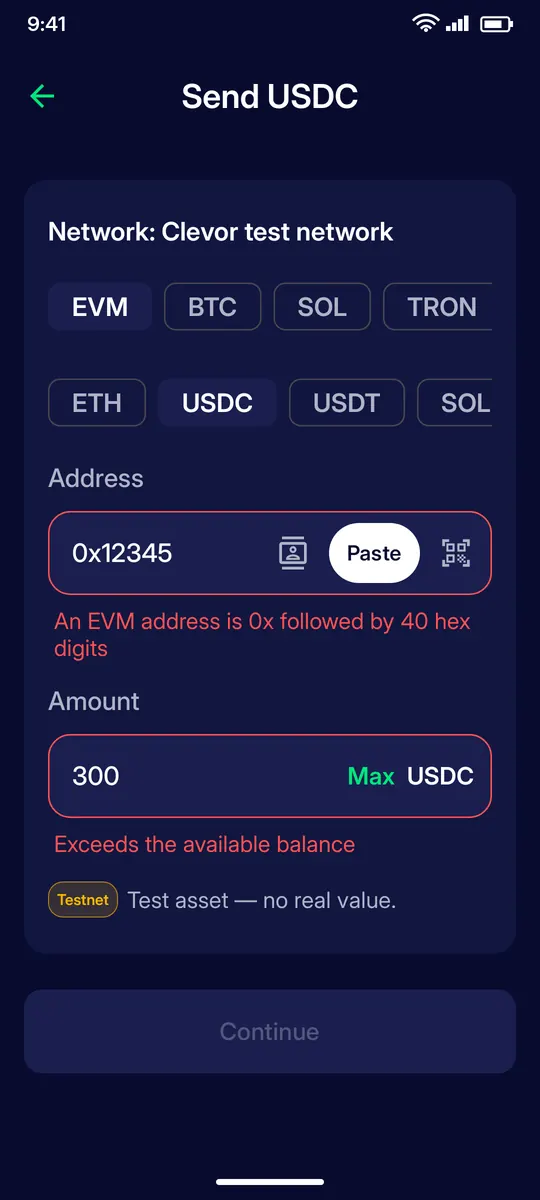
Address or amount rejected
An EVM address is 0x followed by 40 hex digits; other networks have their own formats. The amount cannot exceed the available balance.
STEP 6
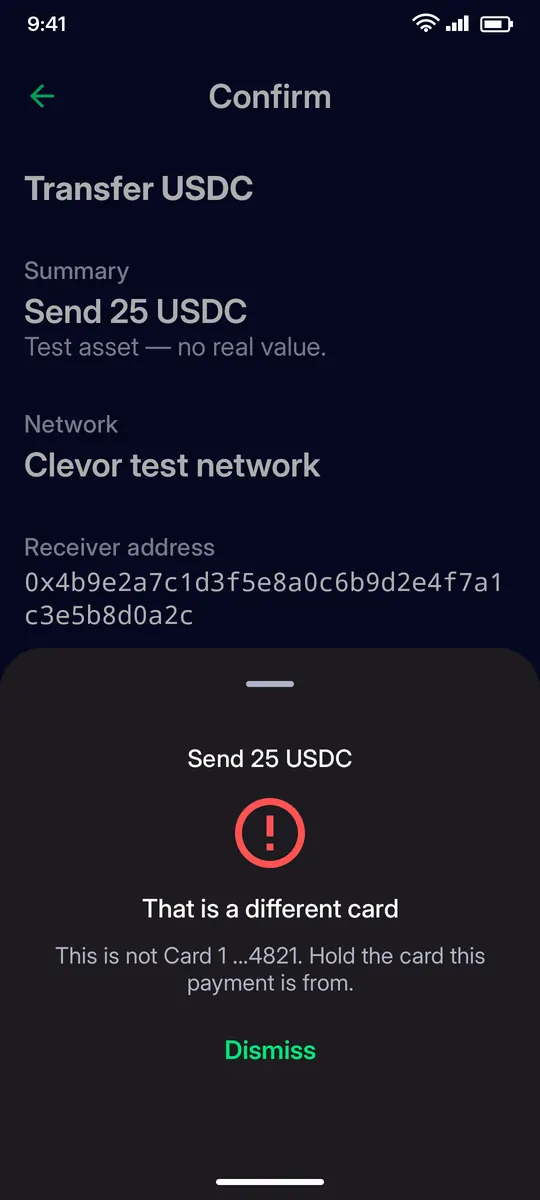
That is a different card
You held a card that is not the one this payment is from. Hold the right card to the phone.
STEP 7
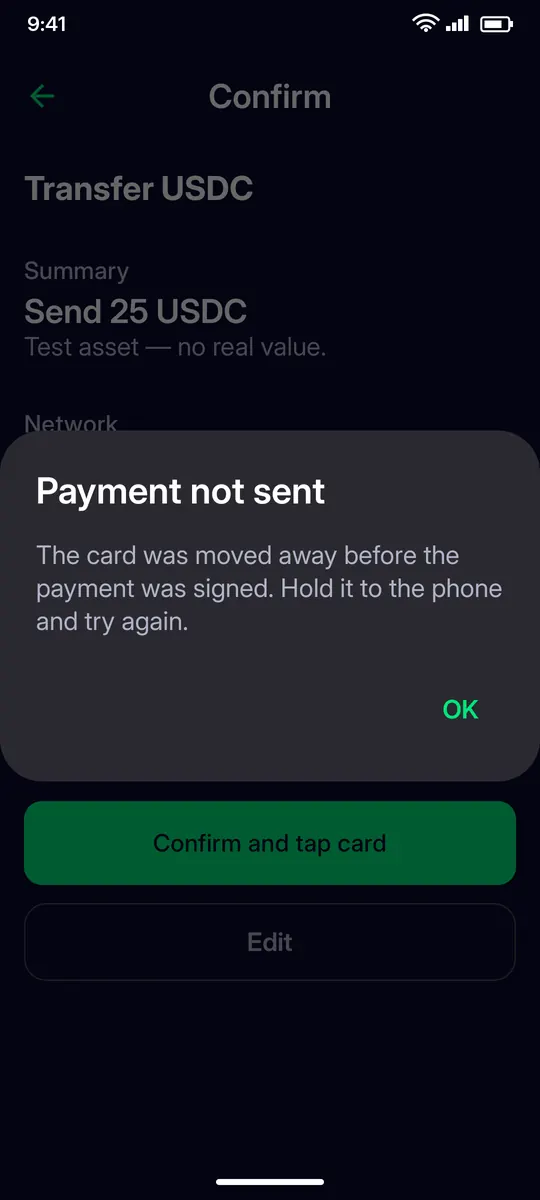
Payment not sent
The card was moved away before the payment was signed. Hold it to the phone and keep it still until the sheet says Done, then try again.
STEP 8
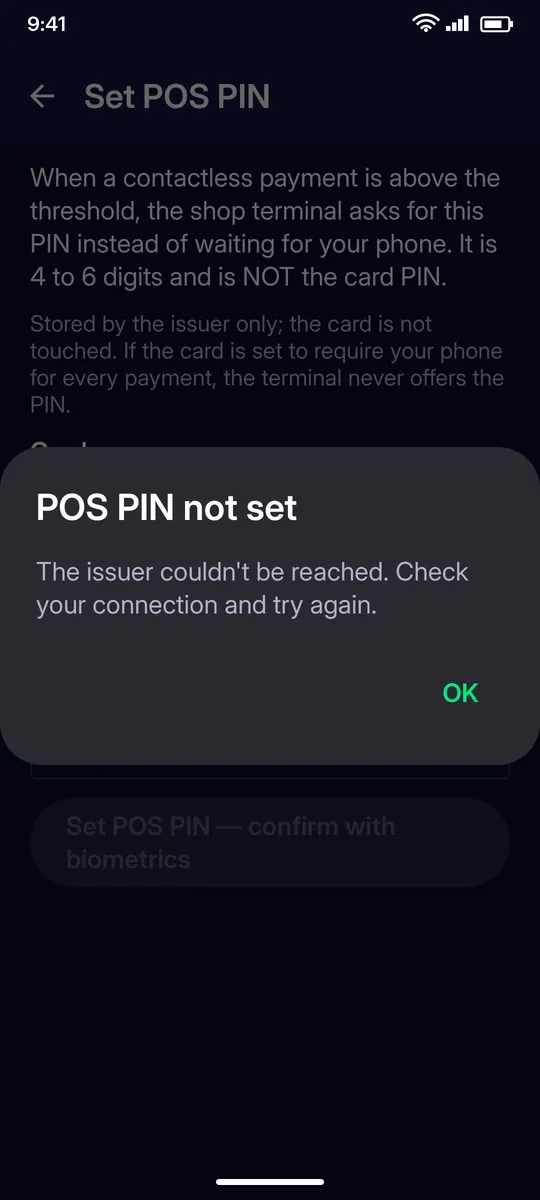
POS PIN not set
The issuer couldn’t be reached. Check your connection and set the POS PIN again.
STEP 9
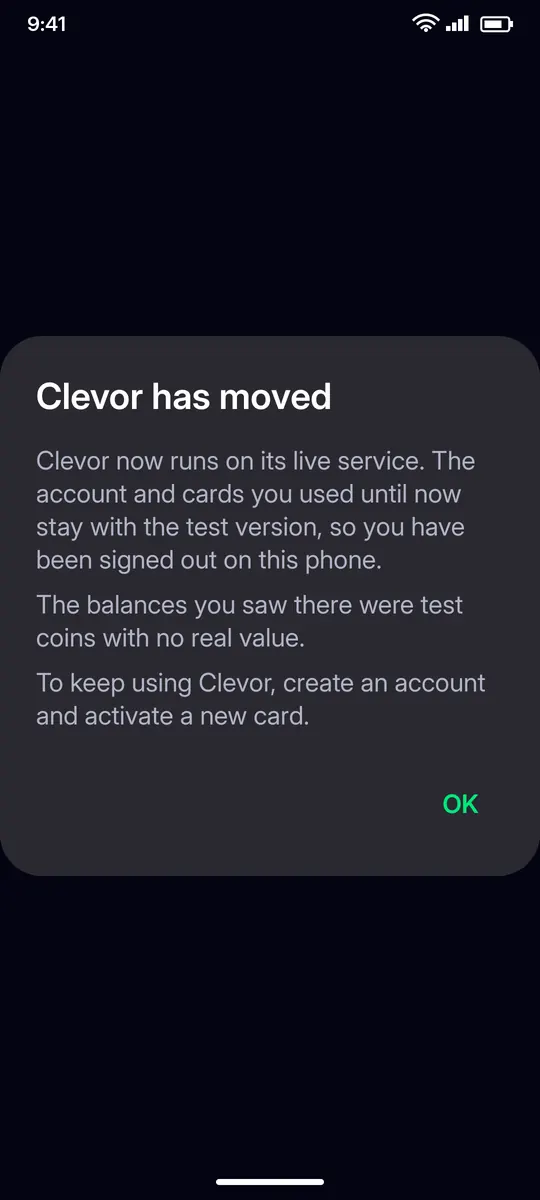
Clevor has moved
Clevor now runs on its live service. Accounts and cards from the test version stay with the test version, and the balances you saw there were test coins with no real value. Create an account and activate a new card to keep using Clevor.
QUESTIONS
Questions
The app says it cannot reach the network. What should I do?
Check Wi-Fi or mobile data and try again with Retry or OK. Balances, activation and POS PIN changes all need a connection to the issuer.
My card is not detected when I tap it. What can I do?
Hold the card flat against the back of the phone, keep it still until the sheet says Done, and make sure it is the card the payment is from.
The app signed me out and says Clevor has moved. Why?
Clevor now runs on its live service. Accounts and cards from the test version stay with the test version. Create an account and activate a new card to continue.
Where do I get help?
Use the contact page on clevor.cards. Describe the message you see and the step you were on.