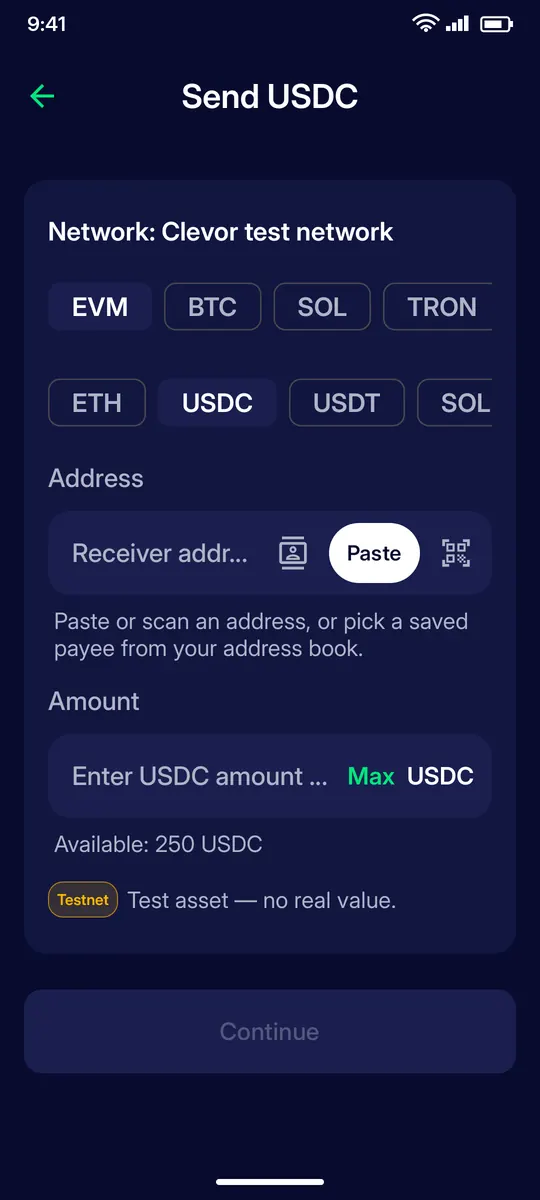
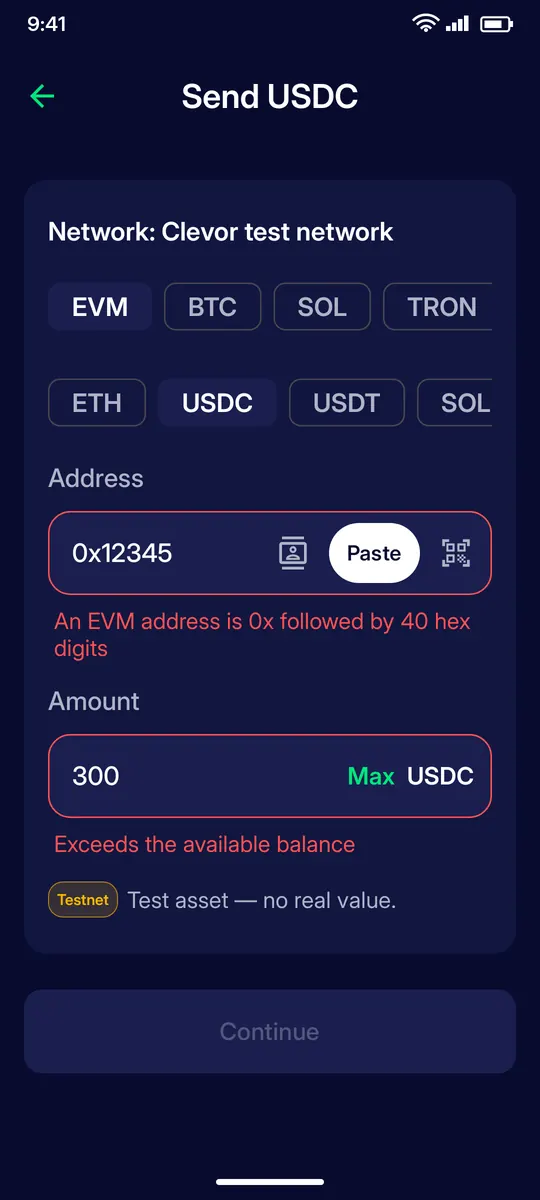
Pick the chain family (EVM, BTC, SOL, TRON) and the coin. Paste or scan the receiver address, or pick a saved payee from your address book.
STEP 2
Enter the amount
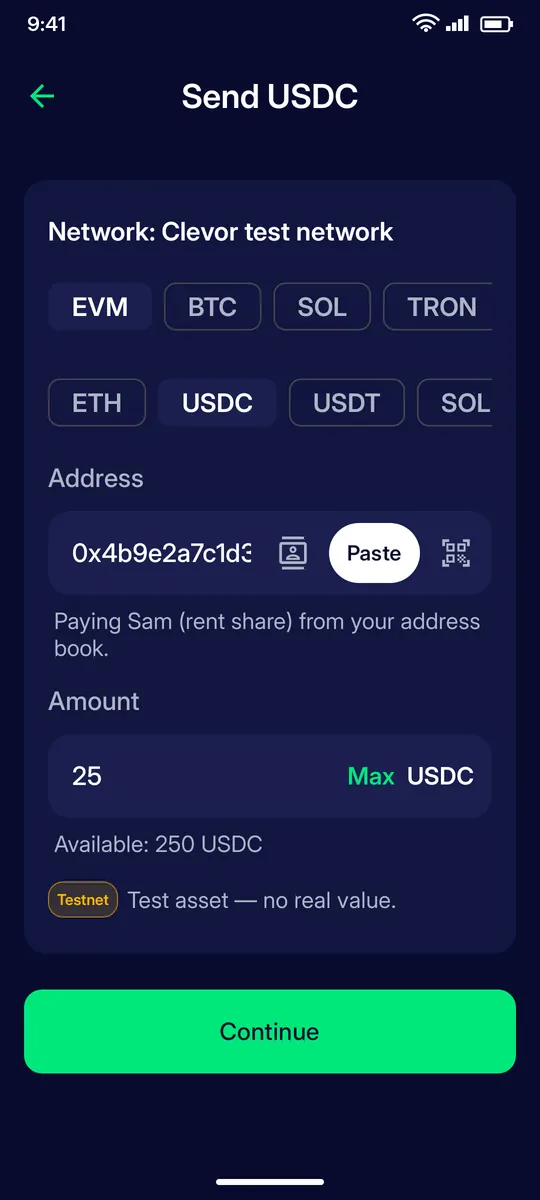
Type the amount or tap Max. The available balance is shown underneath. Tap Continue.
STEP 3
Check and confirm
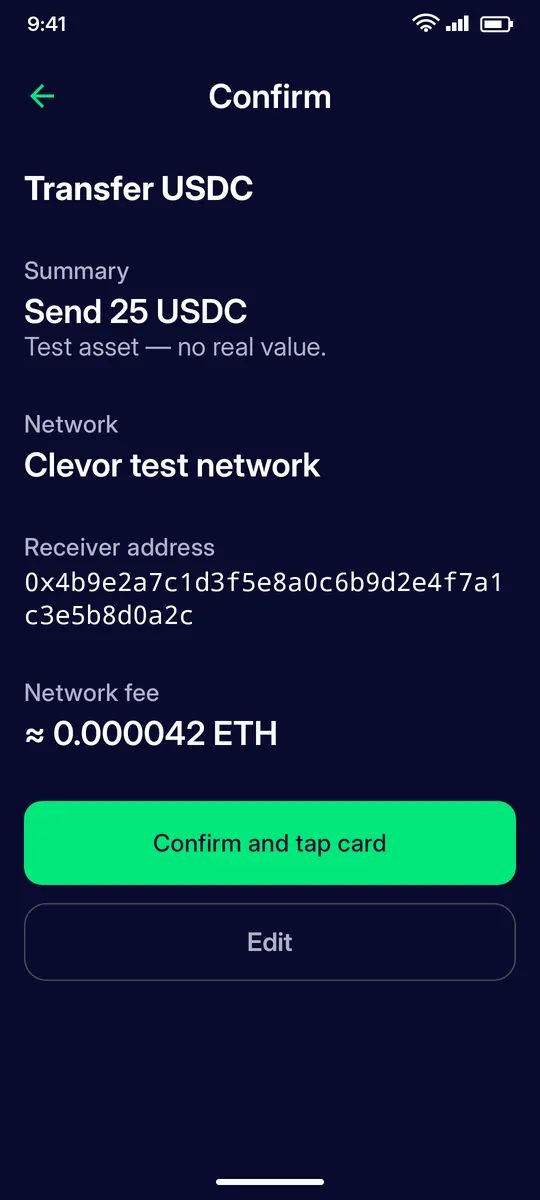
Review the summary, the network, the receiver address and the estimated network fee. Transactions on a blockchain cannot be reversed, so check the address carefully. Tap Confirm and tap card.
STEP 4
Sent
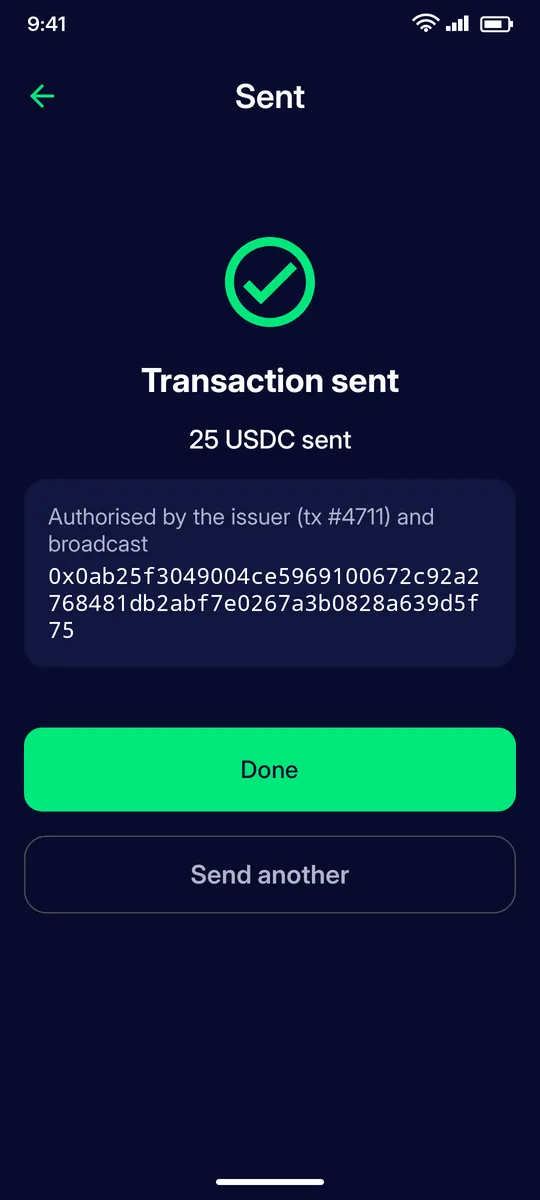
Hold the card to the phone until the sheet shows Done. The transaction is authorised by the issuer and broadcast; the transaction hash is shown. Tap Done or Send another.
IF SOMETHING GOES WRONG
If something goes wrong
Address or amount rejected
An EVM address is 0x followed by 40 hex digits; other networks have their own formats. The amount cannot exceed the available balance.
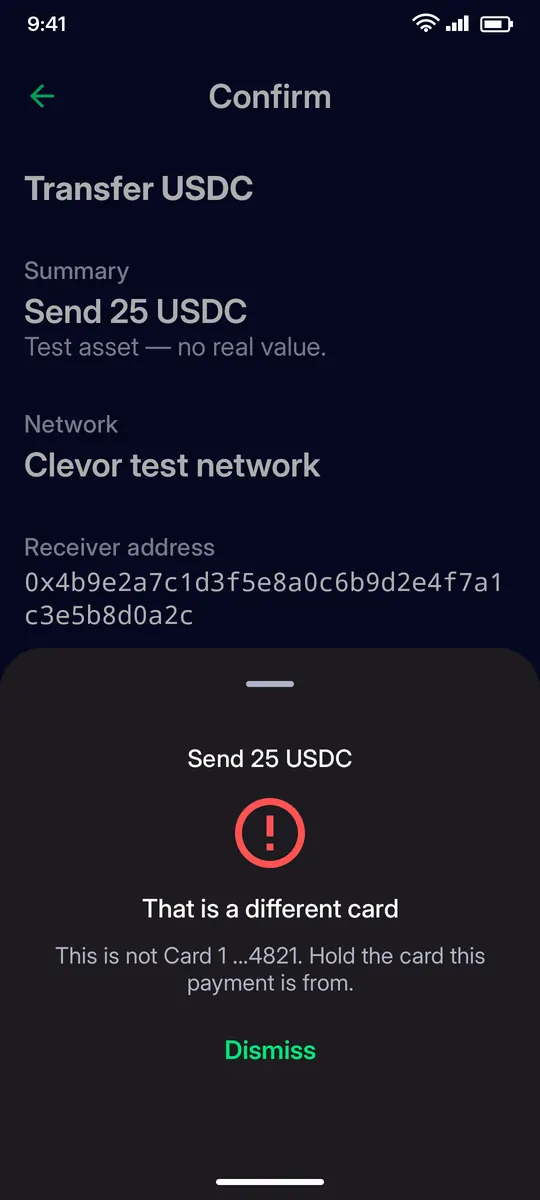
That is a different card
You held a card that is not the one this payment is from. Hold the right card to the phone.
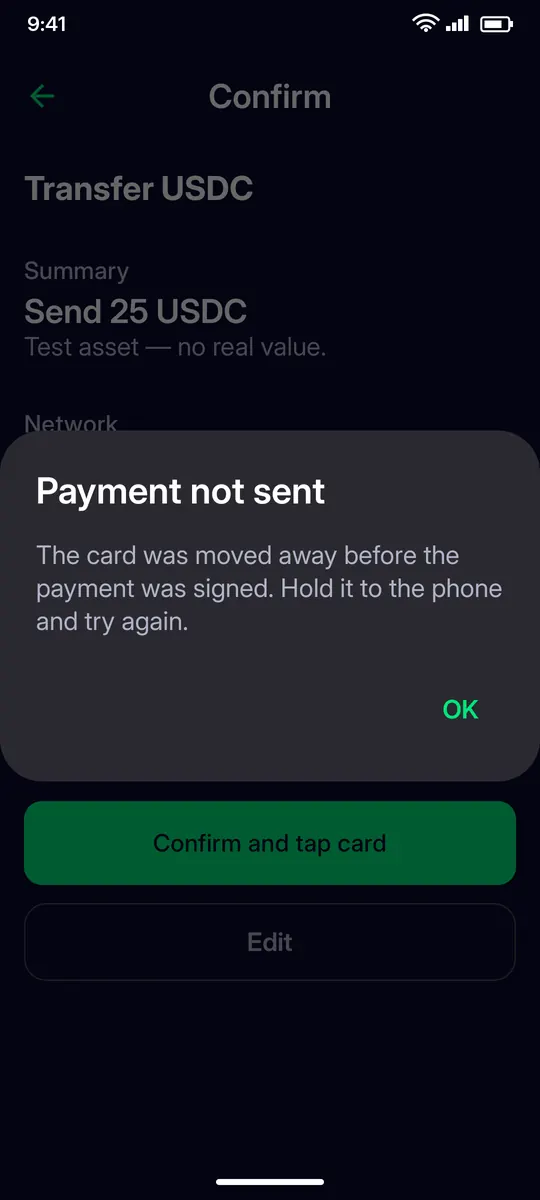
Payment not sent
The card was moved away before the payment was signed. Hold it to the phone and keep it still until the sheet says Done, then try again.
QUESTIONS
Questions
Which networks and coins can I send?
The send screen offers the EVM, BTC, SOL and TRON chain families and the coins available on the selected network, such as ETH, USDC and USDT.
Who sets the network fee?
The network, not Clevor. The estimated fee is shown on the confirmation screen before you tap your card.
Can I cancel a transaction after sending it?
No. Transactions on a blockchain cannot be reversed. Check the receiver address and the amount before you confirm.
Why does the app ask me to tap my card?
The card signs the transaction; the app never holds a private key. The issuer then authorises and broadcasts it.