Your Clevor account ties your cards, your phones and your sign-in together. Creating it takes an email address, a strong password and an authenticator app.
Before you start: An Android phone with the Clevor app installed, an email address you can read right away, and an authenticator app.
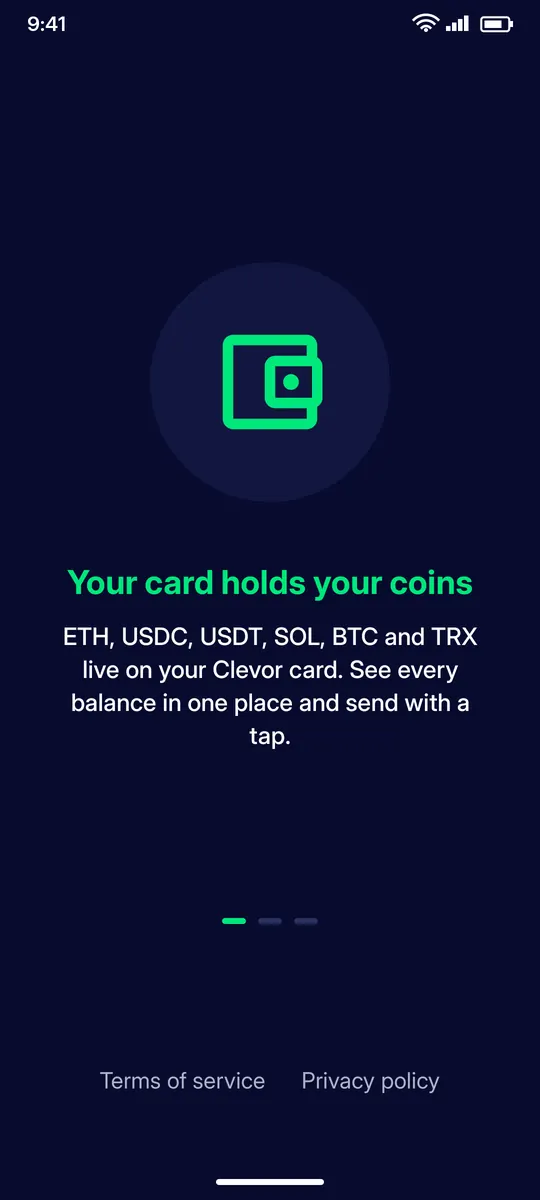
Open the app. The first screens explain the idea: your card holds your coins (ETH, USDC, USDT, SOL, BTC and TRX), the app shows every balance in one place and lets you send with a tap. The terms of service and the privacy policy are linked at the bottom.
STEP 2
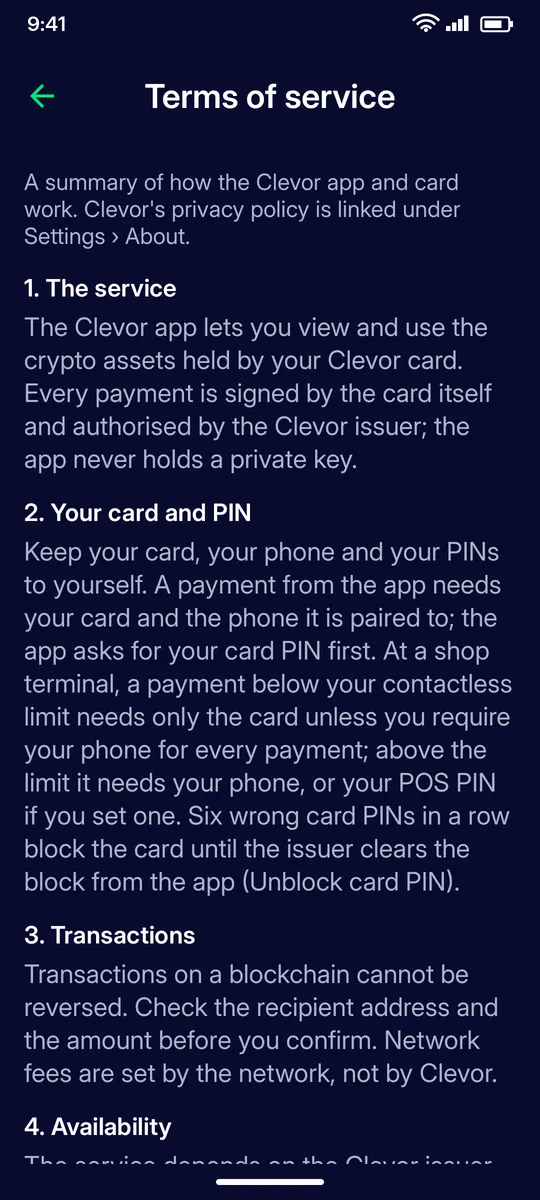
Read the terms of service
The terms summarise how the app and the card work: the app lets you view and use the crypto assets held by your card, every payment is signed by the card itself and authorised by the Clevor issuer, and the app never holds a private key. Tap the arrow to go back.
STEP 3
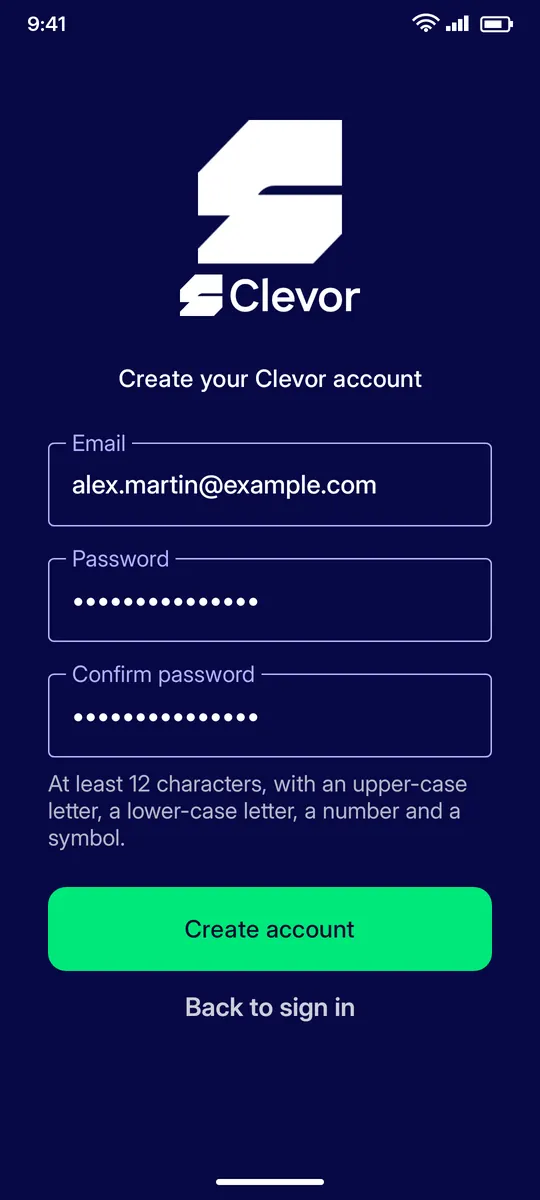
Create your account
Enter your email and choose a password of at least 12 characters with an upper-case letter, a lower-case letter, a number and a symbol. Tap Create account.
STEP 4
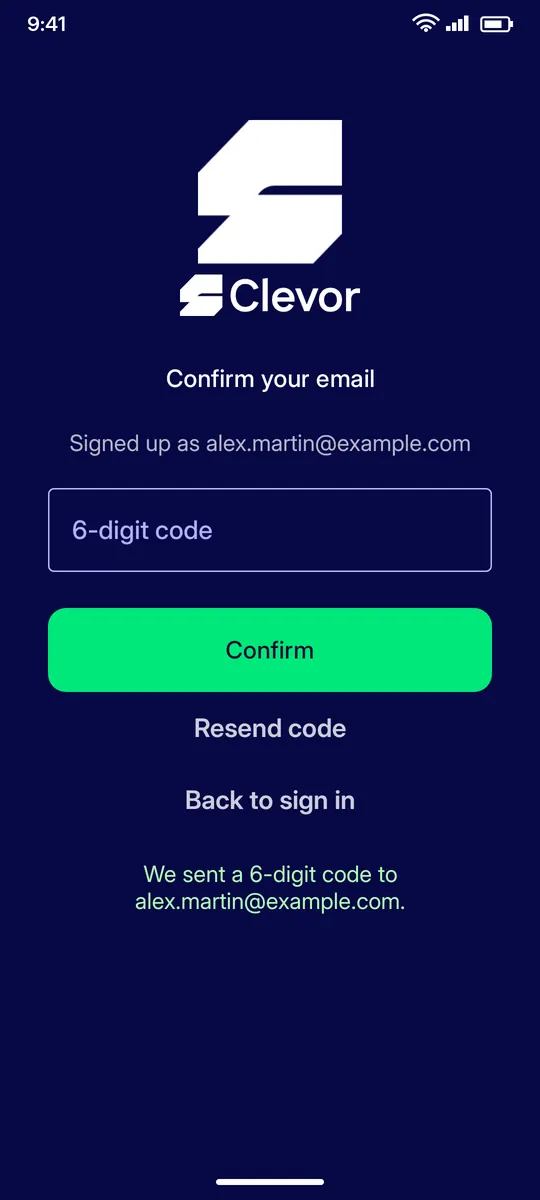
Confirm your email
Clevor emails you a 6-digit code. Type it and tap Confirm. Use Resend code if it has not arrived after a minute, and check your spam folder.
STEP 5
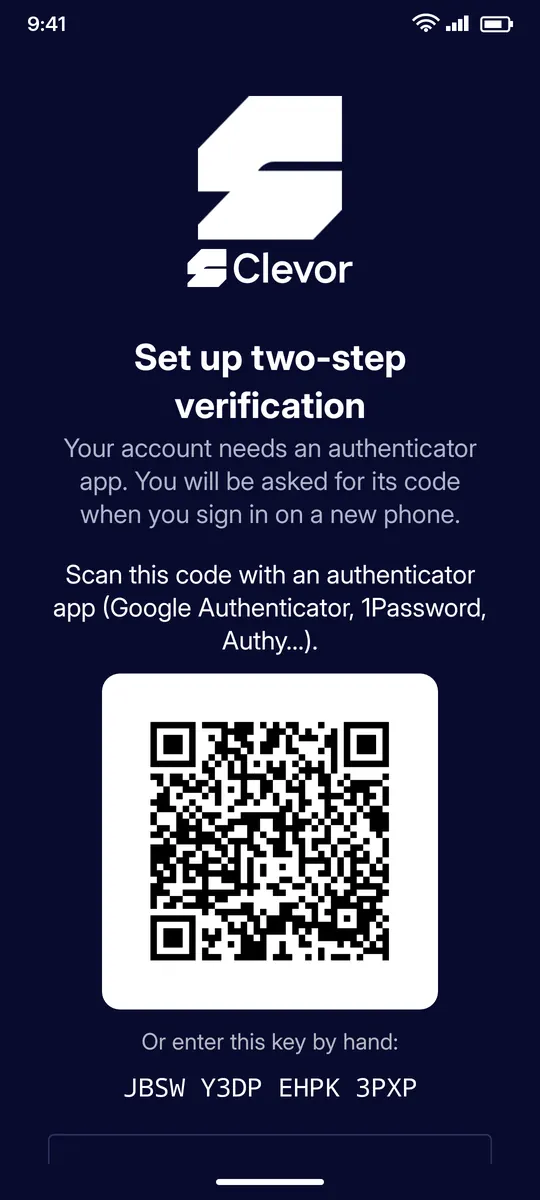
Set up two-step verification
Scan the QR code with an authenticator app, or type the key by hand. From now on, signing in on a phone Clevor does not know yet asks for the 6-digit code from that app.
STEP 6
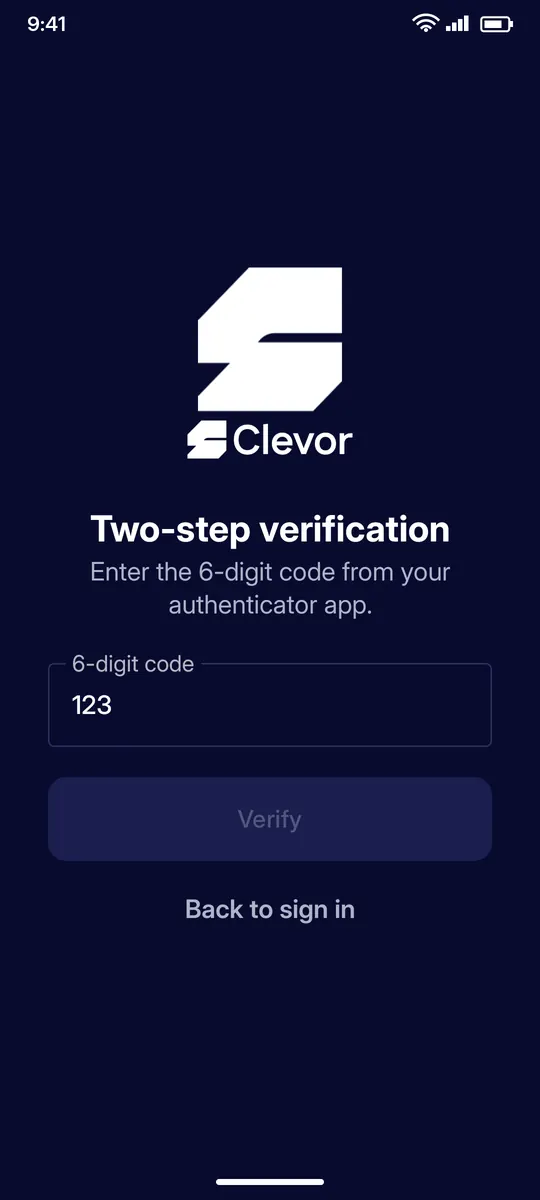
Enter the code
Type the current 6-digit code from your authenticator app and tap Verify. Your account is ready: the app now asks you to activate your card.
STEP 7
Signing in later
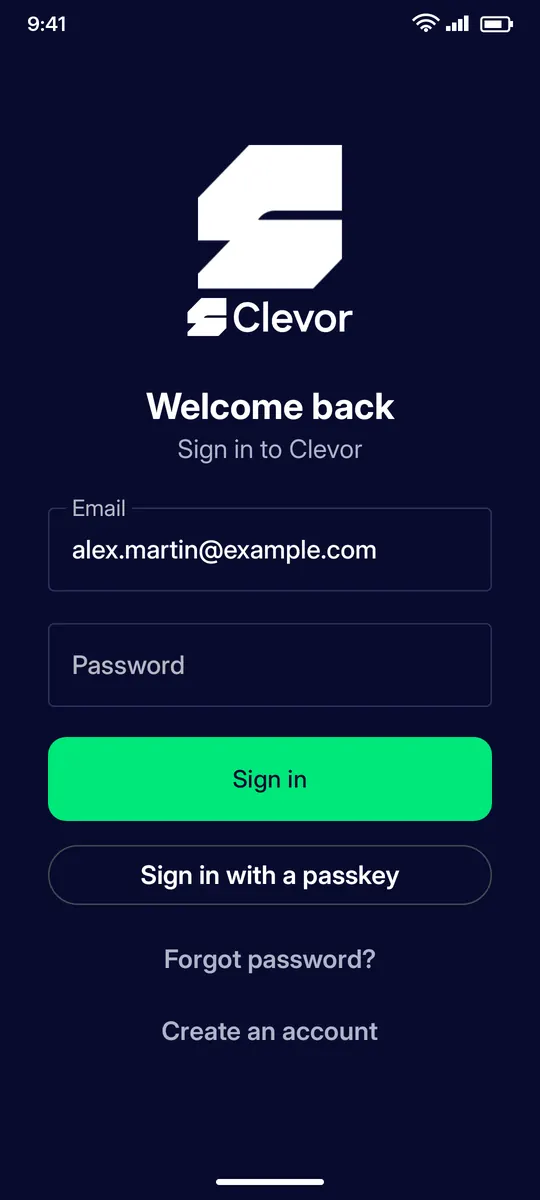
Sign in with your email and password, or with a passkey once you have added one under Settings › Passkeys. On a new phone you will also be asked for your two-step code.
STEP 8
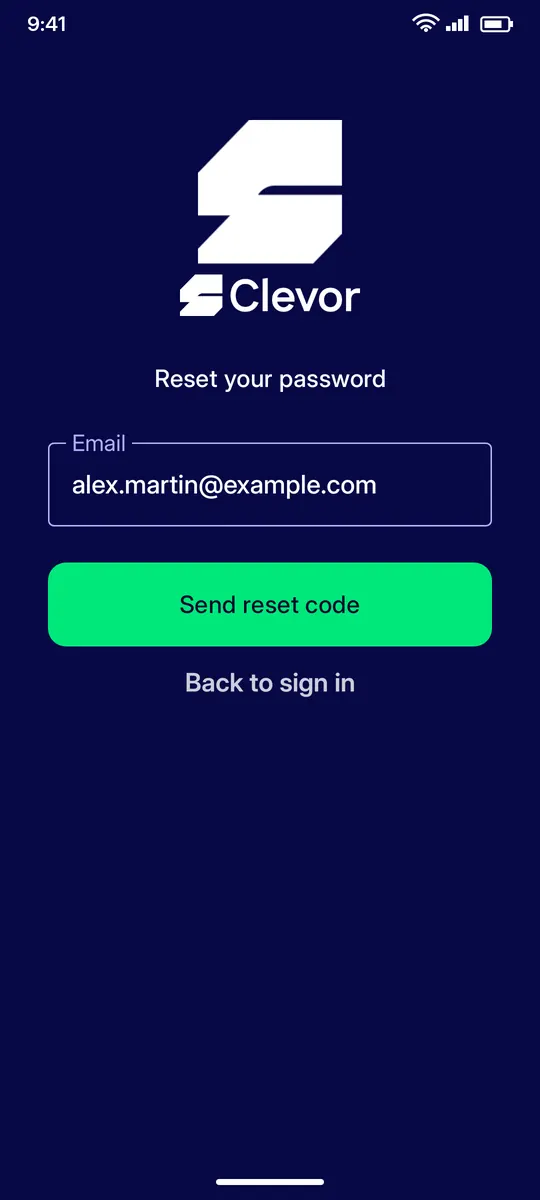
Forgot your password?
Tap Forgot password?, enter your email and tap Send reset code.
STEP 9
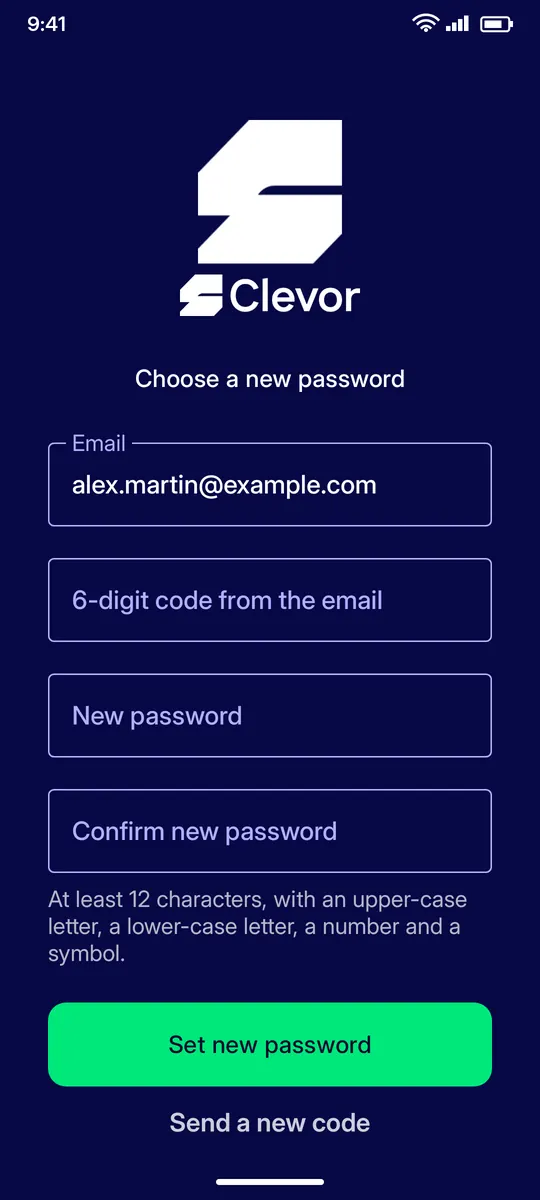
Choose a new password
Enter the 6-digit code from the email, choose a new password that meets the same rules, and tap Set new password.
IF SOMETHING GOES WRONG
If something goes wrong
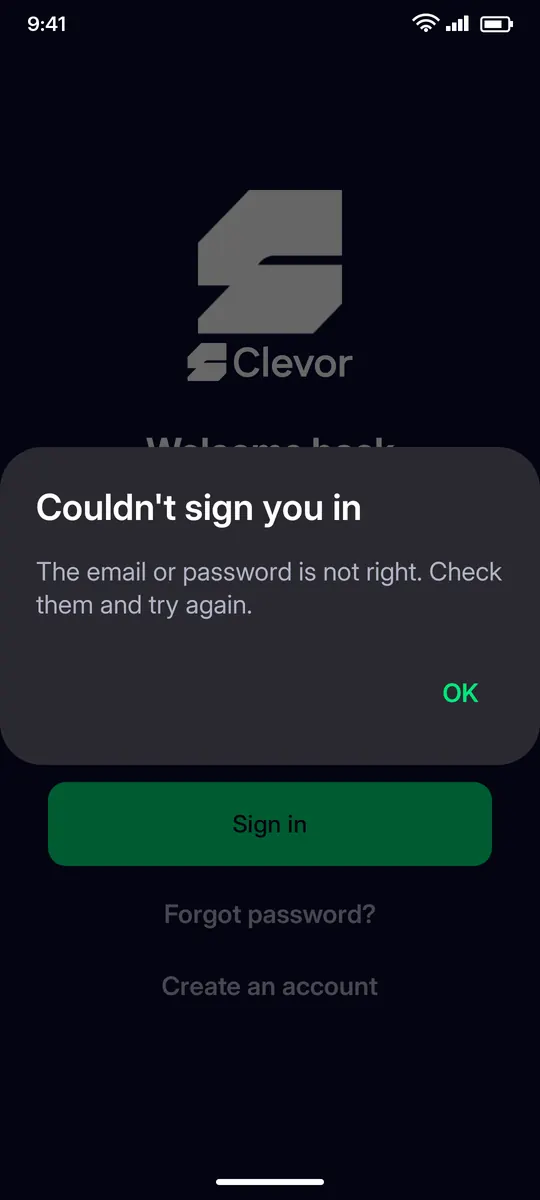
Couldn’t sign you in
The email or password is not right. Check both and try again, or use Forgot password? to reset the password.
QUESTIONS
Questions
Do I need an authenticator app to use Clevor?
Yes. During sign-up Clevor asks you to scan a QR code with an authenticator app. When you sign in on a phone Clevor does not know yet, you enter the 6-digit code from that app. You can move to another authenticator later under Settings › Two-step verification.
What are the password rules?
At least 12 characters, with an upper-case letter, a lower-case letter, a number and a symbol.
Can I sign in without typing my password?
Yes, with a passkey. Add one under Settings › Passkeys and the app signs you in with your phone’s screen lock or fingerprint. The passkey is saved in your password manager and never leaves it.
I did not receive the 6-digit email code. What now?
Tap Resend code and check your spam folder. The code goes to the email address shown on the screen.
Can one account hold several cards?
Yes. One account holds up to five cards, one per card slot.