Sign messages and connect to dApps with WalletConnect
The Tools tab offers two more things your card can sign, beyond payments: messages that prove you control your address, and requests from decentralised apps connected through WalletConnect.
Before you start: An activated card paired with this phone. Every signature needs your fingerprint and a card tap.
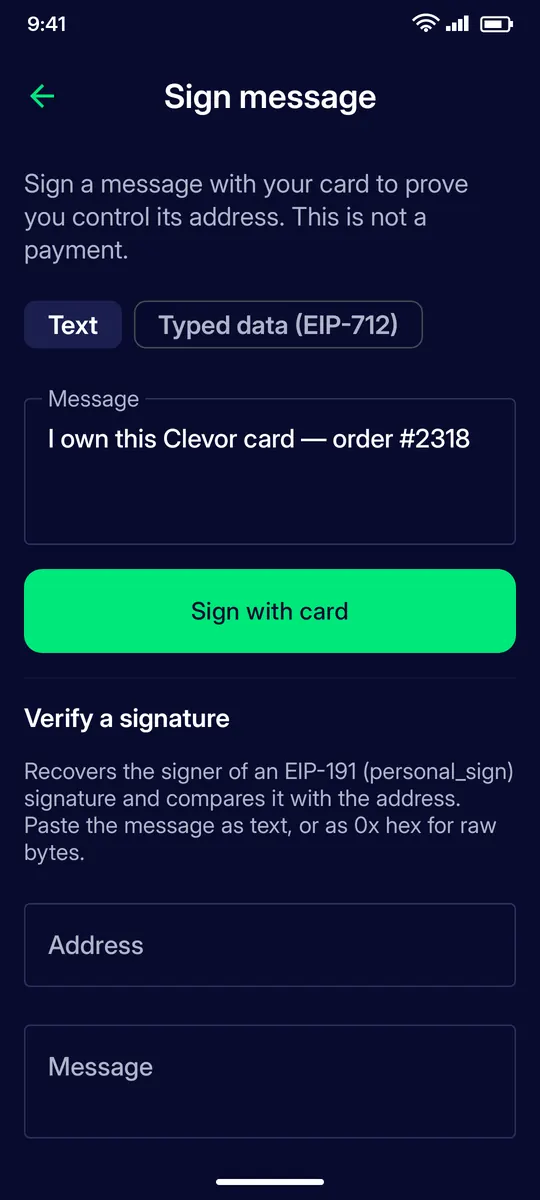
Prove you control your card’s address by signing a text message with the card. This is not a payment. Type the message and tap Sign with card.
STEP 2
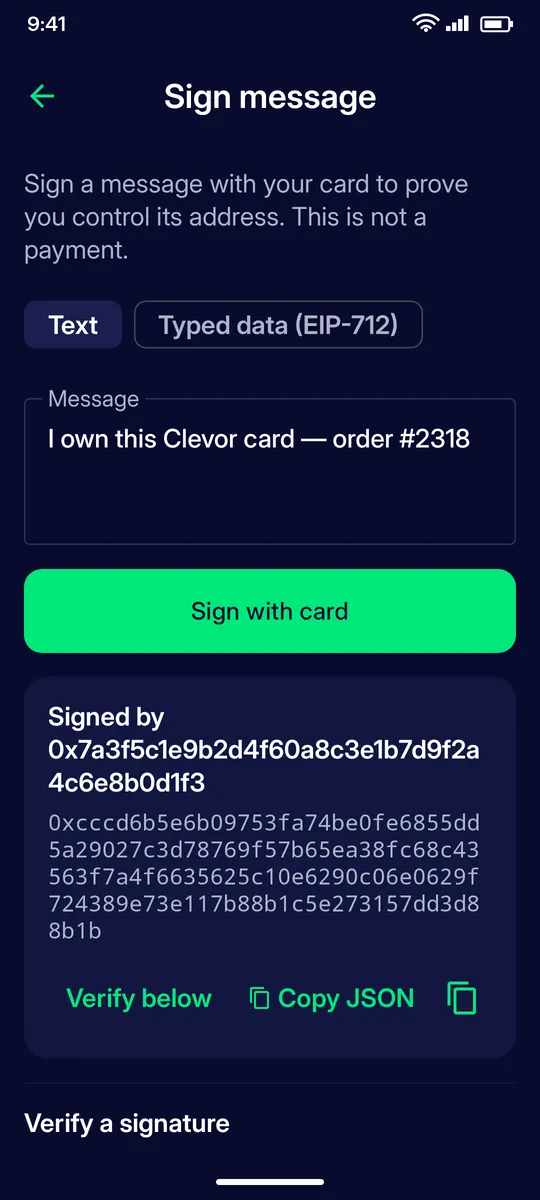
Signed
The signer address and the signature are shown. Copy the JSON to share it, or use Verify a signature to check someone else’s signature against an address.
STEP 3
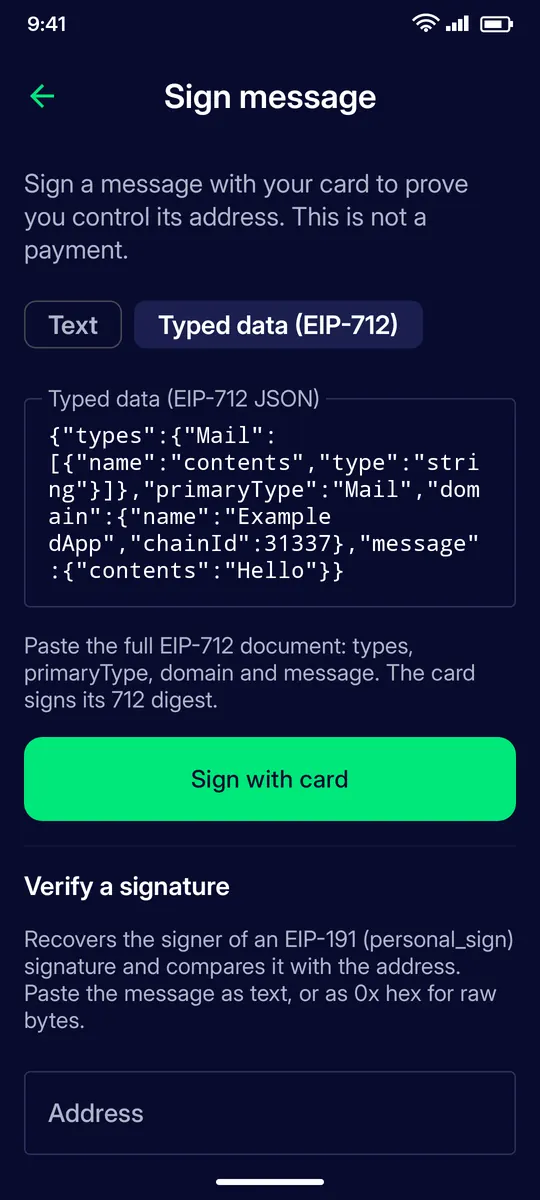
Typed data (EIP-712)
Switch to Typed data and paste the full EIP-712 document: types, primaryType, domain and message. The card signs its 712 digest.
STEP 4
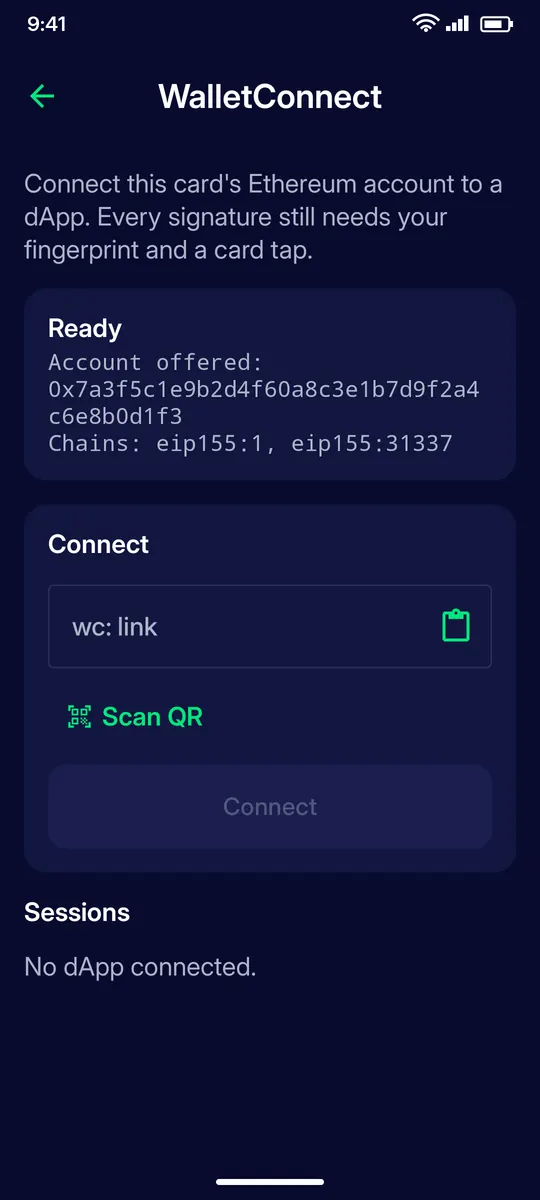
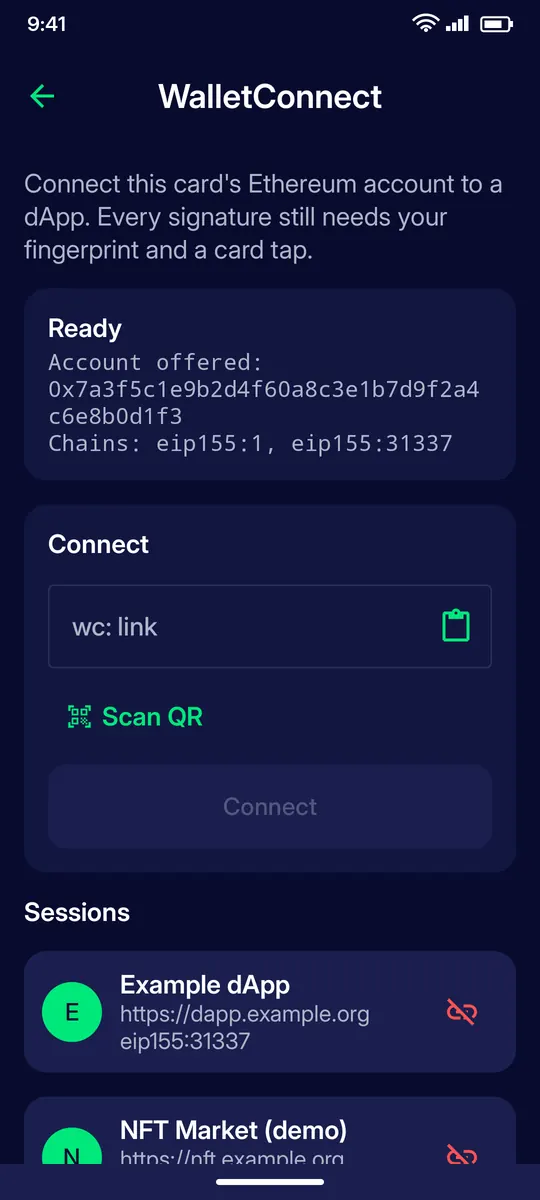
WalletConnect
Connect your card’s Ethereum account to a dApp: paste the wc: link or scan the dApp’s QR code and tap Connect.
STEP 5
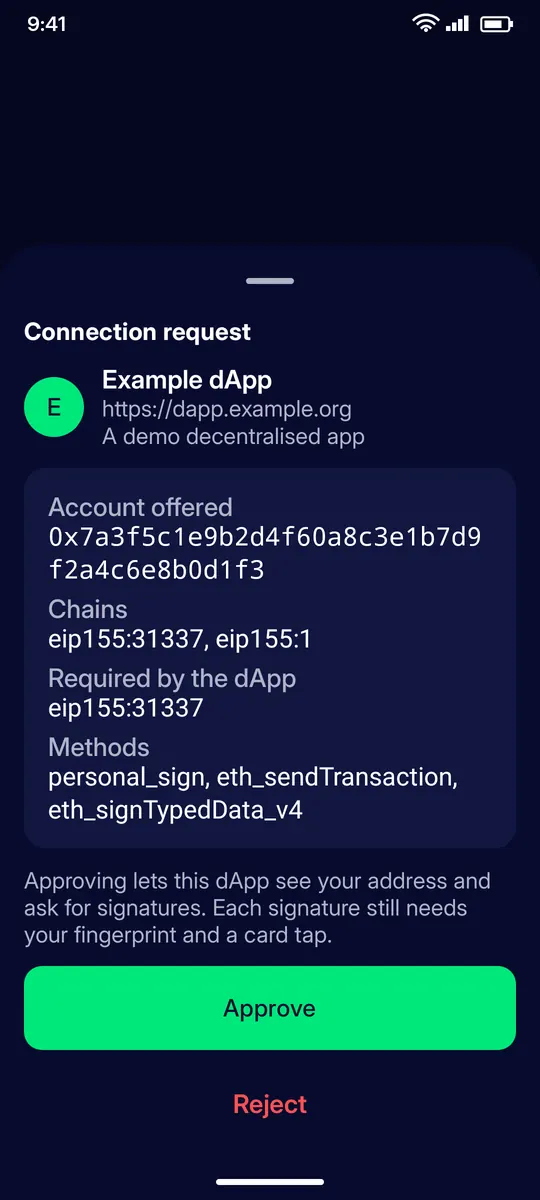
Approve the connection
Check the dApp’s name and URL, the account offered, the chains and the methods it may request. Approving lets the dApp see your address and ask for signatures.
STEP 6
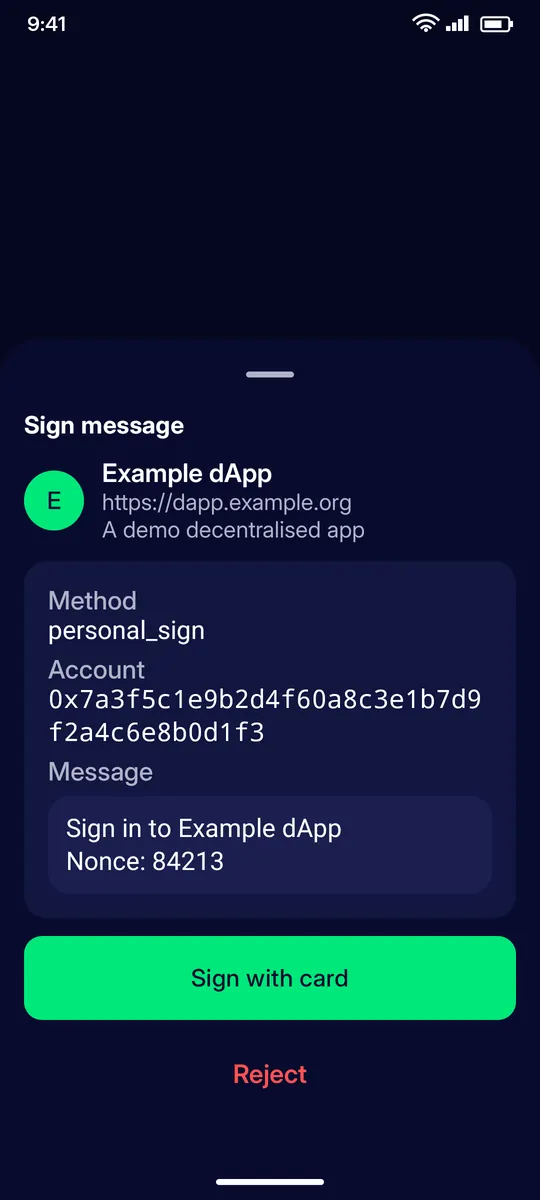
Sign for a dApp
Each signature request shows the method, the account and the message. Tap Sign with card: it needs your fingerprint and a card tap. Reject anything you do not recognise.
STEP 7
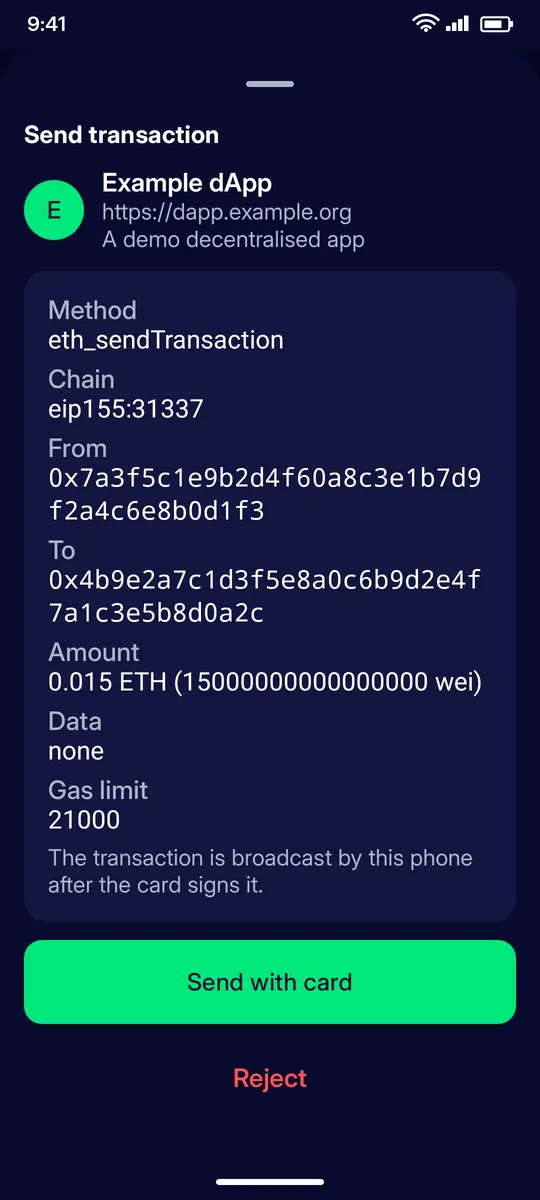
Send a transaction for a dApp
Transaction requests show chain, from, to, amount, data and gas limit. Tap Send with card; the transaction is broadcast by this phone after the card signs it.
STEP 8
Sessions
Connected dApps are listed under Sessions. Tap the disconnect icon to end a session.
QUESTIONS
Questions
What is signing a message for?
To prove you control your card’s address, for example when a service asks you to verify ownership. It is not a payment and moves no funds.
Which formats can the card sign?
Plain text messages and EIP-712 typed data, pasted as the full JSON document.
How do I connect to a dApp?
Open Tools › WalletConnect, paste the wc: link or scan the dApp’s QR code, tap Connect and approve the connection request.
Does a connected dApp control my funds?
No. It can see your address and ask for signatures; each signature or transaction still needs your fingerprint and a card tap, and you can reject any request.
How do I disconnect a dApp?
Under Sessions, tap the disconnect icon next to it.