Accept payments: turn your phone into a Clevor terminal
Any Android phone with the Clevor app can become a Clevor terminal. Buyers pay by holding their Clevor card to the back of your phone; payments settle to your card’s address.
Before you start: A Clevor account with an activated card (its address receives the payments), an Android phone with NFC, and the coin and network you want to accept. Example screens with sample data; your app may look slightly different.
App version 1.0.9: terminal registration is not available yet; it ships with the next release of the Clevor app.
Step by step
Step 1
Set up your terminal
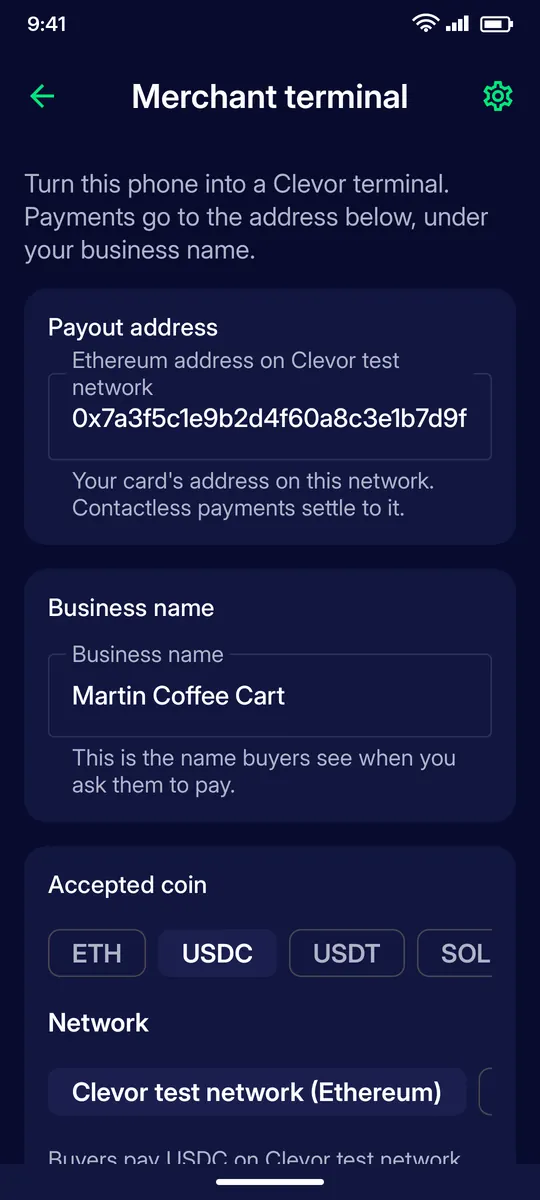
Open Tools › Merchant (also under Settings › Merchant › POS terminals). Confirm the payout address (your card’s address on the chosen network), enter the business name buyers will see, pick the accepted coin and network, and set the maximum per payment.
Step 2
Registering
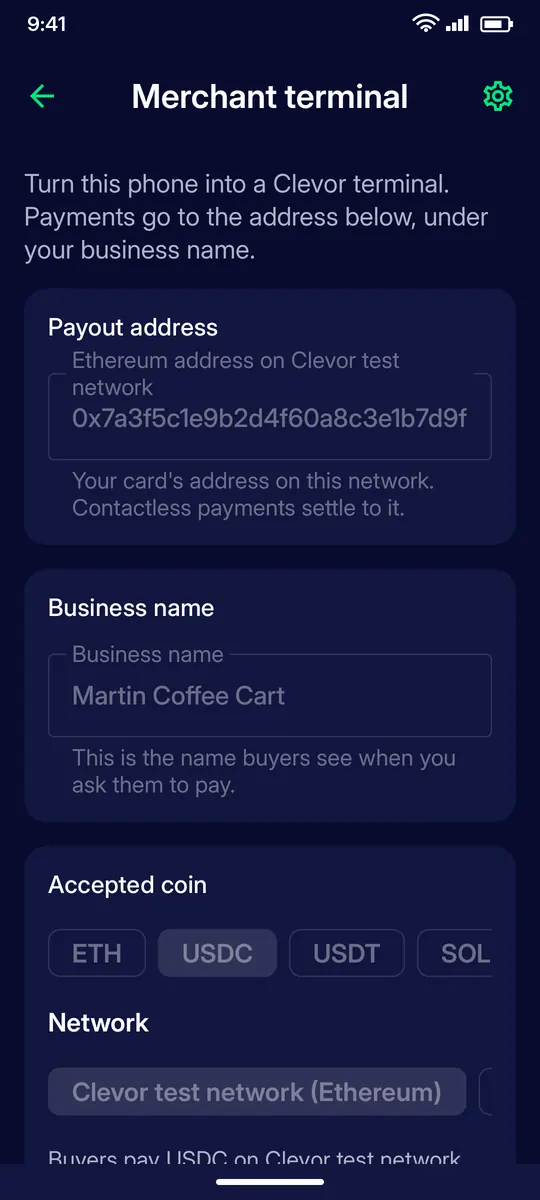
Tap Register this phone. The app registers the terminal with the issuer. Wait for the confirmation before you charge the first payment.
Step 3
Charge an amount
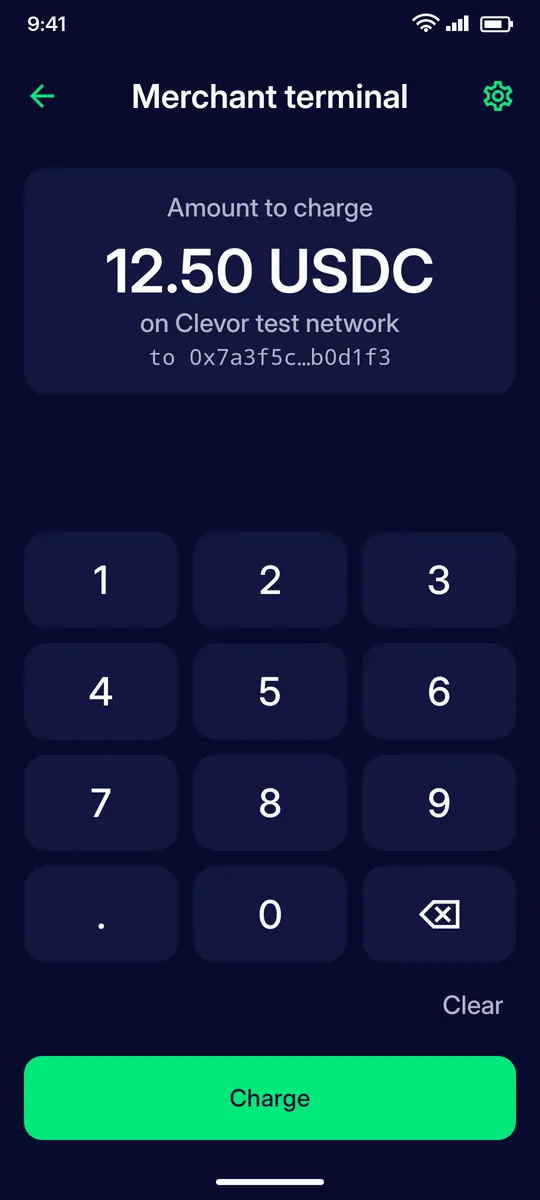
Type the amount to charge and tap Charge.
Step 4
The buyer taps the card
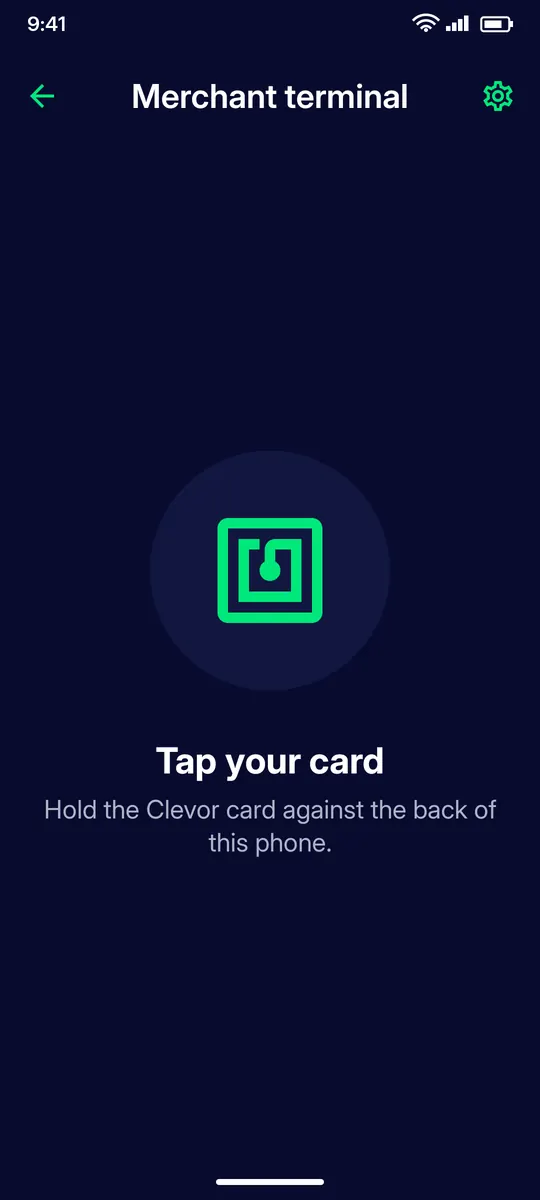
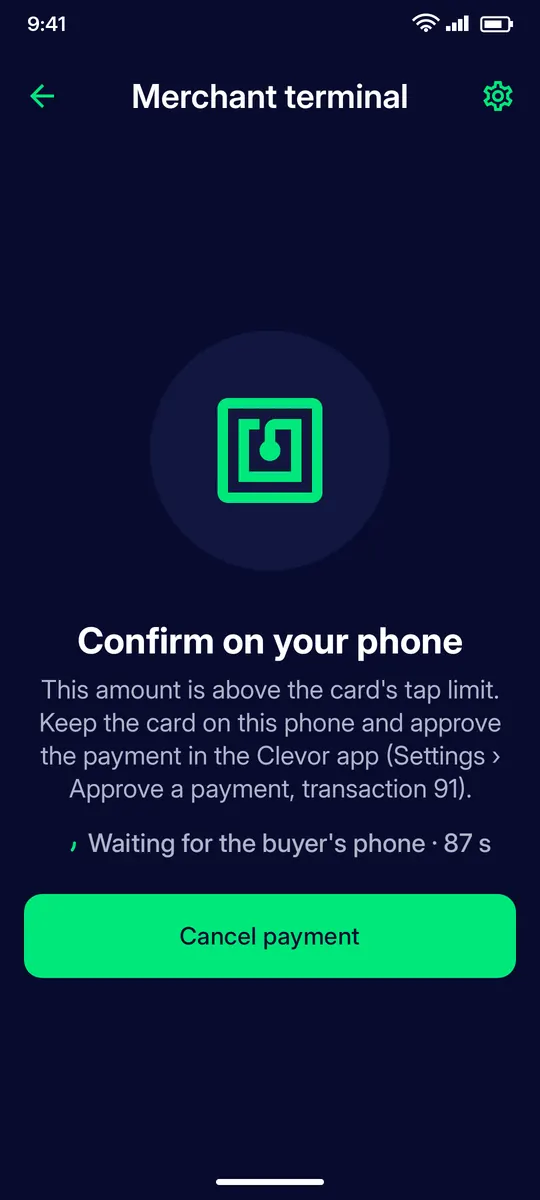
Ask the buyer to hold their Clevor card against the back of your phone and keep it there.
Step 5
Above the tap limit
If the amount is above the card’s tap limit, the buyer either approves the payment in their own Clevor app or types their POS PIN on your phone. The payment is held for a short time; you can cancel it.
Step 6
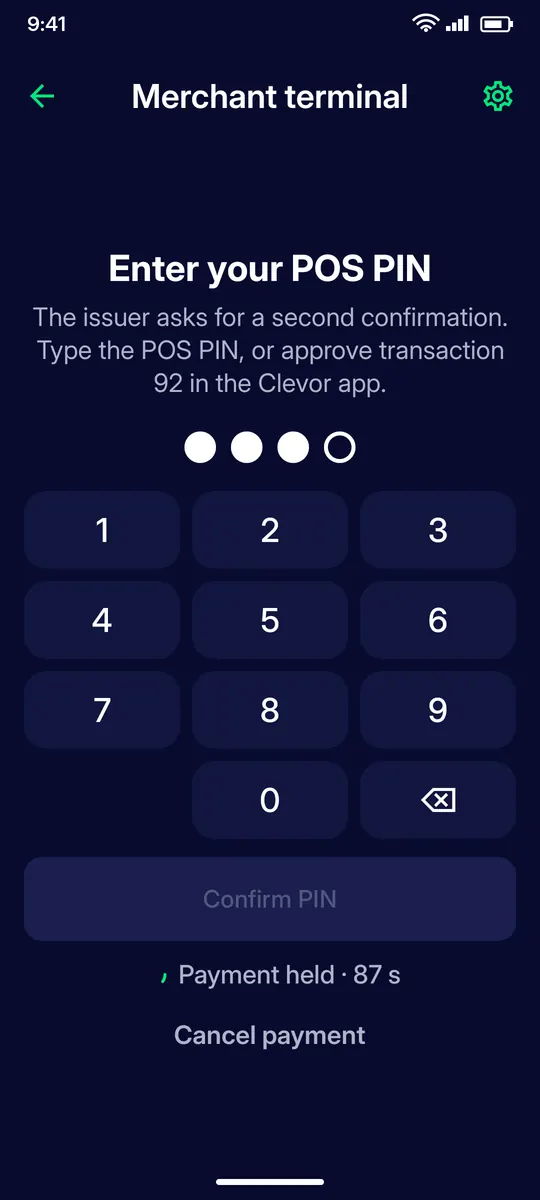
POS PIN entry
The buyer enters their POS PIN on your phone, or approves the transaction number shown in their Clevor app.
Step 7
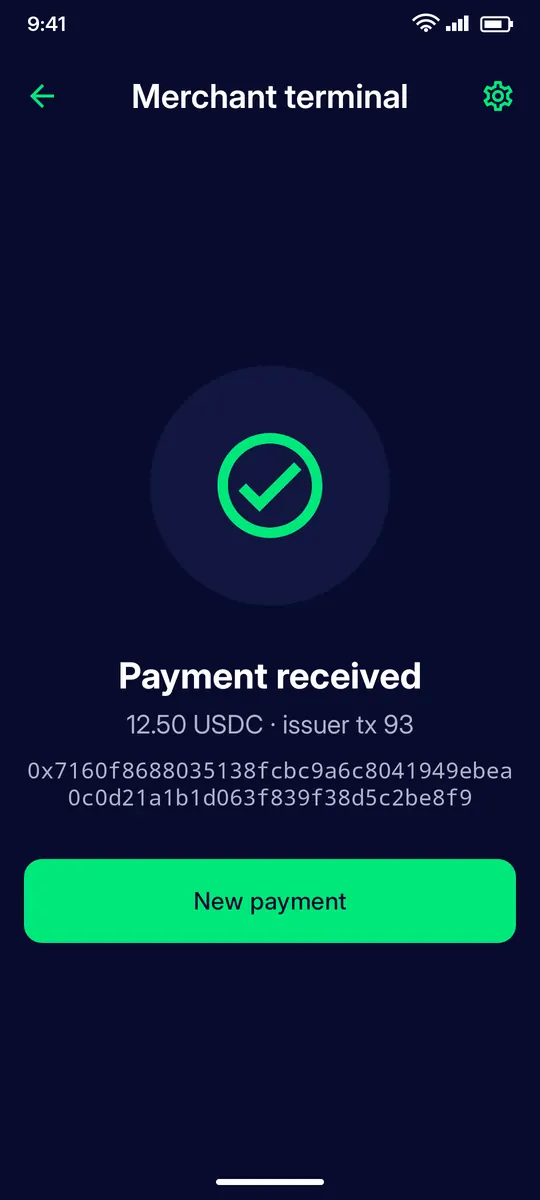
Payment received
The amount, the issuer transaction number and the hash are shown. Tap New payment for the next customer.
Step 8
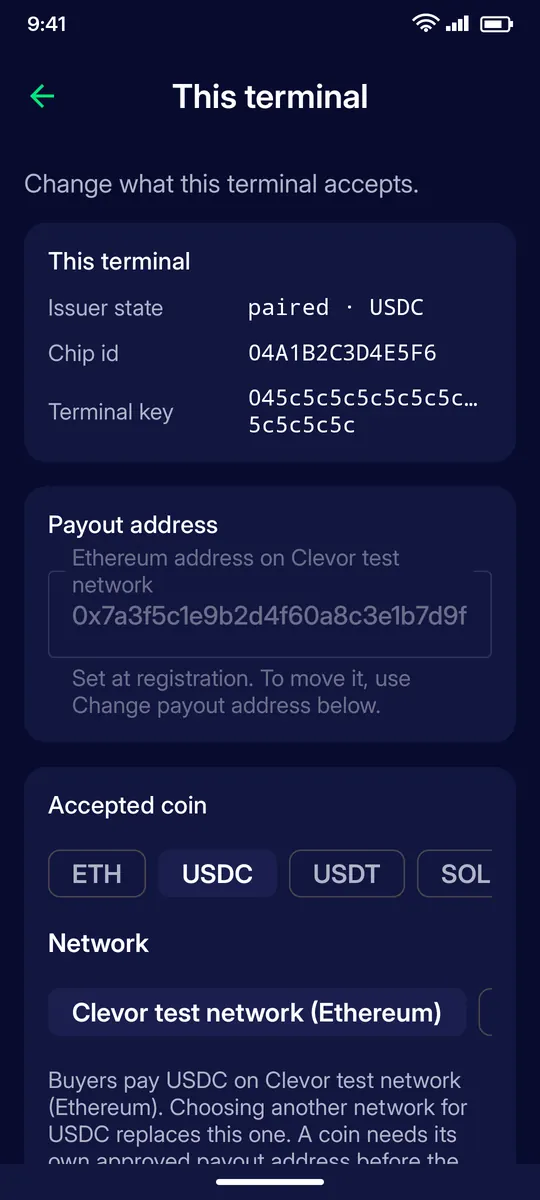
Terminal settings
The gear icon opens This terminal: issuer state, chip id and terminal key, the payout address, and the accepted coin and network. A new payout address takes effect after a waiting period, and you can cancel the change until then. Before uninstalling the app or handing the phone over, tap Release this terminal.
If something goes wrong
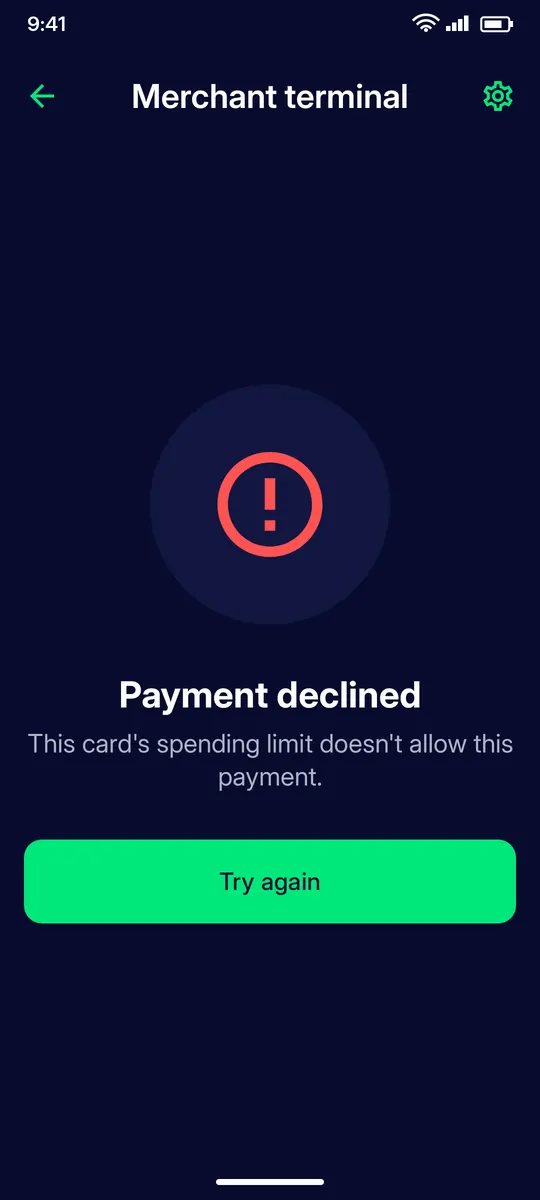
Payment declined
The terminal shows why the payment was declined: spending limit, 24-hour tap limit, too many taps, a payment declined or timed out on the buyer’s phone, or a blocked address. The buyer can raise their own limit only up to the issuer’s limit, or pay another way; tap Try again.
FAQ
Questions
What do I need to accept Clevor payments?
An Android phone with NFC, the Clevor app, a Clevor account with an activated card, and a terminal registered under Tools › Merchant with Register this phone.
Where does the money go?
To the payout address set at registration: your card’s address on the chosen network. A new payout address takes effect after a waiting period; you can cancel the change until then.
Which coins can I accept?
You pick the accepted coin and its network when you register the terminal. Choosing another network for a coin replaces the previous one.
What if the amount is above the buyer’s tap limit?
The buyer either approves the payment in their own Clevor app or types their POS PIN on your phone. The payment is held for a short time and you can cancel it.
Why was a payment declined?
The terminal shows the reason: the buyer’s spending limit, the 24-hour tap limit, too many taps, a payment declined or timed out on the buyer’s phone, or a blocked address.
How do I stop using a phone as a terminal?
Open This terminal and tap Release this terminal. Do it before uninstalling the app or giving the phone away.