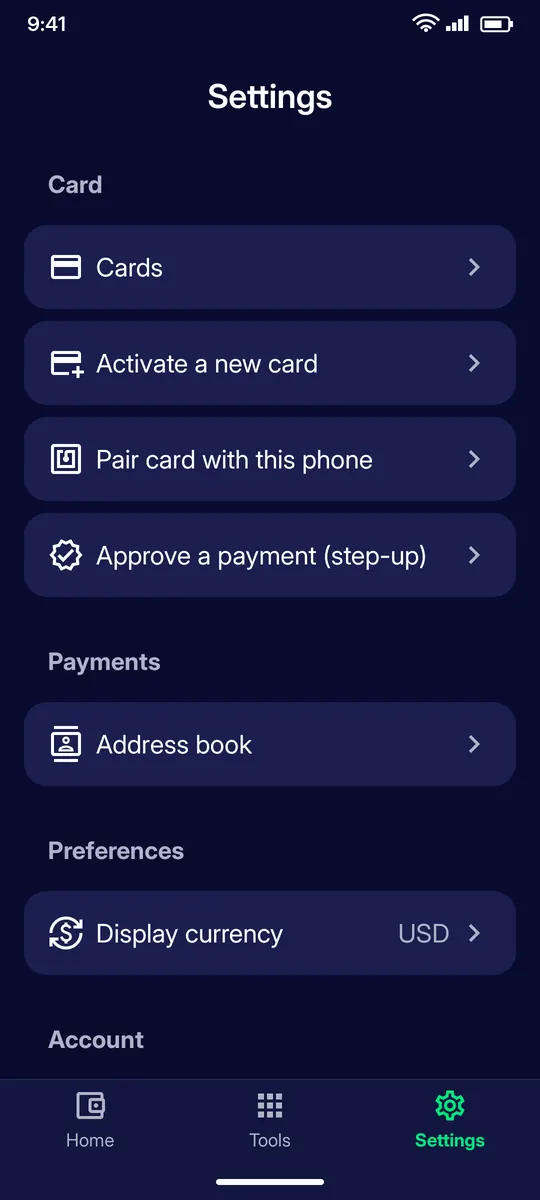
Card tools (Cards, Activate a new card, Pair card with this phone, Approve a payment), Payments (Address book), Preferences (Display currency) and your Account.
STEP 2
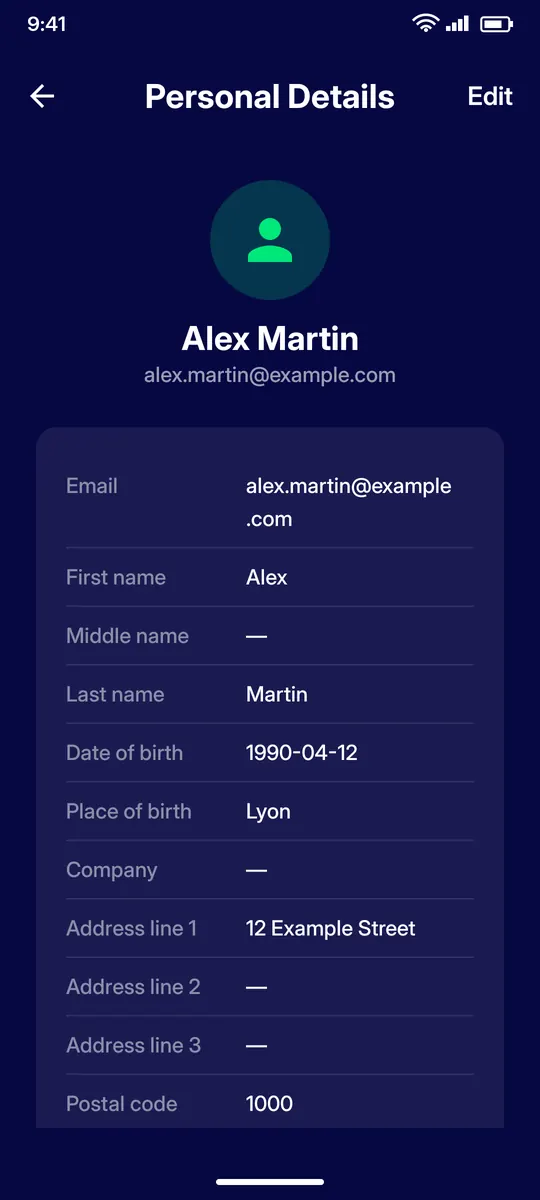
Personal details
Your profile as known by the issuer: email, names, date and place of birth, company and address.
STEP 3
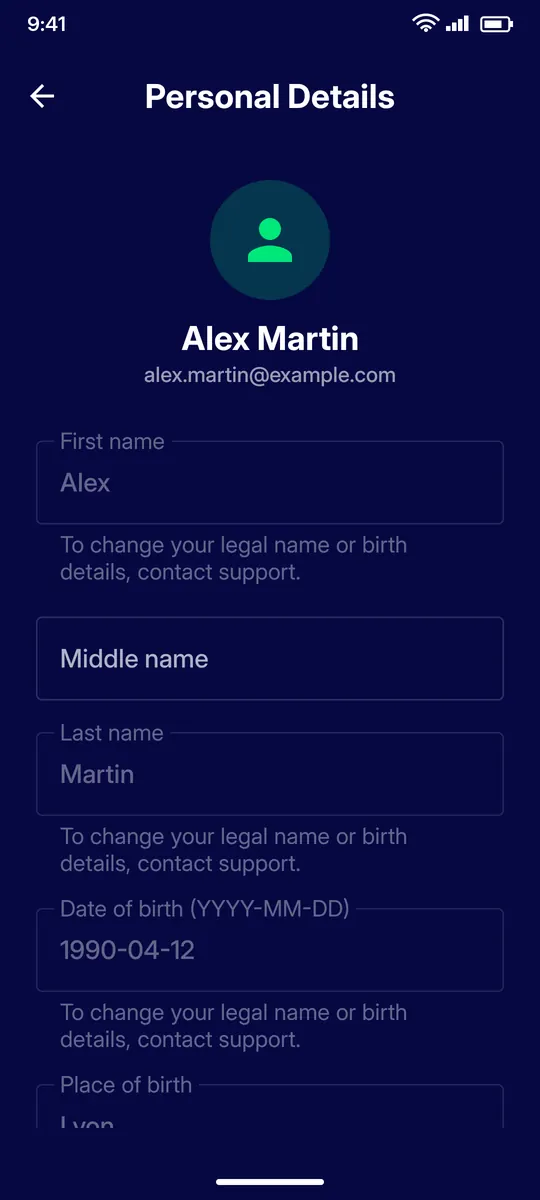
Edit your details
Tap Edit to change the editable fields. Your legal name and birth details can only be changed through support.
STEP 4
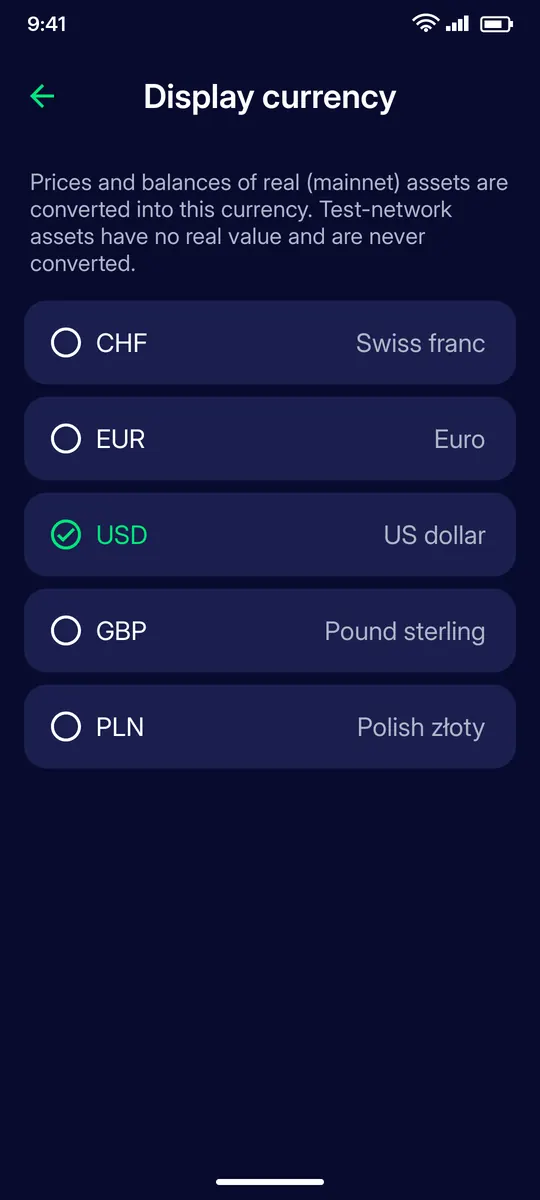
Display currency
Choose CHF, EUR, USD, GBP or PLN. Prices and balances of mainnet assets are converted into it; test-network assets are never converted.
STEP 5
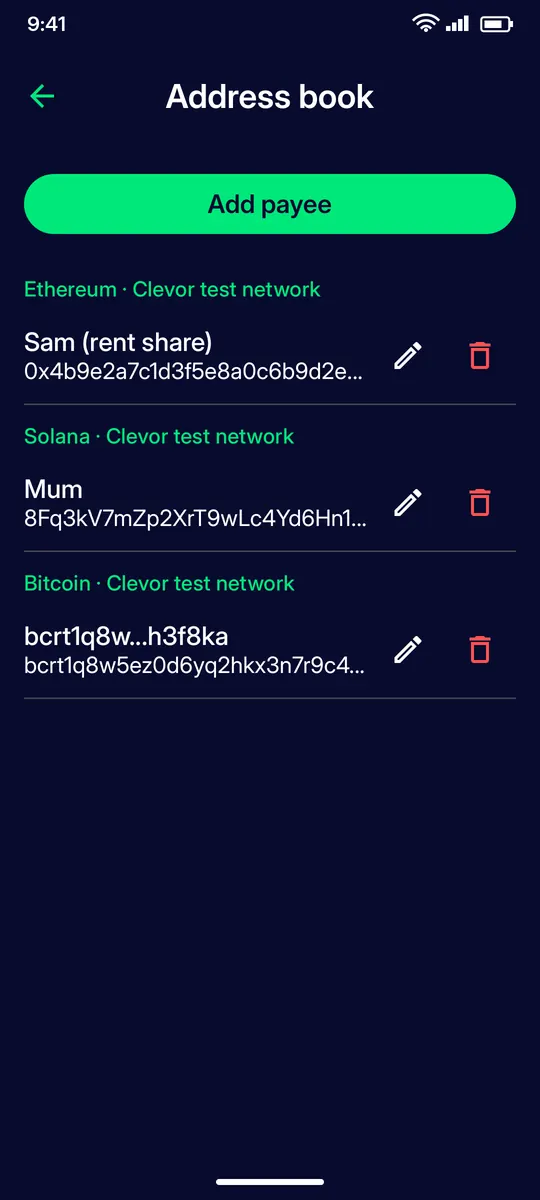
Address book
Save trusted payees per network with a name. Saved payees can be picked when you send.
STEP 6
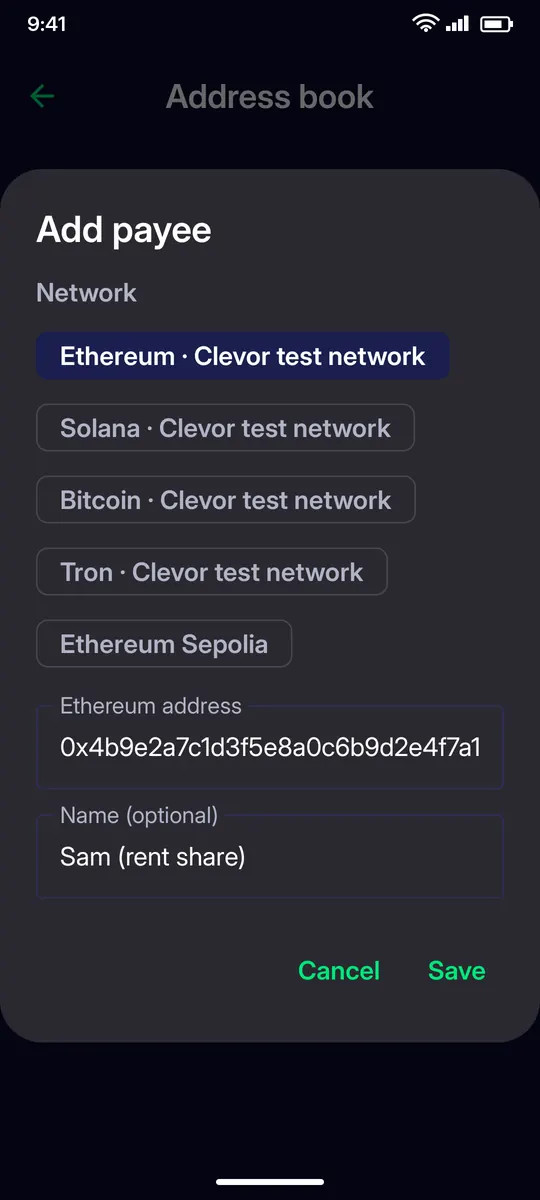
Add a payee
Add payee asks for the network, the address and an optional name. Tap Save.
STEP 7
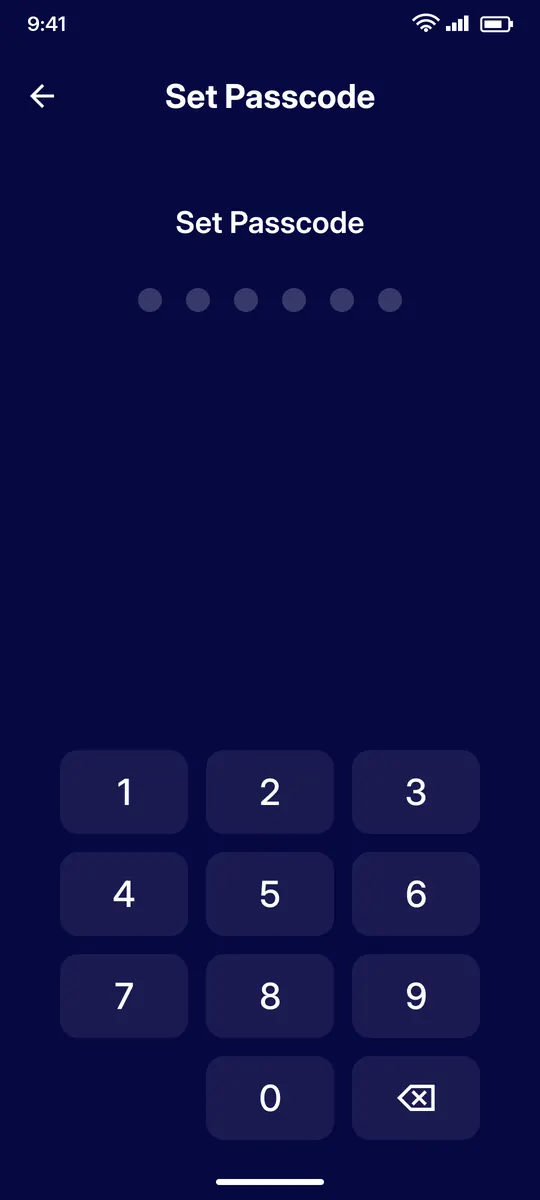
App passcode
Set a 6-digit passcode for the app.
STEP 8
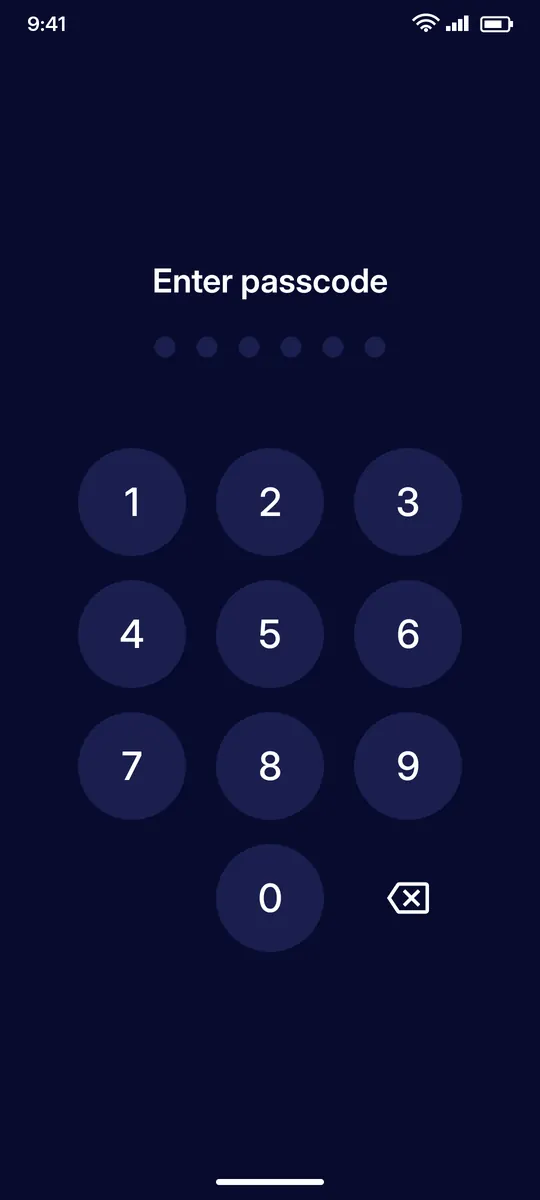
Enter passcode
With a passcode set, the app asks for it every time you open it.
STEP 9
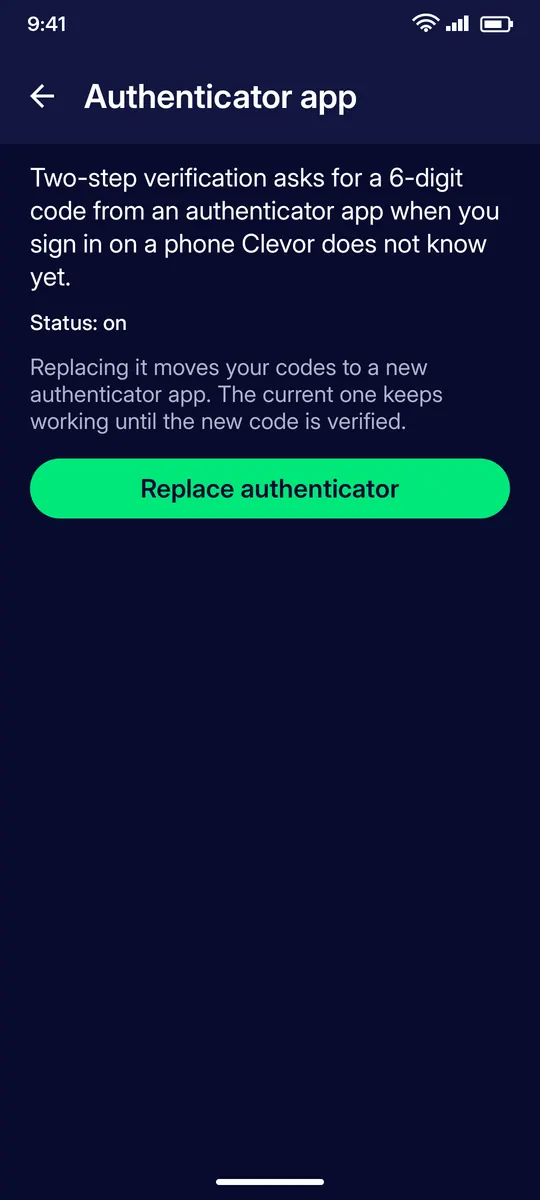
Two-step verification
Shows the status of your authenticator app. Replace authenticator moves your codes to a new app; the current one keeps working until the new code is verified.
STEP 10
Passkeys
Add a passkey to sign in with your phone’s screen lock or fingerprint instead of your password. It is saved in your password manager and never leaves it.
STEP 11
About
App version, card issuer and a reminder of the model: signing happens on the card only; the phone never holds a private key. The privacy policy is linked here.
QUESTIONS
Questions
How do I change my name or date of birth?
Legal name and birth details can only be changed through support. The other contact fields are editable under Personal details › Edit.
Which display currencies are available?
CHF, EUR, USD, GBP and PLN. Only mainnet assets are converted; test-network assets are never converted.
What is the app passcode?
A 6-digit code that the app asks for every time you open it.
How do I move two-step verification to a new authenticator app?
Settings › Two-step verification › Replace authenticator. The current app keeps working until the new code is verified.
What is a passkey?
A way to sign in with your phone’s screen lock or fingerprint instead of your password. It is saved in your password manager and never leaves it.