Settings › Cards lists every card on your account. Open a card for its status, addresses, spending limits and the PIN tools.
Before you start: An activated card paired with this phone. PIN and PUK operations finish with a card tap. Your card PIN is never asked at shops; the terminal uses a separate POS PIN that you set in the app. Example screens with sample data; your app may look slightly different.
If your card is lost, the money on it is lost. Only the card can move it, and Clevor cannot recover it or move it to a new card. Keep only what you can afford to lose on a card, and freeze a misplaced card at once.
Step by step
Step 1
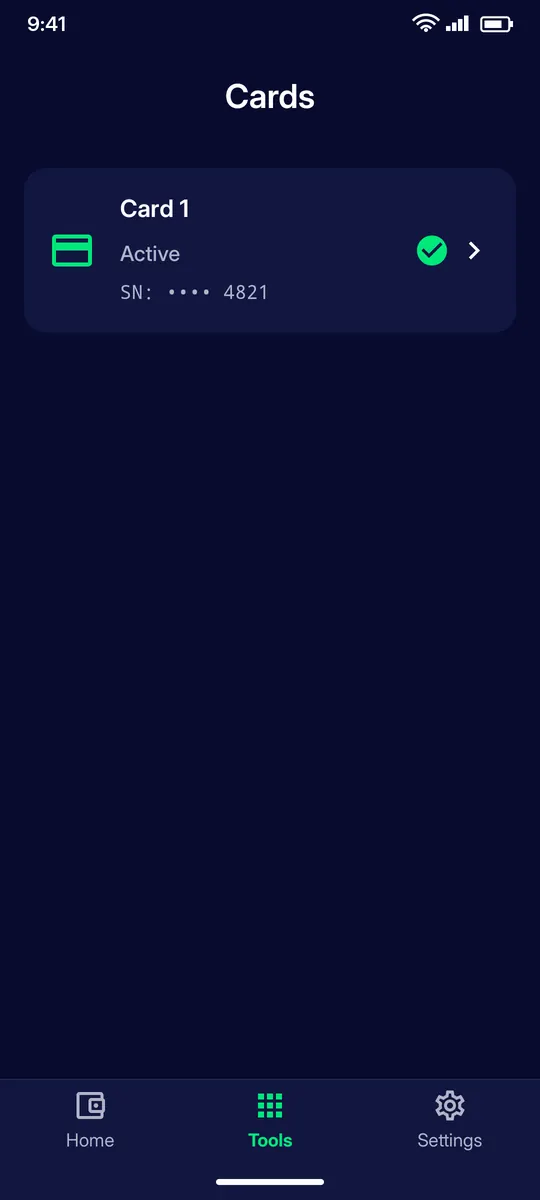
Cards
Each card shows its status (Active, Frozen, Closed) and its SN code. Tap a card to open it.
Step 2
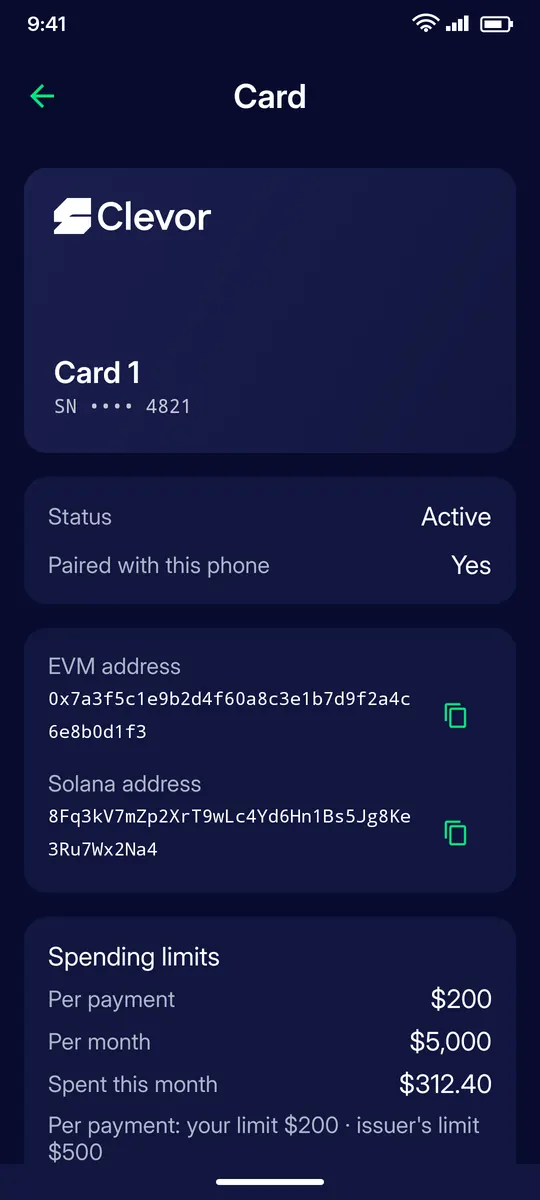
Card page
See whether the card is paired with this phone, copy its EVM and Solana addresses, and check the spending limits: per payment, per month and spent this month. Tap Set my own limits to lower your limits (up to the issuer’s limit) and turn on Require my phone for every payment to approve every payment on your phone.
Step 3
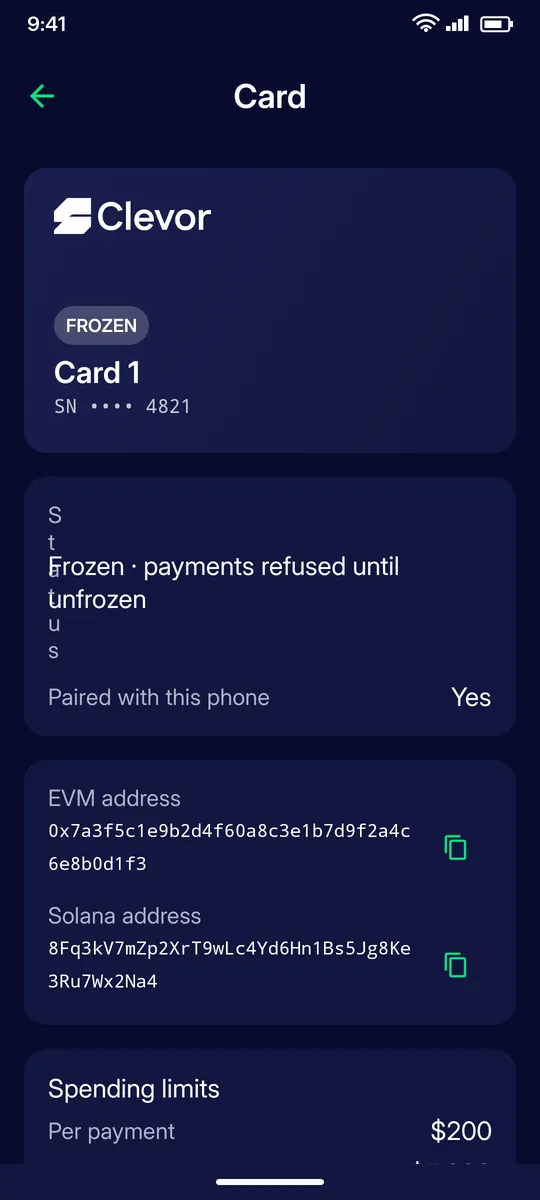
Freeze a card
Misplaced your card? Tap Freeze card: payments are refused until you tap Unfreeze card. Found it again? Unfreeze it and it works as before.
Step 4
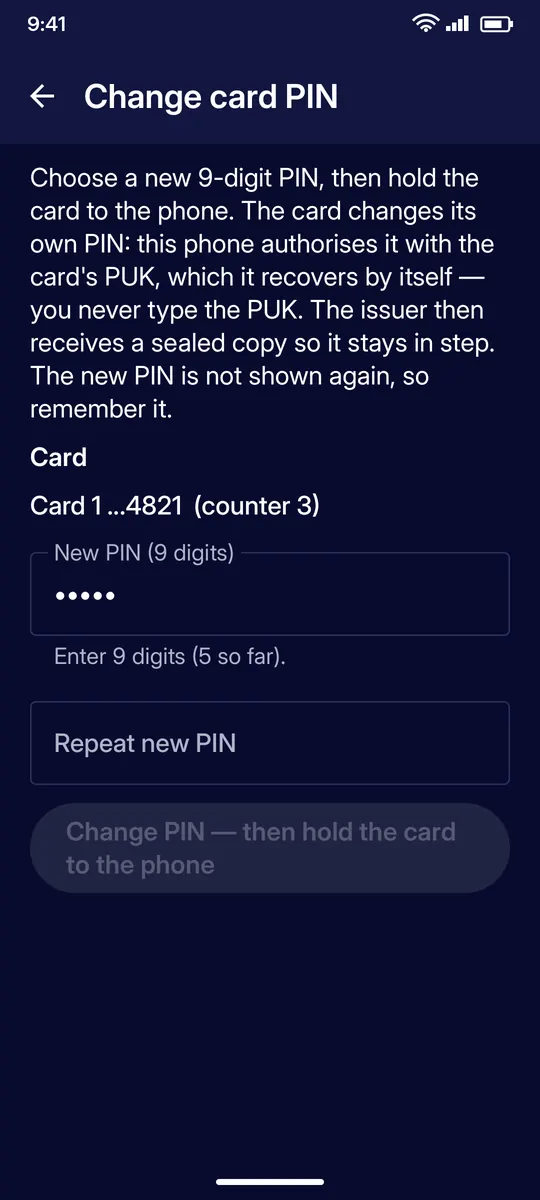
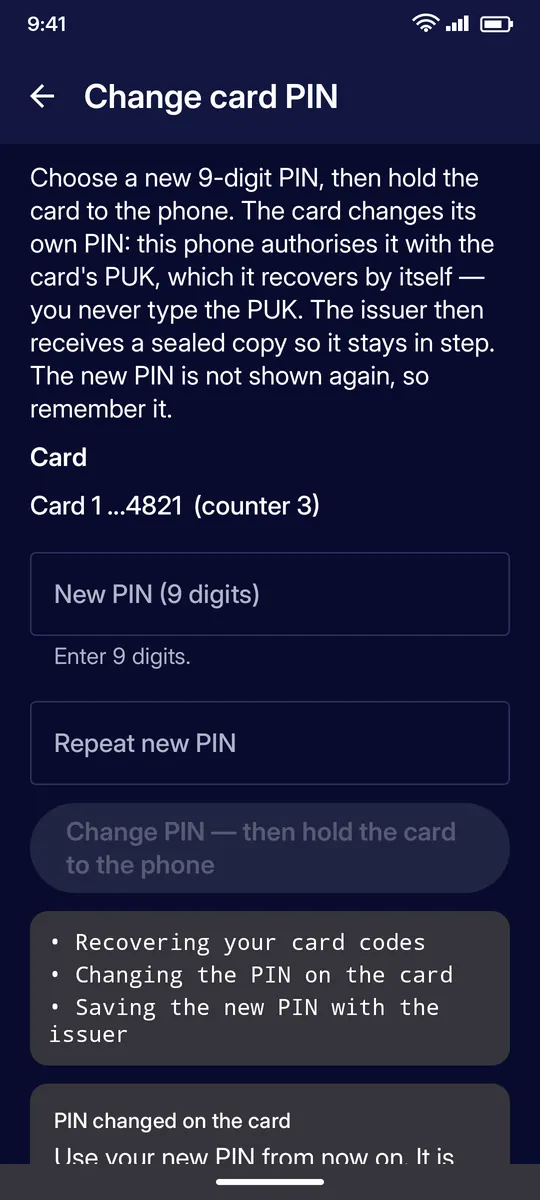
Change card PIN
Choose a new 9-digit PIN, repeat it, then hold the card to the phone. The phone recovers the card’s PUK by itself, so you never type it. The result screen shows the new PIN once: note it, then close the screen.
Step 5
PIN changed
The app recovers your card codes, changes the PIN on the card and saves the new PIN with the issuer. Note the new PIN shown on screen and use it from now on.
Step 6
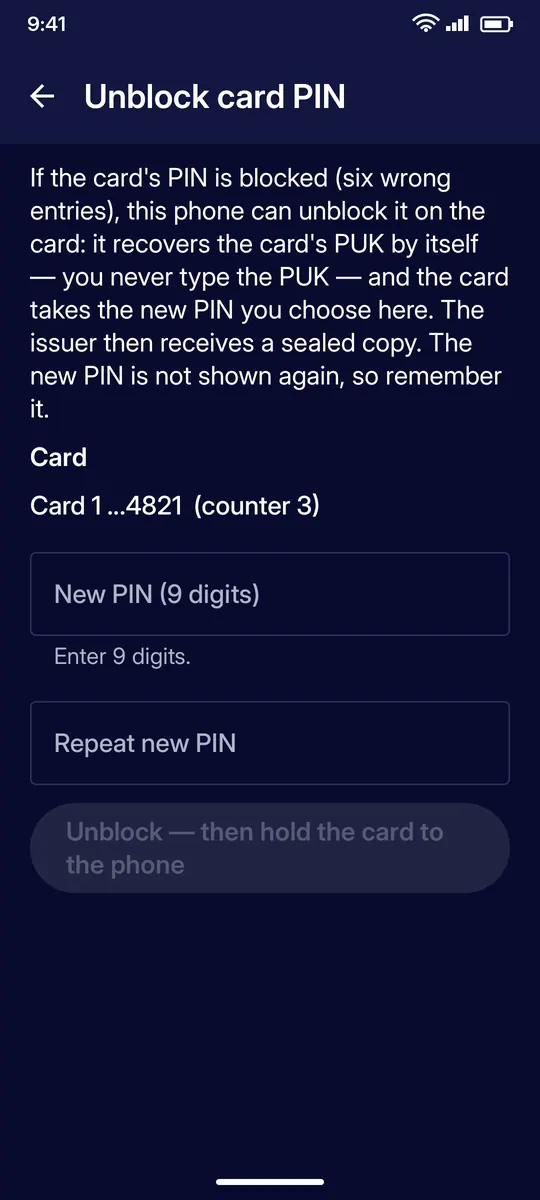
Unblock card PIN
Too many wrong PIN entries in a row block the card PIN. Unblock card PIN (PUK) unblocks it: choose a new PIN, repeat it, then hold the card to the phone.
Step 7
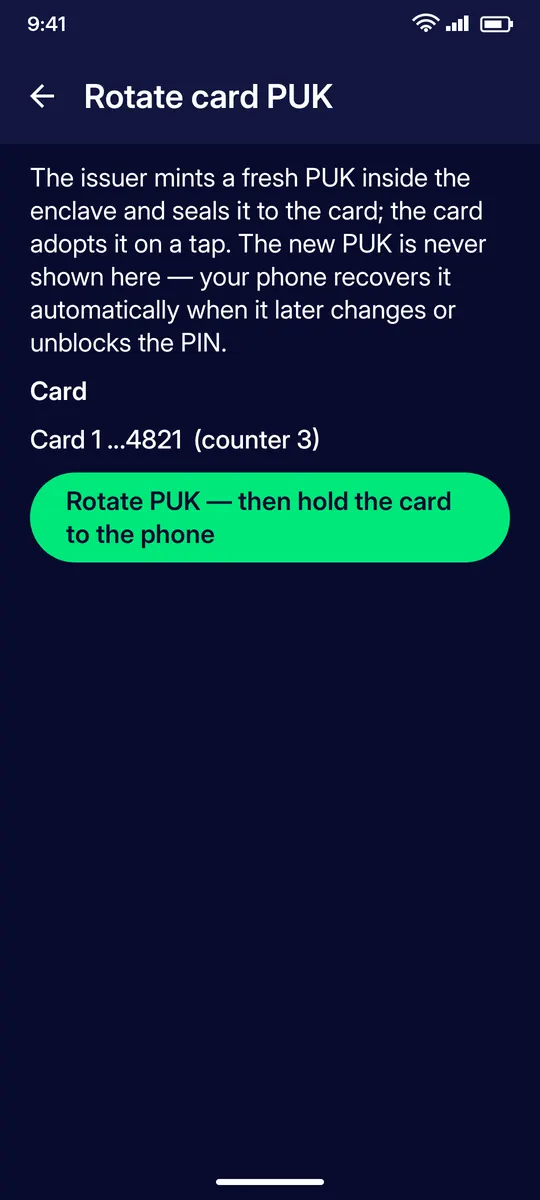
Rotate card PUK
The issuer creates a new PUK and stores it on the card when you hold it to the phone. You never need to see it: your phone recovers it when it later changes or unblocks the PIN.
Step 8
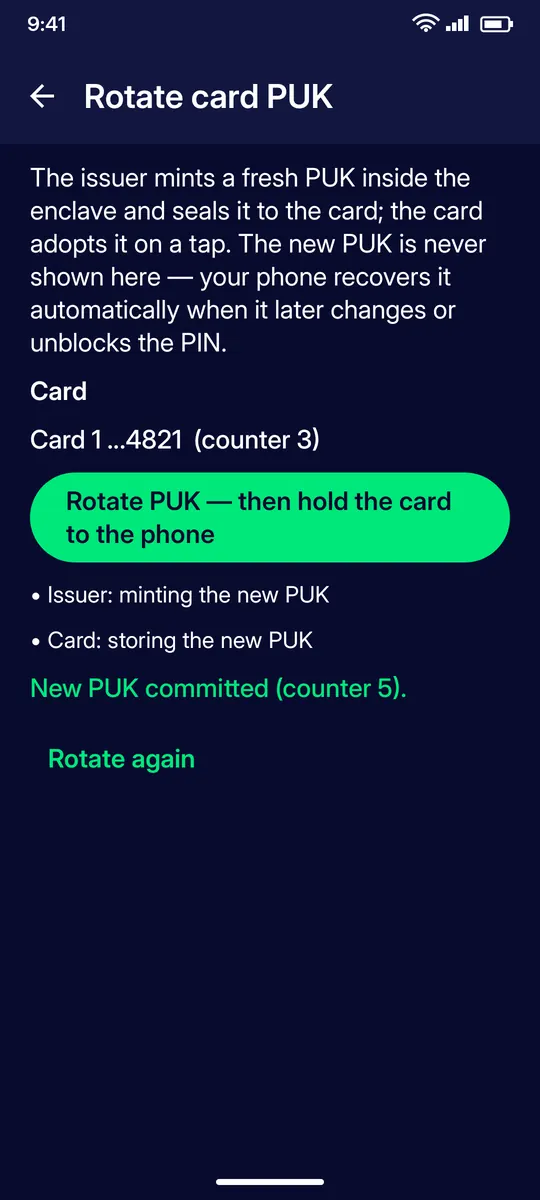
New PUK committed
The new PUK is stored on the card. You can rotate again at any time.
Step 9
Report a card lost or stolen
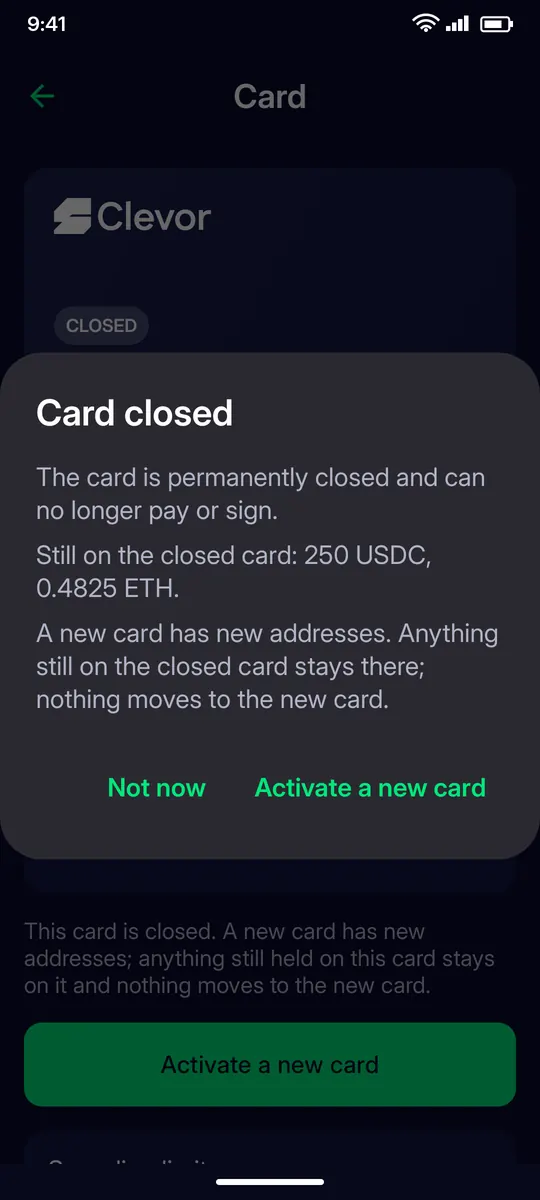
Tap Report lost or stolen, choose the reason, answer Close this card permanently?, tick I understand this cannot be undone and tap Close card permanently. A closed card can no longer pay or sign and keeps its slot; Activate a new card puts the new card on a new slot. The money on the closed card is lost: only the card can move it, and Clevor cannot recover it or move it to a new card.
If something goes wrong
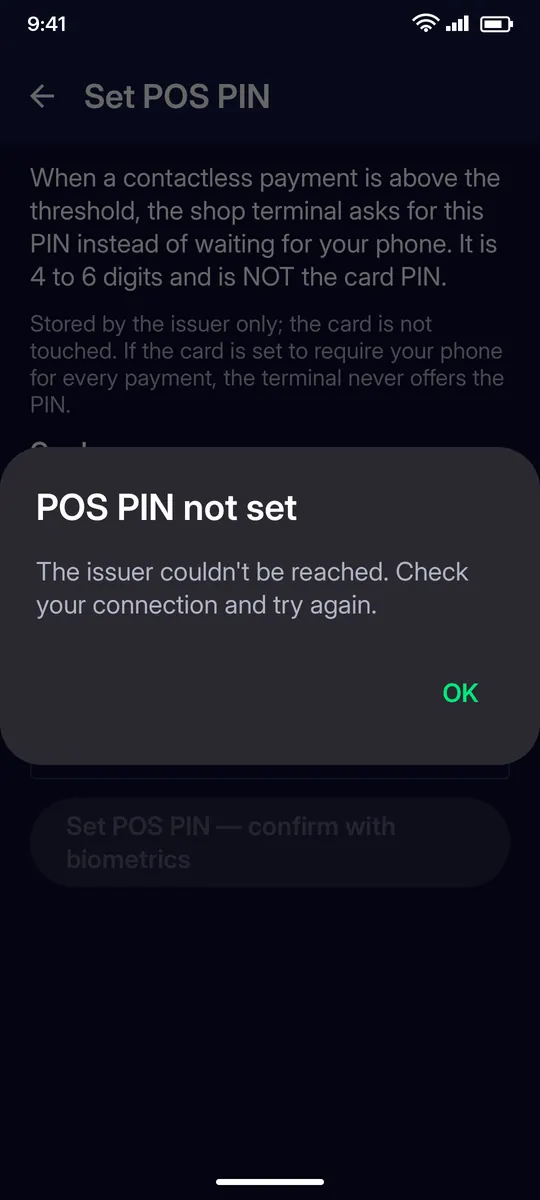
POS PIN not set
The issuer couldn’t be reached. Check your connection and set the POS PIN again.
FAQ
Questions
What should I do if I misplace my card?
Tap Freeze card at once: payments are refused until you unfreeze it. If the card is lost for good, report it lost or stolen; a closed card can no longer pay or sign, and the money on it is lost. Keep only what you can afford to lose on a card.
How long is the card PIN?
9 digits. Too many wrong entries in a row block the card PIN until you unblock it in the app with Unblock card PIN (PUK). The card PIN is never asked at shops; the terminal uses your separate POS PIN.
I forgot my card PIN. What can I do?
Use Change card PIN to set a new one; the phone recovers the card’s PUK by itself. If the PIN is already blocked, use Unblock card PIN (PUK). The result screen shows the new PIN once.
Do I ever need to type the PUK?
No. Your phone recovers the PUK from the issuer when the PIN is changed or unblocked, and Rotate card PUK replaces it with a new one.
What happens to the funds on a closed card?
They are lost. Only the card can move them, and Clevor cannot recover them or move them to a new card. Keep only what you can afford to lose on a card, and freeze a misplaced card at once.
The app says the issuer has not received a copy of my new PIN or PUK. What now?
After a PIN change, an unblock or a PUK rotation the issuer keeps a sealed copy. If the app says the copy did not arrive, open the card page and tap Send it to the issuer again.