Clevor App · Android

Set up and use your Clevor card from your phone

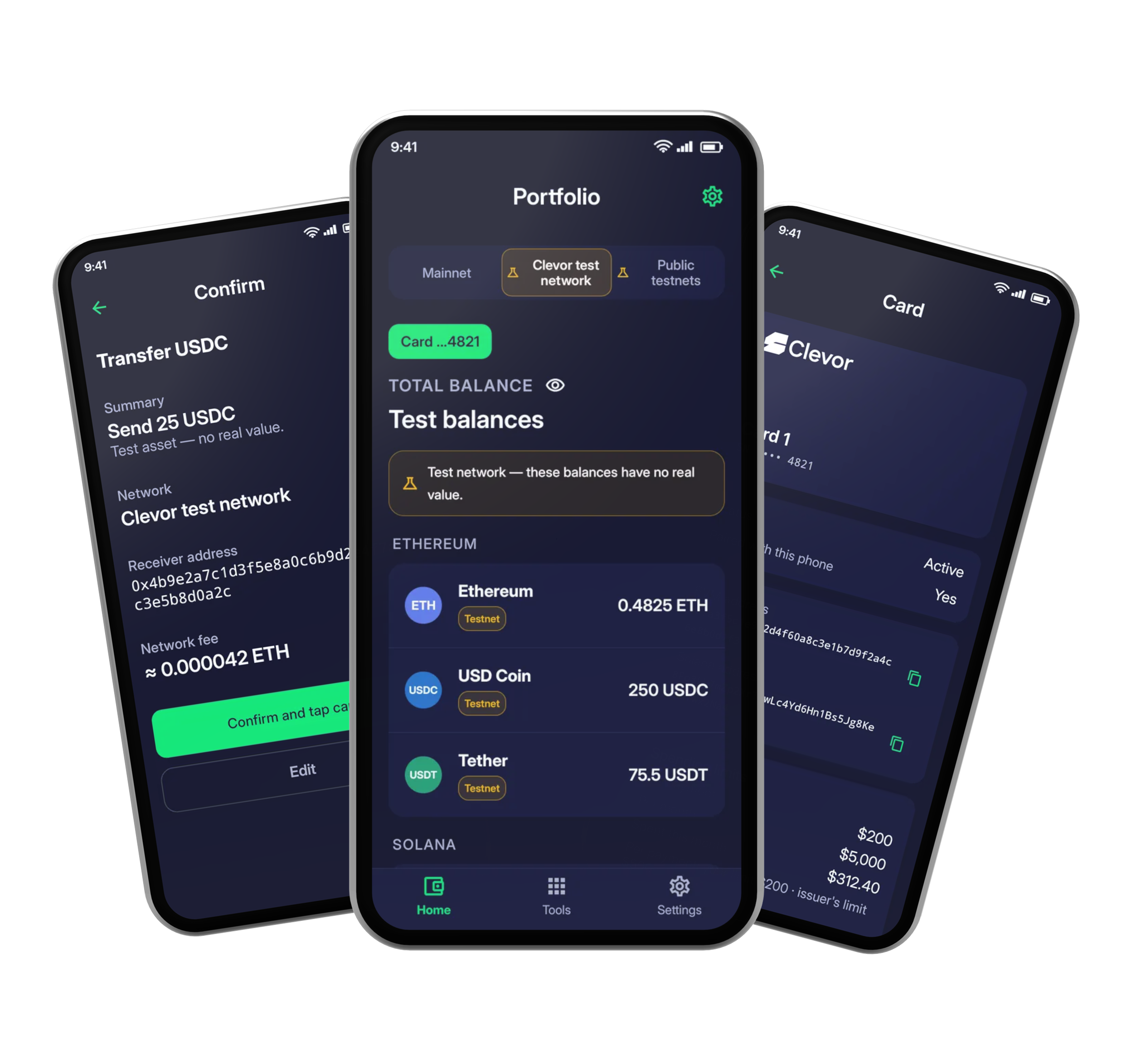
The Clevor app activates your card, shows your balances, prepares payments and approves larger purchases. The card does the signing: every payment is signed by the chip in your card and authorised by the Clevor issuer. The app never holds a private key.


Free on Google Play · Requires a Clevor card and an Android phone with NFC.

13 short tutorials, two to five minutes each, from your first sign-in to accepting payments as a merchant.

The screens were captured on the Clevor test network, which is why balances carry a “Testnet” badge. Test balances have no real value.

Tutorials

Pick a tutorial

Start with your account and card activation, then go wherever you need: paying, sending, managing the card, running a terminal.

01

→

Create your Clevor account

Sign up with your email, confirm the code and set up two-step verification.

02

→

Activate your Clevor card

Tap the card or enter its serial, let the issuer prepare it and finish with a tap.

03

→

Pair your phone with your Clevor card

Register a new phone with a card that was already activated.

04

→

Your portfolio: balances, addresses and receiving

Read your balances per network, copy your address and receive with a QR code.

05

→

Send crypto with your Clevor card

Enter, confirm, tap: the card signs and the issuer broadcasts.

06

→

Transaction history in the Clevor app

Find, filter and inspect every payment and transfer per asset.

07

→

Pay in shops and approve larger payments

Tap to pay, and approve payments above your limit on your phone or with a POS PIN.

08

→

Manage your card: freeze, PIN, PUK and limits

Freeze a card, check limits, change or unblock the PIN, rotate the PUK.

09

→

Accept payments: turn your phone into a Clevor terminal

Register your business and take Clevor card payments on your phone.

10

→

Sign messages and connect to dApps with WalletConnect

Prove you control your address and use your card with dApps.

11

→

Settings and security in the Clevor app

Personal details, currency, address book, passcode, two-step verification and passkeys.

12

→

Delete your Clevor account

What deletion removes, what the issuer keeps, and how to cancel.

13

→

Troubleshooting the Clevor app

What the most common messages mean and what to do.

Get the App

Ready to tap?

Install the Clevor app on your Android phone, create your account and activate your card in minutes. No card yet? Join the waitlist.