Accept payments: turn your phone into a Clevor terminal
Any Android phone with the Clevor app can become a Clevor terminal. Buyers pay by holding their Clevor card to the back of your phone; payments settle to your card’s address.
Before you start: A Clevor account with an activated card (its address receives the payments), an Android phone with NFC, and the coin and network you want to accept.
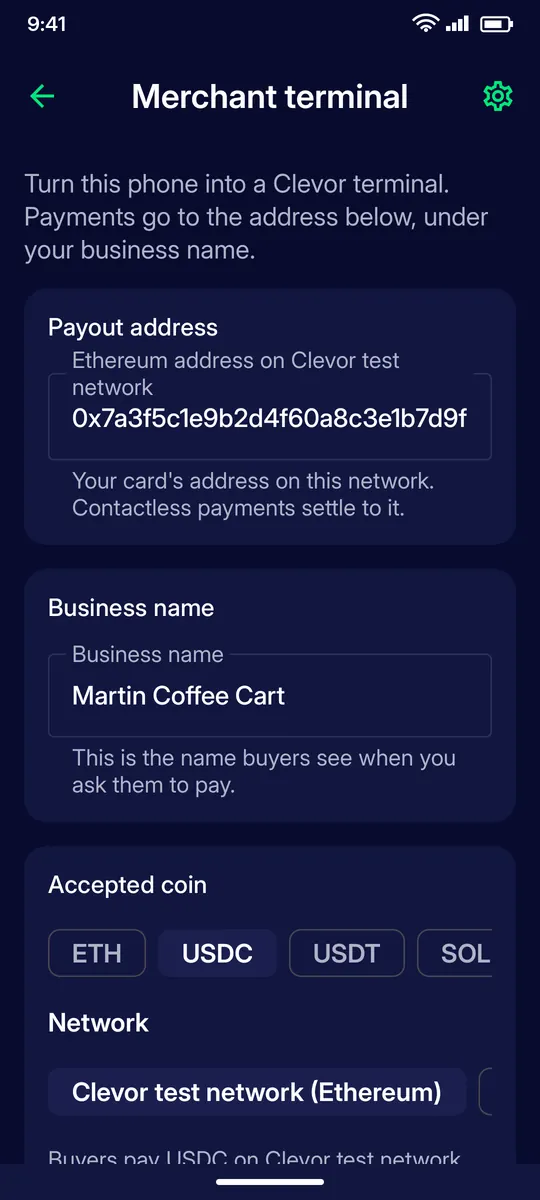
Open Tools › Merchant terminal. Confirm the payout address (your card’s address on the chosen network), enter the business name buyers will see, and pick the accepted coin and network.
STEP 2
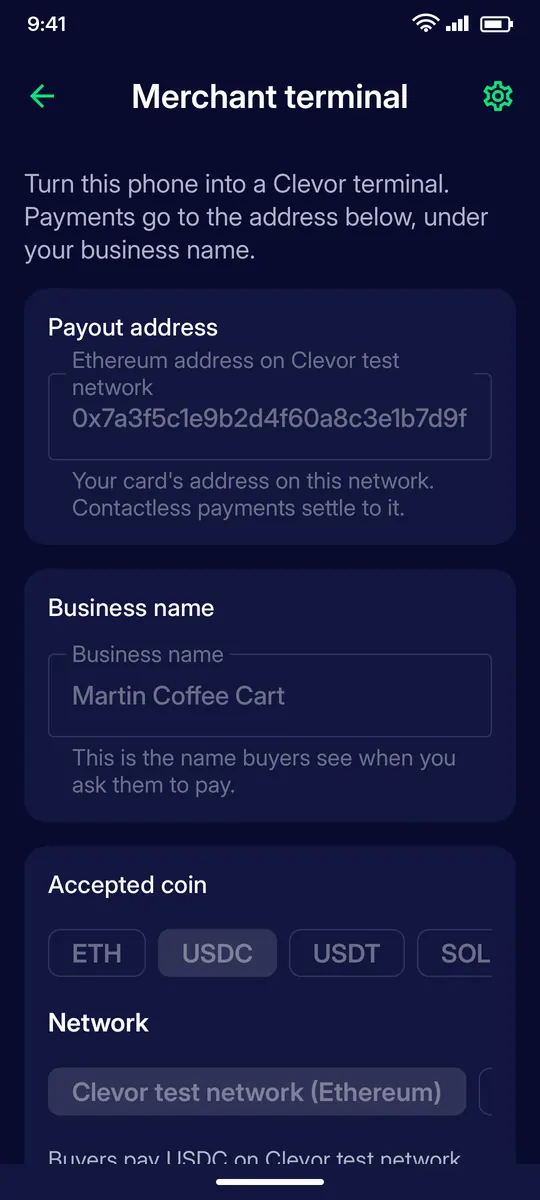
Registering
The app registers the terminal with the issuer. Wait for the confirmation before you charge the first payment.
STEP 3
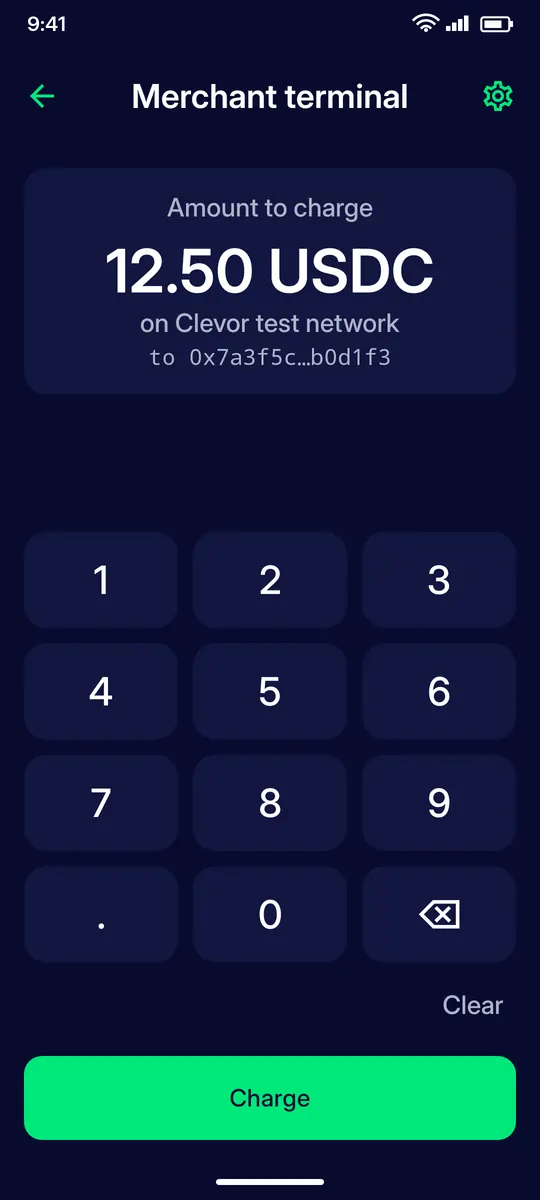
Charge an amount
Type the amount to charge and tap Charge.
STEP 4
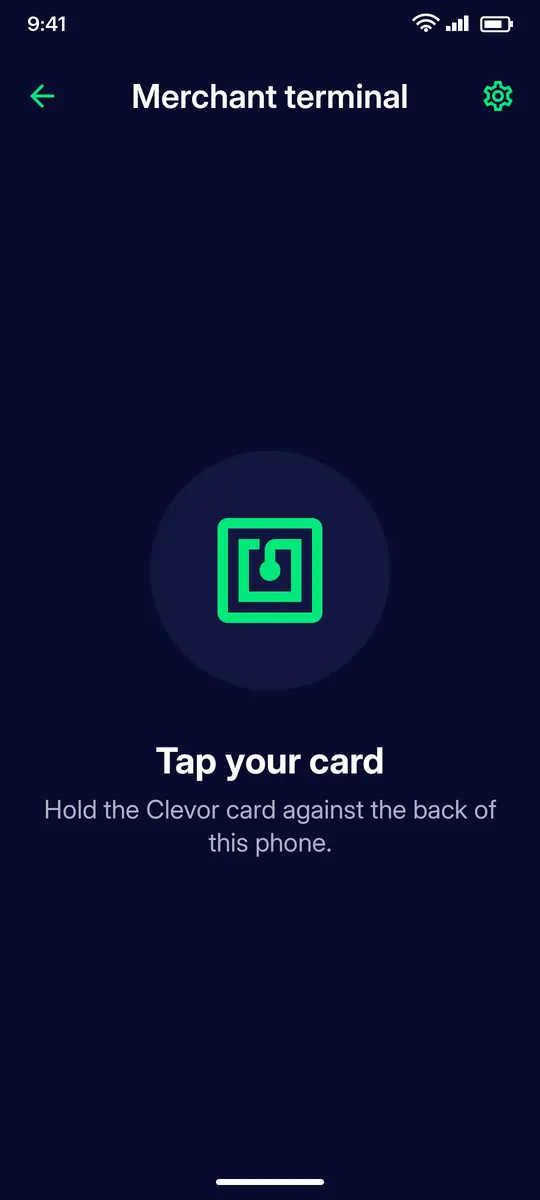
The buyer taps the card
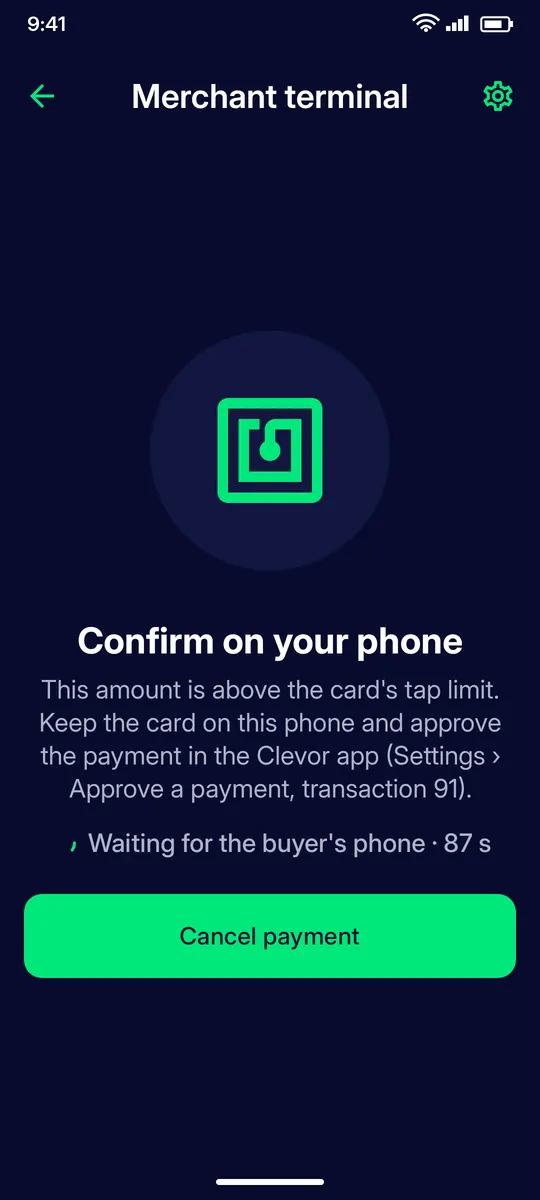
Ask the buyer to hold their Clevor card against the back of your phone and keep it there.
STEP 5
Above the tap limit
If the amount is above the card’s tap limit, the buyer either approves the payment in their own Clevor app or types their POS PIN on your phone. The payment is held for a short time; you can cancel it.
STEP 6
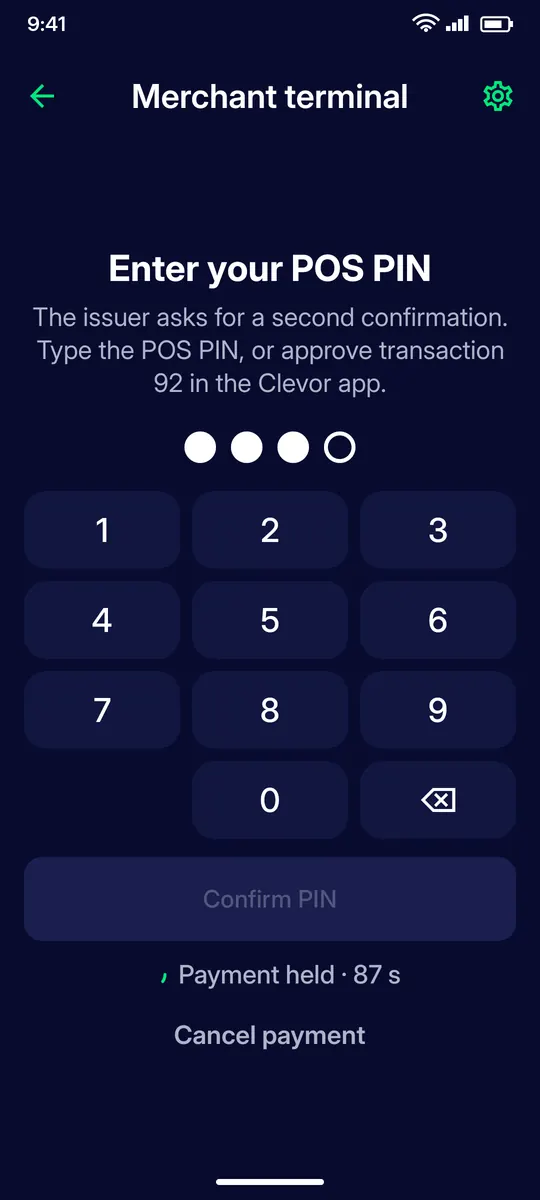
POS PIN entry
The buyer enters their POS PIN on your phone, or approves the transaction number shown in their Clevor app.
STEP 7
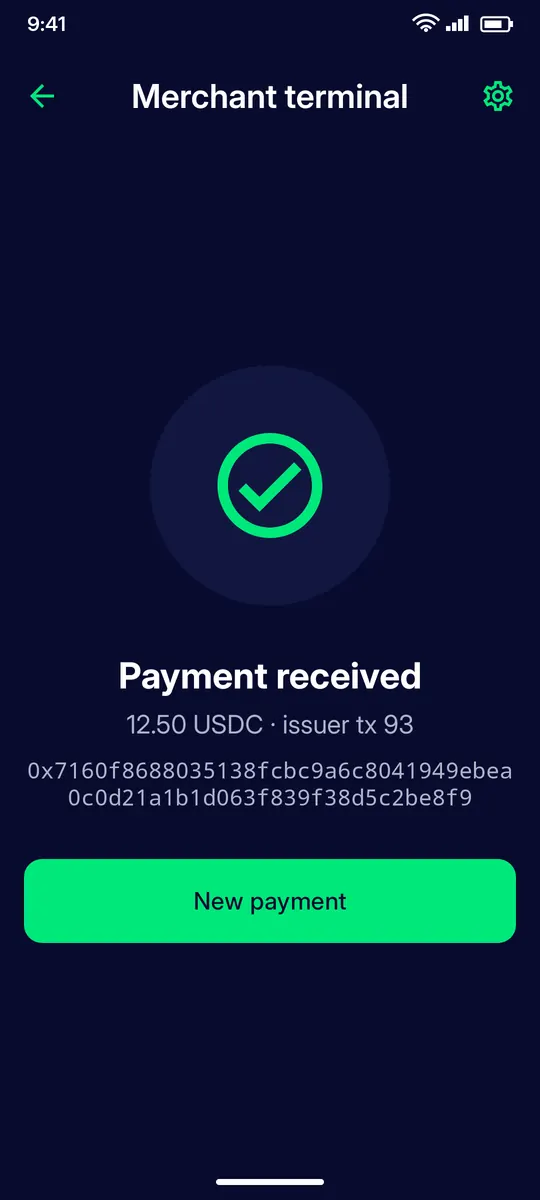
Payment received
The amount, the issuer transaction number and the hash are shown. Tap New payment for the next customer.
STEP 8
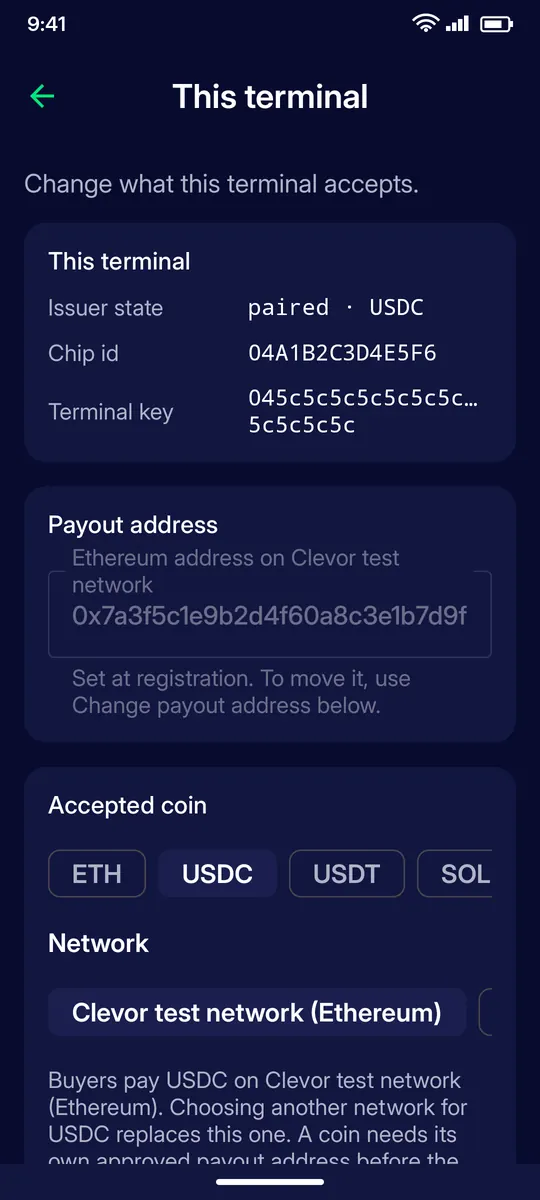
Terminal settings
The gear icon opens This terminal: issuer state, chip id and terminal key, the payout address, and the accepted coin and network.
IF SOMETHING GOES WRONG
If something goes wrong
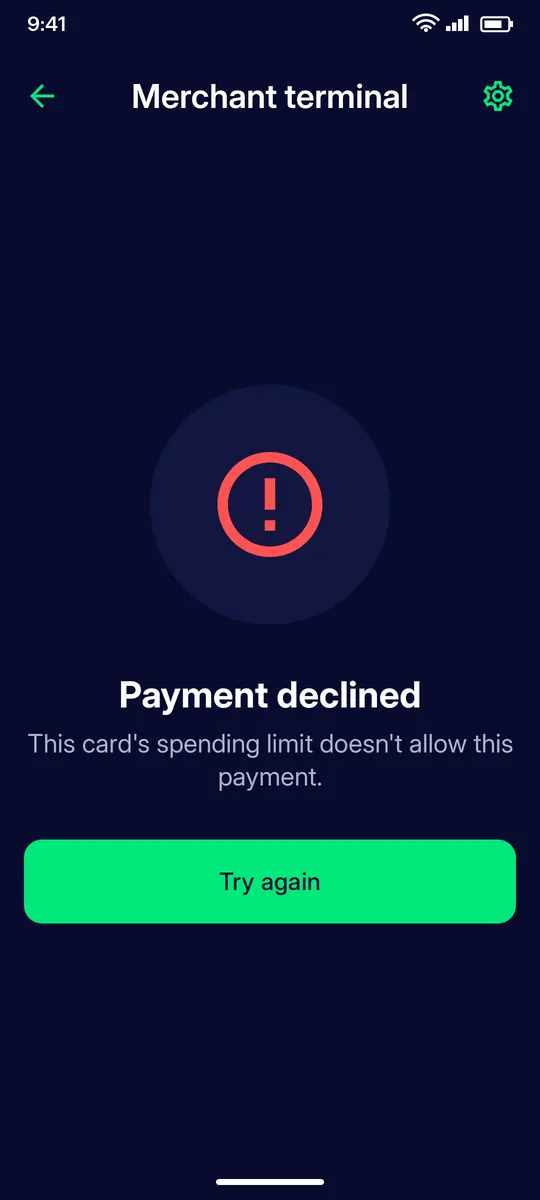
Payment declined
The card’s spending limit does not allow this payment. The buyer can raise their limit or pay another way; tap Try again.
QUESTIONS
Questions
What do I need to accept Clevor payments?
An Android phone with NFC, the Clevor app, a Clevor account with an activated card, and a terminal registered under Tools › Merchant terminal.
Where does the money go?
To the payout address set at registration: your card’s address on the chosen network.
Which coins can I accept?
You pick the accepted coin and its network when you register the terminal. Choosing another network for a coin replaces the previous one.
What if the amount is above the buyer’s tap limit?
The buyer either approves the payment in their own Clevor app or types their POS PIN on your phone. The payment is held for a short time and you can cancel it.
Why was a payment declined?
The buyer’s card spending limit did not allow it. Tap Try again or let the buyer pay another way.