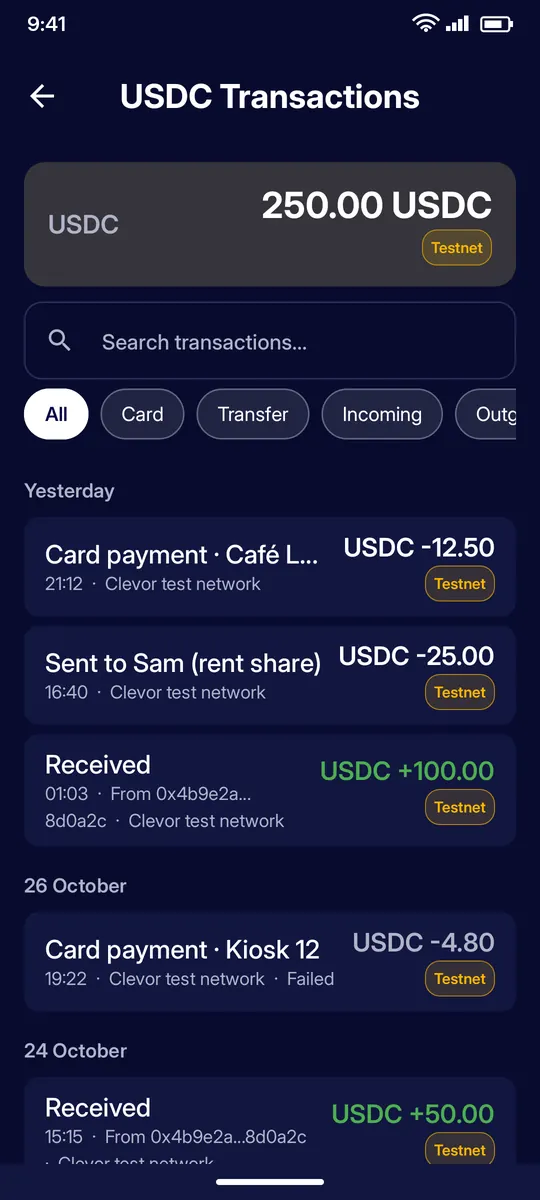
Open an asset and tap History. Filter by All, Card, Transfer, Incoming or Outgoing, or search. Entries are grouped by day; failed payments are marked.
STEP 2
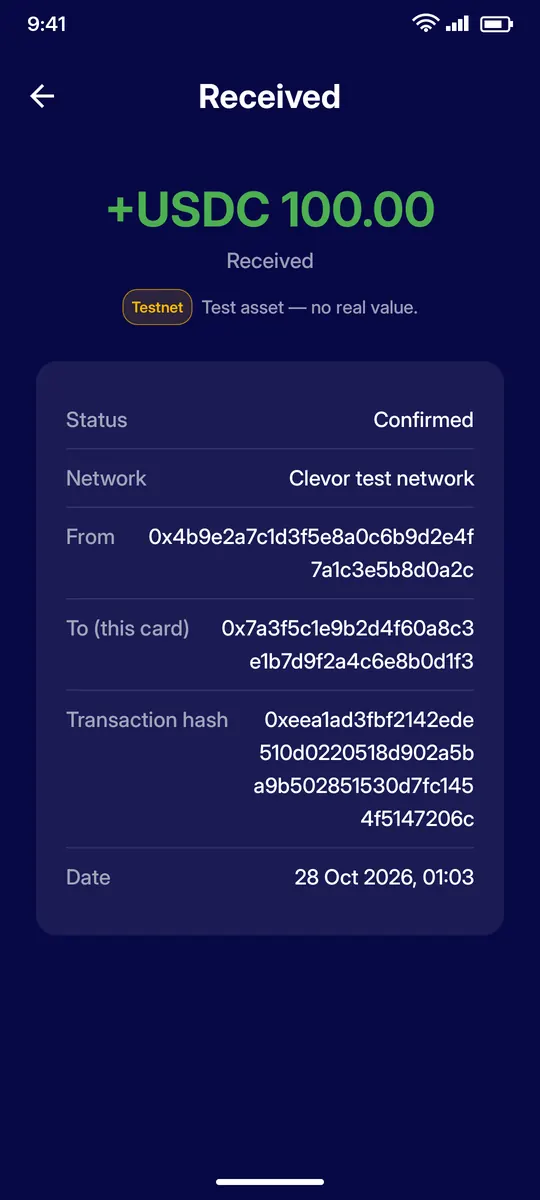
Transaction detail
Tap an entry for its status, network, sender and receiver addresses, transaction hash and date.
STEP 3
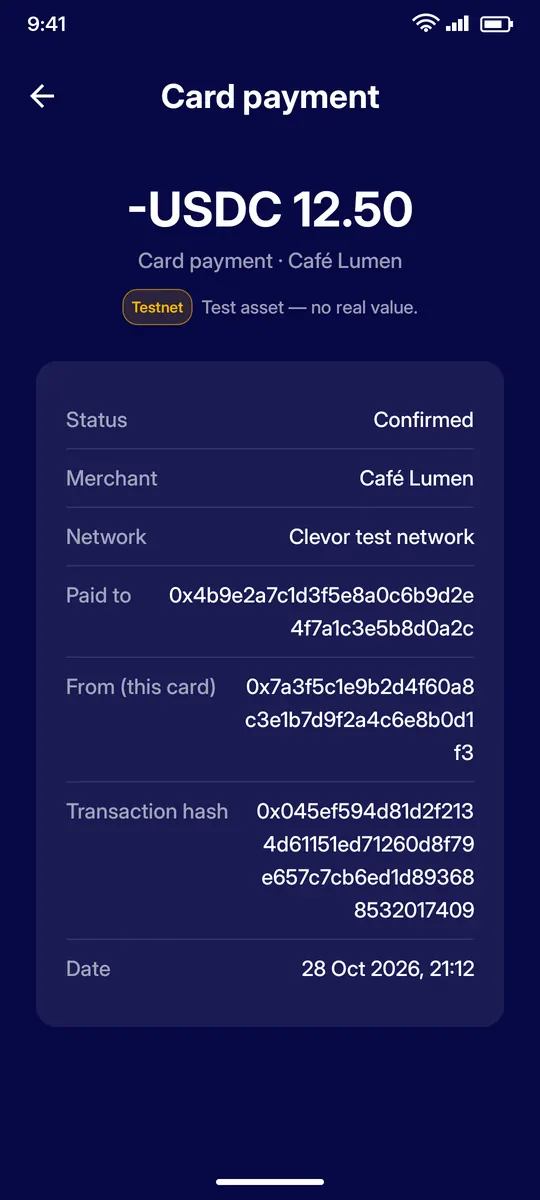
Card payment detail
Payments made by tapping your card at a terminal show the merchant name, the address paid, the hash and the date.
IF SOMETHING GOES WRONG
If something goes wrong
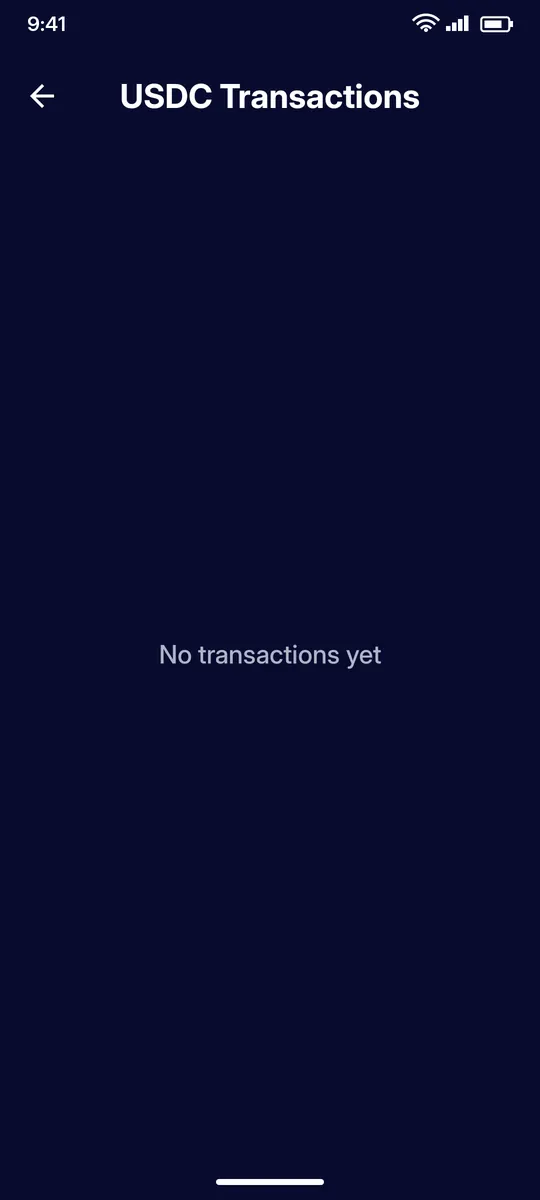
No transactions yet
A new card shows an empty history until the first payment or incoming transfer.
QUESTIONS
Questions
Where is my transaction history?
Open an asset from the portfolio and tap History. Entries are grouped by day.
What do the filters mean?
Card shows payments made by tapping your card at a terminal, Transfer shows transfers sent from the app, and Incoming and Outgoing filter by direction.
Can I see the transaction hash?
Yes. Tap an entry for its status, network, addresses, transaction hash and date.
What does a failed entry mean?
A payment that was not completed. It stays in the list for your records; open it for the details.