A new card is activated once, with the card in your hand. The app reads the card, the issuer prepares it, and the card’s keys are written during a final tap. The same step pairs your phone with the card.
Before you start: Your Clevor card, a signed-in Clevor account and an Android phone with NFC switched on.
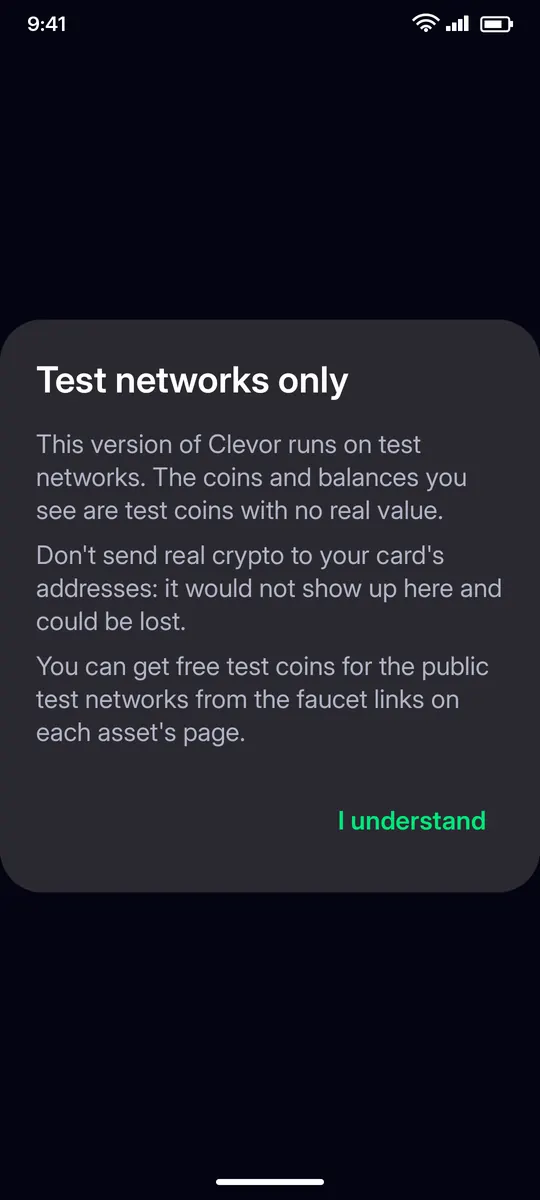
If this version of the app runs on test networks, a notice says so when you first sign in: the coins and balances you see are test coins with no real value. Tap I understand.
STEP 2
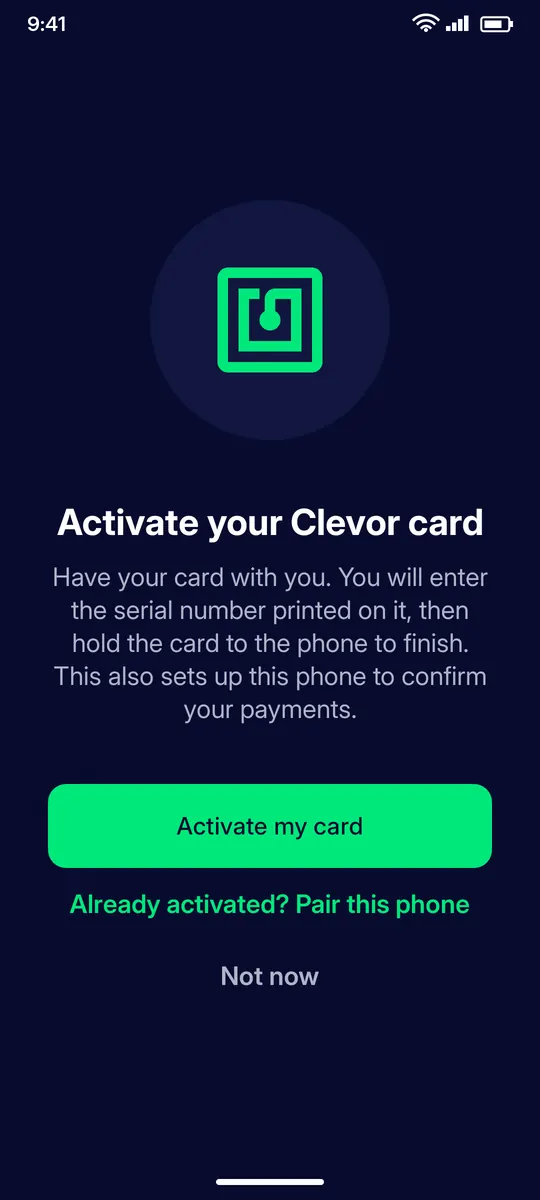
Start the activation
The app offers Activate my card. Have your card with you. If the card was already activated on another phone, choose Already activated? Pair this phone instead.
STEP 3
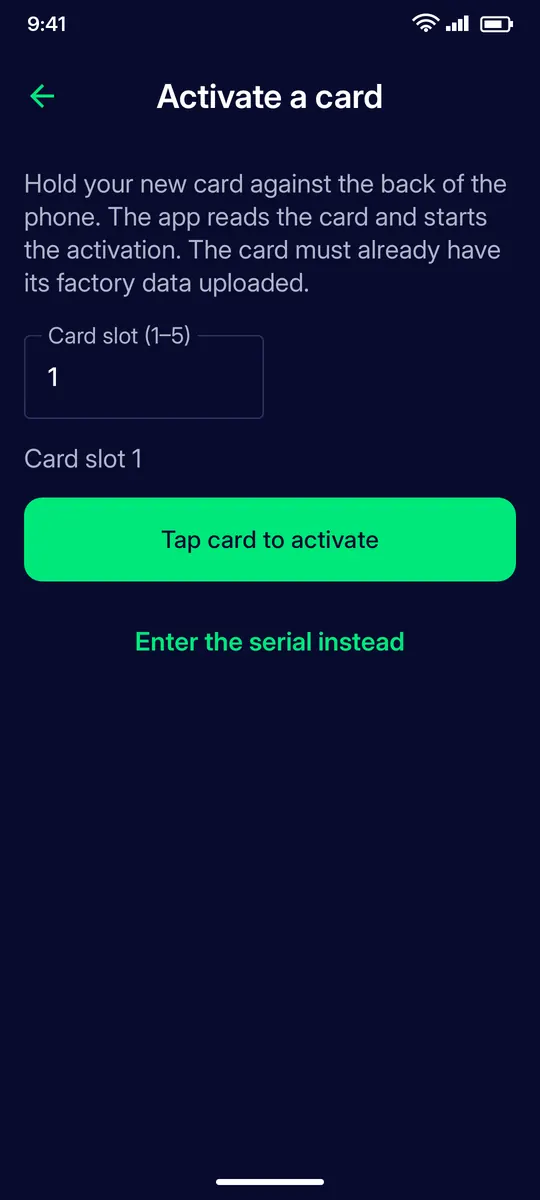
Tap the card…
Choose a card slot (1–5: one account holds up to five cards), tap Tap card to activate and hold the card against the back of the phone.
STEP 4
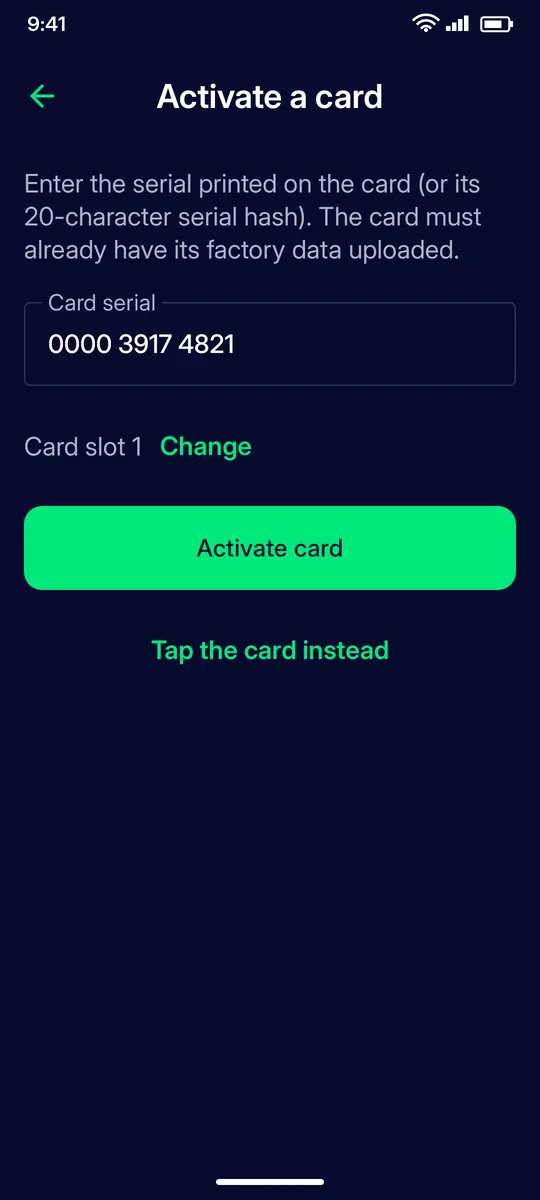
…or enter the serial
No NFC read? Tap Enter the serial instead, type the serial printed on the card (or its 20-character serial hash) and tap Activate card.
STEP 5
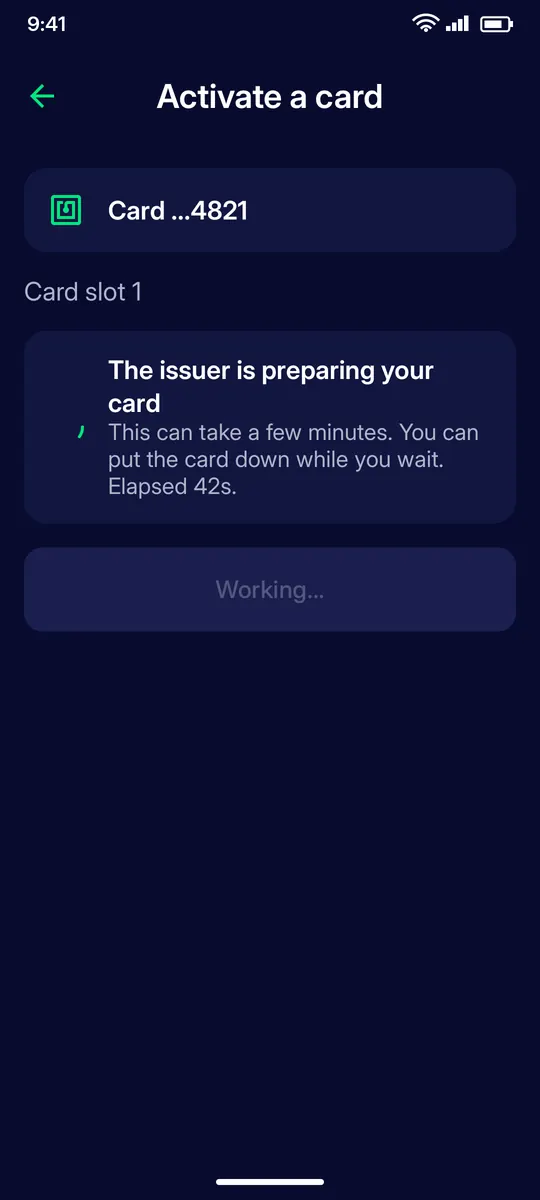
The issuer prepares your card
This can take a few minutes. You can put the card down while you wait; the screen shows the elapsed time.
STEP 6
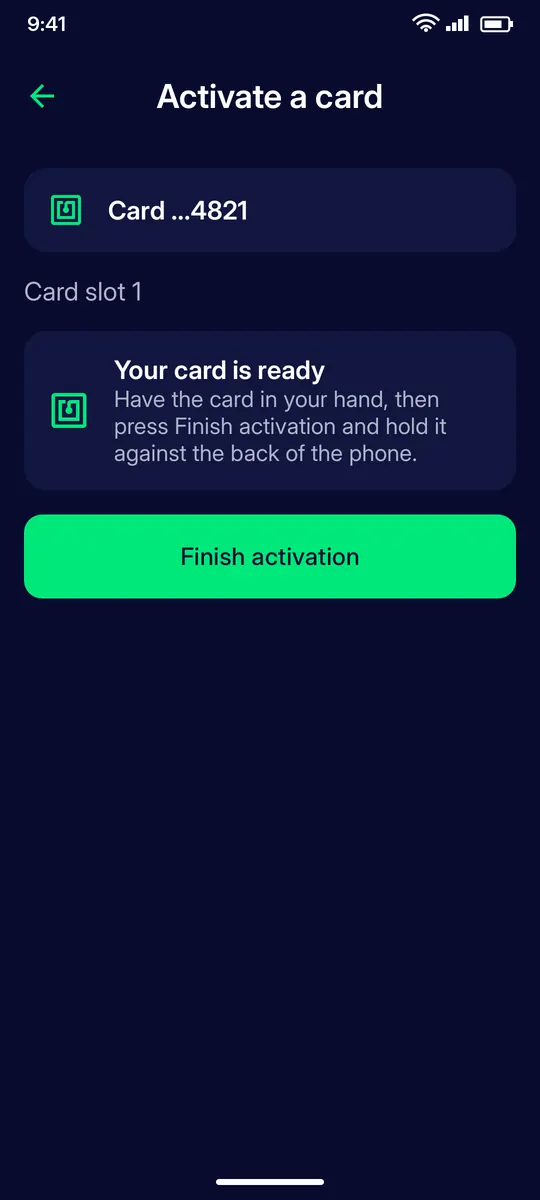
Your card is ready
Take the card in your hand, tap Finish activation and hold it against the back of the phone.
STEP 7
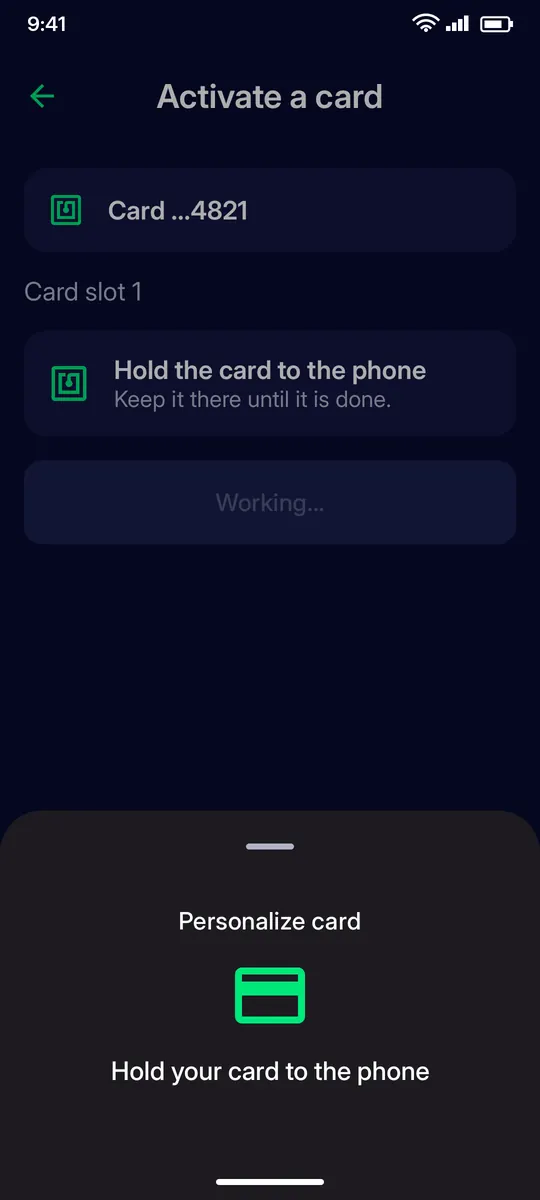
Hold the card to the phone
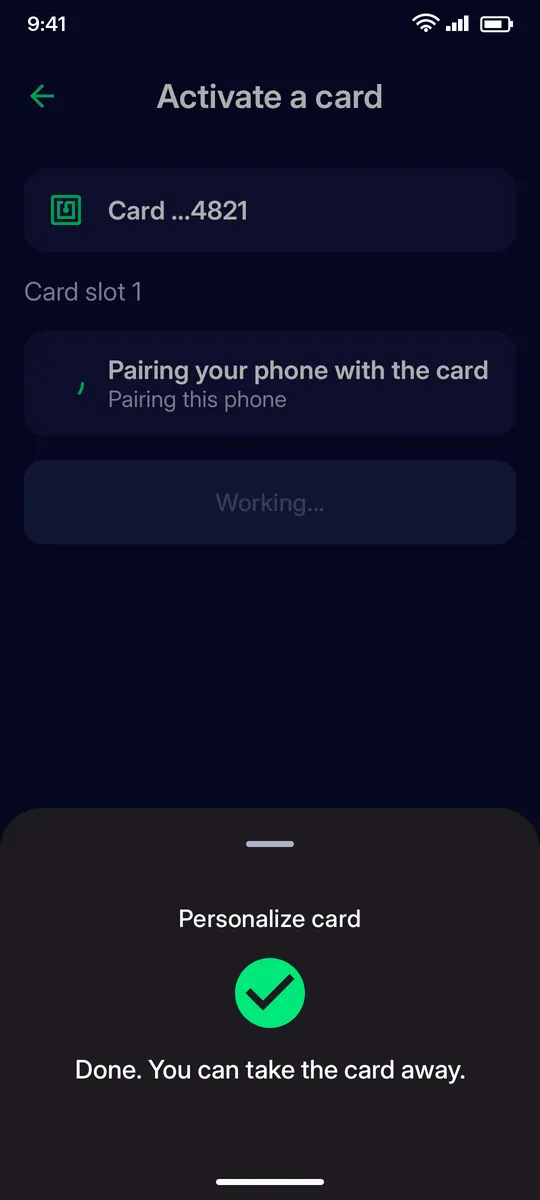
A sheet asks you to hold the card to the phone. Keep it there until the sheet says it is done.
STEP 8
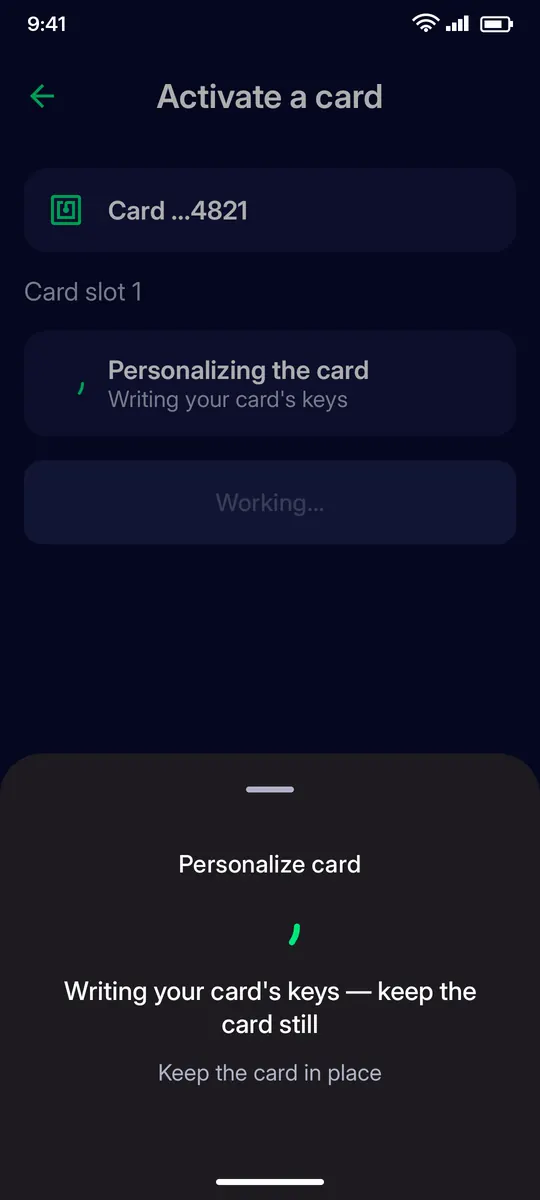
Personalising the card
The card’s keys are being written. Keep the card still and in place.
STEP 9
Done
“Done. You can take the card away.” The app then pairs this phone with the card.
STEP 10
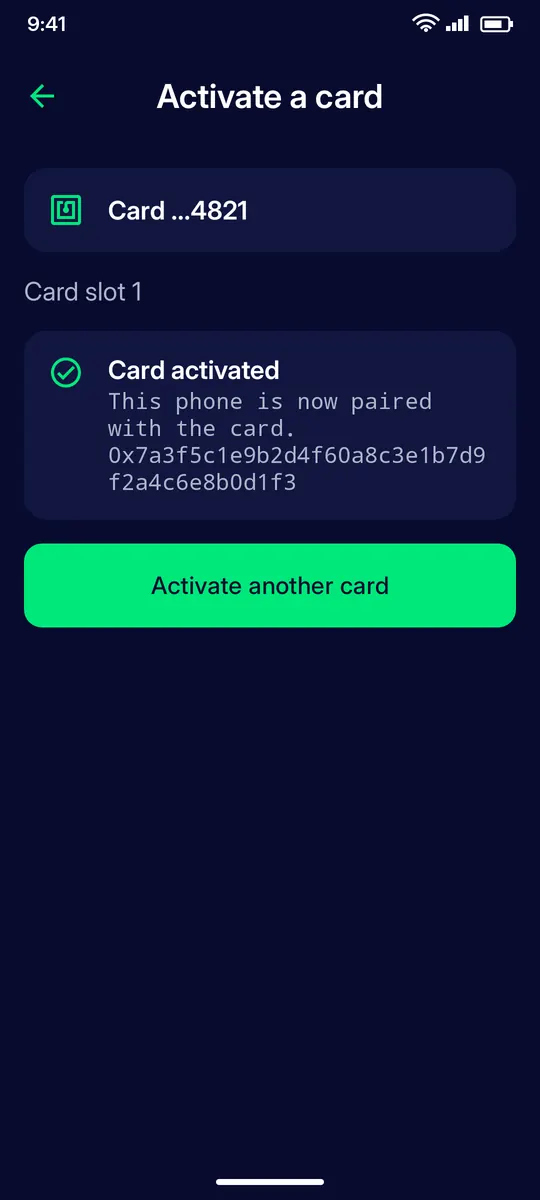
Card activated
This phone is now paired with the card and your card’s address is shown. Tap Activate another card to add a second one, or go to your portfolio.
IF SOMETHING GOES WRONG
If something goes wrong
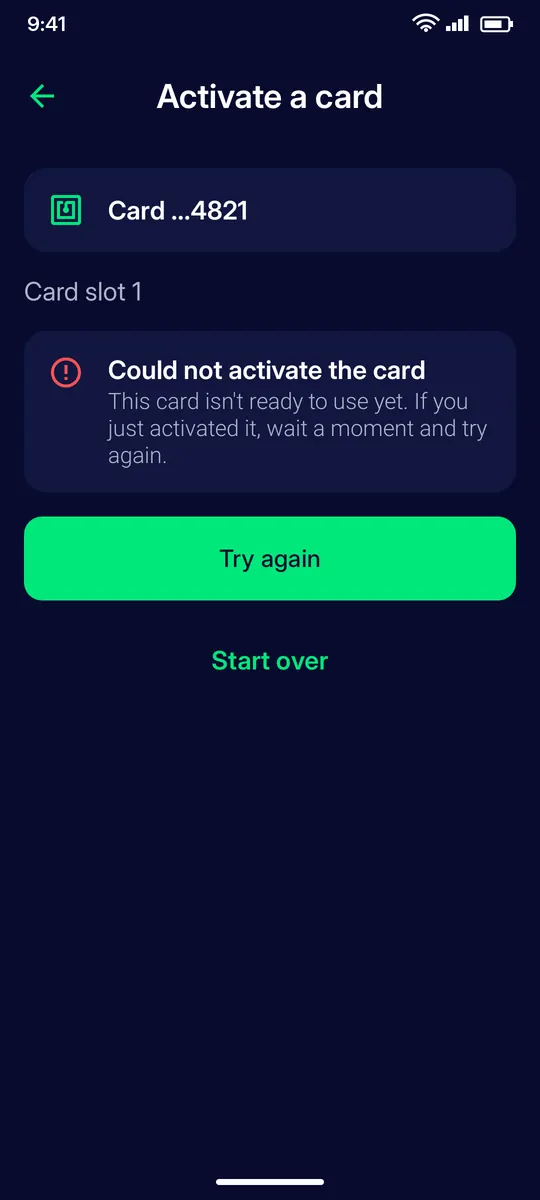
Could not activate the card
The card is not ready to use yet. If you just activated it, wait a moment and tap Try again; Start over restarts the activation from the beginning.
QUESTIONS
Questions
What do I need to activate a Clevor card?
The card itself, an Android phone with NFC, the Clevor app and your Clevor account. The serial you may be asked for is printed on the card.
How long does activation take?
The issuer prepares the card in a few minutes; the screen shows the elapsed time and you can put the card down while you wait. The final tap takes a few seconds.
The app says the card could not be activated. What should I do?
The card is not ready yet. Wait a moment and tap Try again, or tap Start over to restart the activation.
Does activation also pair my phone?
Yes. After the card’s keys are written, the app pairs this phone with the card and shows your card’s address.
Can I activate the card without tapping it?
You can start the activation by entering the serial printed on the card, but the final step writes the card’s keys and needs the card held to the phone.